
Hello, and welcome to the first lesson. This opening module builds a lightweight “research workbench”: a note system that supports learning core AI/ML ideas now and collecting credible research evidence later. The aim is not to build a beautiful second brain or a complicated productivity system. It is to make it easy to capture an idea, understand a paper, record an experiment, and revisit what matters.
Today you will create a minimal Obsidian vault with four reusable note types: concepts, papers, experiments, and reviews. Keep the standard deliberately low: if a system takes too much effort to maintain, it will not survive busy weeks.
By the end, you will have a working vault and templates you can reuse throughout this course and during PhD preparation.
The 80/20 vault: structure that stays usable
An Obsidian vault is simply a folder on your computer containing ordinary note files. This matters: your notes remain yours, work offline, and can be backed up like any other folder. You do not need to understand Obsidian’s graph view, plugins, or advanced metadata to start.
Create a vault - Obsidian Help
Read Obsidian Help’s short “Create a vault” guide to establish the basic mental model: a vault is a local folder, not a locked-in online workspace.
Read the opening explanation of what a vault is. Then follow either “Create empty vault” or “Open existing folder.” For a fresh research-learning system, use “Create empty vault,” name it something clear such as AI-PhD-Lab, and choose a location you will back up regularly.
Create these folders inside the vault:
00 Inbox
10 Concepts
20 Papers
30 Experiments
40 Reviews
90 Templates
The numbers keep folders in a stable, readable order. Their purposes are:
| Folder | Put this there | Rule |
|---|---|---|
| 00 Inbox | Fast captures, links, half-formed questions | Capture first; organise later. |
| 10 Concepts | One idea per note, such as gradient descent or overfitting | Explain it in your own words. |
| 20 Papers | Structured notes about research papers | Record claims and evidence, not copied text. |
| 30 Experiments | Plans, results, plots, decisions, failed runs | Make future-you able to reconstruct what happened. |
| 40 Reviews | Weekly reviews and retrieval prompts | Revisit and connect important notes. |
| 90 Templates | Reusable blank note structures | Do not write ordinary notes here. |
Set your default location for new notes to 00 Inbox. This is an intentional low-friction choice. During a study session, the important action is capturing an insight before it disappears; moving a finished note to a more specific folder can happen afterward. If you create a note directly inside another folder, that is also fine.
The folder tree below shows a more elaborate research-project hierarchy, with each project containing notes, archives, analysis, sources, and related materials.

That structure can be useful for a large, active project. Do not begin there. Deep hierarchies create a recurring question—“which exact folder does this belong in?”—that can interrupt learning. Start with the six folders above. Later, if one project produces many datasets, figures, scripts, and paper drafts, you can give that project its own subfolder.
A good initial test is simple: can you find a note in under ten seconds using its title, folder, or search? If yes, the system is organised enough.
Turn on templates: remove the blank-page problem
A template is a reusable note skeleton. It does not write your thinking for you; it removes repeated setup decisions. Every paper note, for example, should prompt you for the research question, method, evidence, and limitations. That makes comparisons much easier months later.
Watch this short demonstration before configuring yours.
How to Create and Use Obsidian Templates
In “How to Create and Use Obsidian Templates,” Vladimir Campos demonstrates the complete basic workflow: make a template folder, create a template note, and insert it into a new note.
Watch template setup to see the dedicated folder and setting. Continue with template creation, noticing that a template is just an ordinary note containing a repeatable structure. Finish with template insertion to see how that structure is applied to a new note.
Now configure the feature yourself:
- Open Settings.
- Under Core plugins, ensure Templates is enabled.
- Open the Templates settings.
- Set Template folder location to
90 Templates. - Optionally assign a shortcut for Templates: Insert template. Choose a shortcut you will not press accidentally.
- When editing template files, use Source mode if Obsidian’s properties interface makes the top section look confusing.
Use the official Obsidian Help page as the reliable reference for configuring Templates and understanding the dynamic fields you will use in every template.
In “Set your template folder,” follow the instructions for choosing the folder; enter 90 Templates. Then read “Template variables,” focusing on dynamic information: {{title}} becomes the note title and {{date}} becomes today’s date when you insert a template. Finally, in “Create a template,” locate the explanation beginning how templates are made. You need only this core workflow for now.
The small amount of “metadata” at the top of the templates below is called properties or frontmatter. Think of it as a compact label card attached to a note. It allows you to see a note’s type, status, date, or project without reading the whole note.
You do not need dozens of fields. A field should earn its place by helping you find, compare, or act on notes.
Create the four reusable templates
Inside 90 Templates, create four notes with exactly these names:
Concept templatePaper templateExperiment templateReview template
Then paste the corresponding content below into each note. These are starting points, not rules carved in stone. You can revise them after you have used them a few times.
1. Concept template
Create 90 Templates/Concept template.md:
---
type: concept
created: "{{date}}"
status: learning
tags:
  - ai-ml
---

# {{title}}

## In one sentence
Explain this idea as if explaining it to a capable friend outside the field.

## Why it matters
What problem does it help solve?

## Visual model
Add a sketch, diagram, or simple example.

## Tiny worked example
Use numbers, pseudocode, or a short code fragment.

## Common confusion
What is this often confused with?

## Retrieval prompts
- What is the central idea?
- When would I use it?
- What is one limitation or failure case?

## Links
- Related concept: [[]]
- Source or lesson:
This template is designed for atomic concepts: one main idea per note. For example, create separate notes for “precision,” “recall,” and “classification threshold” rather than a giant note titled “evaluation metrics.”
The “retrieval prompts” are especially valuable. Reading feels familiar; answering from memory reveals whether you actually understand. You will build a richer visual concept note in the next lesson, so for now simply make sure the template exists.
2. Paper template
Create 90 Templates/Paper template.md:
---
type: paper
created: "{{date}}"
status: to-read
year:
authors:
venue:
tags:
  - paper
  - ai-ml
---

# {{title}}

## One-minute triage
- Research question:
- Main claim:
- Why might this matter to my interests?

## Method
- Task or environment:
- Data or benchmark:
- Model or intervention:
- Baselines:
- Evaluation metrics:

## Evidence
What result best supports the main claim?

## Limitations stated by the authors
-

## My critical notes
- What is convincing?
- What needs more evidence?
- What assumption might fail elsewhere?

## Useful links
- Related concepts: [[]]
- Related papers: [[]]

## Citation and access
- DOI or URL:
- PDF location:
A paper note is not a transcription of the abstract. Its job is to preserve your interpretation of the paper’s argument and evidence.
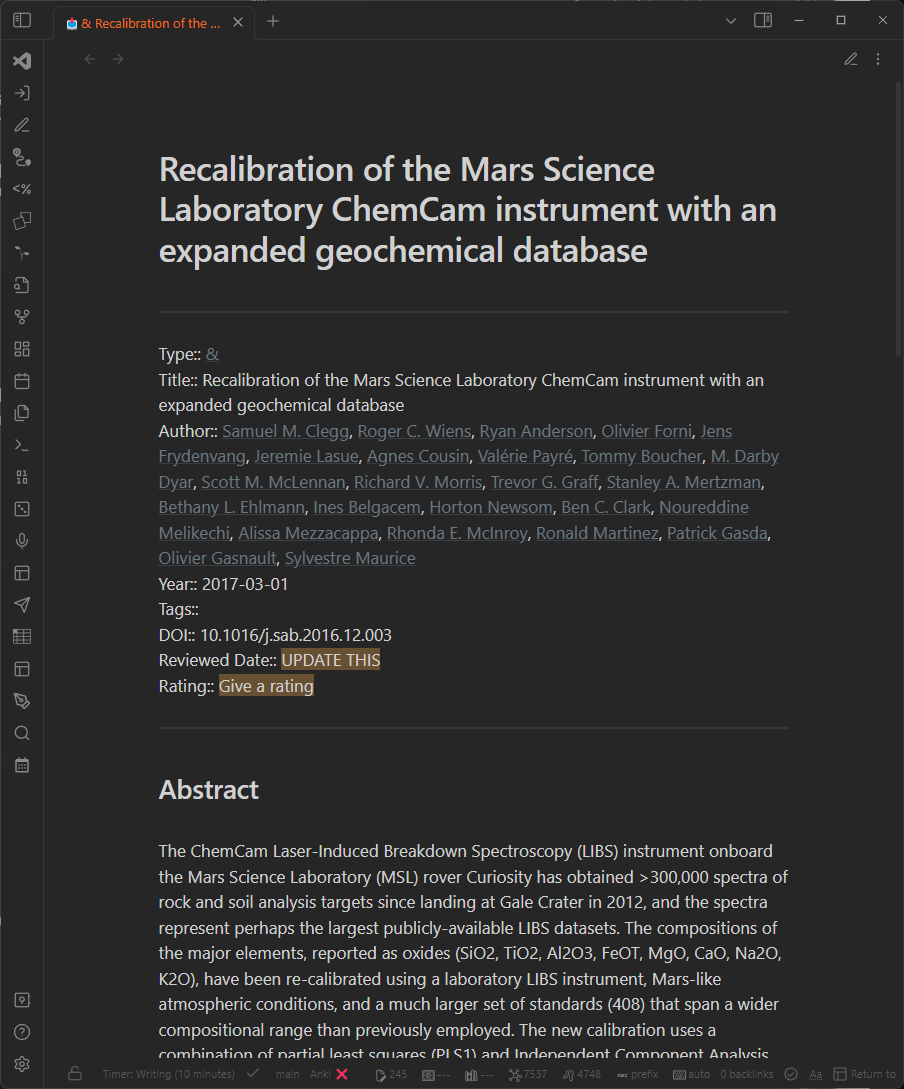
The example shows useful bibliographic metadata and an abstract. Your template goes one step further for research preparation: it makes you record the question, the comparison baseline, the evaluation metric, and a limitation. These are the fields you will eventually need to discuss a paper independently in a PhD interview or research meeting.
For an initial read, it is completely acceptable to fill only One-minute triage, Method, Evidence, and Limitations. Mark the status to-read, skimming, or understood honestly. The note system should show uncertainty rather than hide it.
3. Experiment template
Create 90 Templates/Experiment template.md:
---
type: experiment
created: "{{date}}"
status: planned
project:
repository:
commit:
seed:
tags:
  - experiment
---

# {{title}}

## Question
What are you trying to find out?

## Hypothesis
If I change ______, I expect ______ because ______.

## Baseline
What is the comparison system or previous result?

## One change in this run
Describe the single main intervention.

## Setup
- Environment or dataset:
- Model:
- Key settings:
- Evaluation metric:
- Random seed:

## Results
- Main metric:
- Important observation:
- Saved outputs or plot:

## Interpretation
What can the result support? What can it not support?

## Next decision
- [ ] Keep
- [ ] Change one thing
- [ ] Repeat with more seeds
- [ ] Investigate an error
- [ ] Stop this direction
This template prevents a common research failure: running many changes at once, seeing a different result, and being unable to explain why it changed. Recording a baseline, one change, and next decision is the 80/20 core of experimental discipline.
You may already have experience modifying a PPO driving agent. A useful experiment title could be:
2026-03-10 Reward shaping: comfort penalty versus original PPO reward
The title identifies the date, intervention, and comparison without requiring you to open the note.
4. Review template
Create 90 Templates/Review template.md:
---
type: review
created: "{{date}}"
period:
tags:
  - review
---

# {{title}}

## What I learned
- Concept:
- Paper:
- Experiment:

## Recall without looking
- A concept I can explain:
- A result I can justify:
- A question I cannot yet answer:

## Connections
- This connects to: [[]]

## Open loops
- [ ] Question to resolve
- [ ] Paper to triage
- [ ] Experiment to rerun
- [ ] Concept to revisit

## Next small action
What is the smallest useful action for the next session?
Use this once per week, or after every five study sessions. A review is not a diary and does not need to be long. Its purpose is to identify what you can explain, what remains fuzzy, and what should happen next.
Use the system once before trusting it
A vault is only “set up” when you have tested the complete loop. Take about five minutes now:
- Create a new blank note in
00 Inbox. - Use Templates: Insert template and choose Concept template.
- Rename the note
Gradient descent. - Confirm that
{{title}}becameGradient descentand{{date}}became today’s date. - Move the completed note to
10 Concepts. - Repeat the insertion process once with each of the other three templates. You only need to check that each appears correctly; you do not need to fill every section yet.
If the raw text {{date}} remains visible after insertion, check that you inserted the template through the Templates command rather than copying its text manually. If Obsidian cannot find templates, return to Settings and verify that 90 Templates is selected as the template folder.
Use the system with three simple habits:
- Capture quickly: Put a fleeting question or useful link in
00 Inbox; do not decide its final location during a focused lesson. - Name notes for retrieval: Prefer
Policy gradientoverWeek 4 notes, andPPO clipping paper — Schulman et al.overInteresting RL paper. - Link only when useful: Add
[[gradient descent]]when two notes genuinely help explain each other. Do not turn linking into a chore.
The vault is a support system for thought, not the research itself. A concise concept note you can retrieve and explain is more valuable than an immaculate vault full of unread material.
What you have built
You now have a minimal, research-oriented Obsidian vault:
- An Inbox for frictionless capture.
- Dedicated locations for concepts, papers, experiments, and reviews.
- Four templates that make important thinking prompts appear automatically.
- A simple review mechanism that converts passive reading into visible questions and next actions.
This structure will be enough for the full course. It can grow when your research work demands it, rather than demanding effort in advance.
Next, you will use the Concept template to create one complete visual concept note: a plain-language definition, a diagram, a small technical example, a common mistake, and retrieval questions.
Can't find a good explanation? Sign up and we'll make it for you
Sign up