
Hello! Let's dive into your next lesson on filtering data in SQL.
Introduction
In our last lesson, we learned how to combine multiple exact-match filters using AND and OR. This is powerful for queries where you know the precise values you're looking for, such as platform = 'iOS' or plan_type = 'premium'.
But what happens when you don't know the exact value, or you want to find a group of related values? For example, as a product designer, you might want to analyze all user actions that involve clicking a button. Your event data might contain names like 'button_click_submit', 'button_click_cancel', and 'button_click_profile'. Filtering with event_name = 'button_click' would miss all of these.
This is where pattern matching comes in.
Lesson Goal: By the end of this 60-minute lesson, you will be able to filter text data using the LIKE operator and wildcard characters to find records that match a specific pattern. This is a crucial skill for analyzing user-generated content, URLs, and inconsistently named events.
1. The LIKE Operator and Wildcards
The LIKE operator is used in a WHERE clause to search for a specified pattern in a column. It allows for more flexible text filtering than the = operator. The real power of LIKE comes from using it with wildcards.
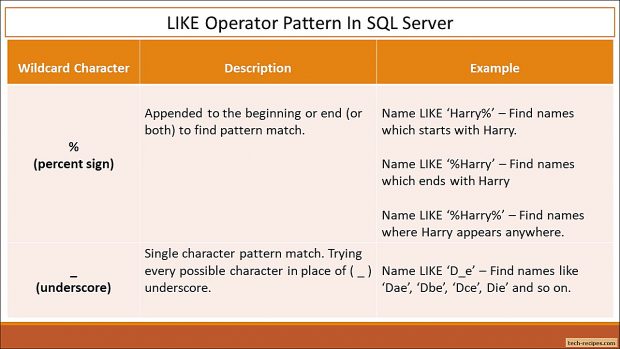
There are two primary wildcards in standard SQL:
- The Percent Sign (
%): Represents zero, one, or multiple characters. - The Underscore (
_): Represents a single character.
Think of them as jokers in a deck of cards that can stand in for other characters in your search pattern.
The basic syntax is:WHERE column_name LIKE 'your_pattern'
This image provides a great visual summary of how these wildcards work:
2. Seeing LIKE in Action
Let's watch a video that quickly demonstrates how to use these wildcards in practice.
This video from the Bro Code channel is a fast-paced and clear introduction to using wildcards with the LIKE operator.
Please watch from 00:13 to 04:01. The video is broken down into useful segments: Starts with (S%) and Ends with (%r): (0:13 - 1:52) Pay attention to how the % wildcard is used to find strings that begin or end with a certain character or set of characters. Single Character (_) and Combined Wildcards: (1:52 - 4:01) Notice how the _ wildcard acts as a placeholder for exactly one character, and how it can be combined with % for more complex searches.
3. Common Product Design Scenarios
Let's apply this to situations you'll likely encounter. Imagine we have an events table with columns like event_name, user_email, and page_url.
Scenario 1: Finding a Group of Related Events
You want to analyze every action a user takes on the settings page. Your event names are structured like settings_update_email, settings_change_password, settings_view_profile.
You can capture all of these with a single LIKE condition.
SELECT *
FROM events
WHERE event_name LIKE 'settings_%';
The 'settings_%' pattern matches any string that starts with "settings_" followed by any number of characters.
Scenario 2: Searching for Keywords in User Feedback
Your app has a feedback form, and you want to find all submissions where users mentioned "error" or "bug".
SELECT user_id, feedback_text
FROM user_feedback
WHERE feedback_text LIKE '%error%' OR feedback_text LIKE '%bug%';
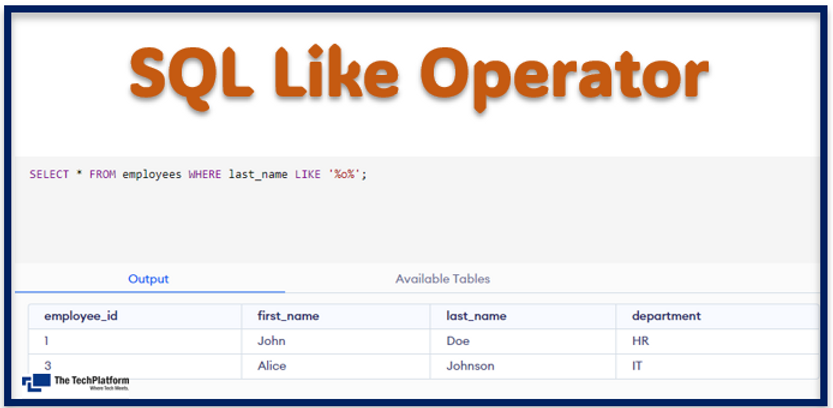
The '%error%' pattern is extremely useful. It finds the word "error" anywhere in the text—at the beginning, middle, or end.
This image shows a similar query in action, finding last names that contain the letter 'o'.
Scenario 3: Filtering by URL Structure
You want to analyze user activity on all product detail pages (PDPs). The URLs might look like /products/widget-a, /products/gizmo-b, etc.
SELECT user_id, page_url
FROM page_views
WHERE page_url LIKE '/products/%';
This query selects all page views where the URL path starts with /products/.
4. LIKE in Modern Data Workflows
The LIKE operator is a fundamental tool in data analysis. To see how it fits into a broader context, let's look at a resource from dbt (a popular data transformation tool).
Working with the SQL LIKE operator - dbt Docs
This dbt Docs page provides a concise and practical overview of the LIKE operator. It's written from the perspective of an analytics engineer, which aligns with your goal of applying SQL to real-world data problems.
Please read the sections "How to use the SQL LIKE operator", "SQL LIKE example", and "LIKE operator example use cases". Focus on the example use cases at the end—they show how LIKE is used for practical tasks like grouping messy data (case when page_path like '/product%' then ...) and cleaning data (where email_address not like '%@dbtlabs.com').
5. Excluding Patterns and Handling Case
Two final, important points:
1. Excluding with NOT LIKE
Just as you can filter for a pattern, you can filter out a pattern using NOT LIKE. For example, to find all signups from users who did not use a Gmail address:
SELECT user_id, email
FROM users
WHERE email NOT LIKE '%@gmail.com';
2. Case Sensitivity
By default, LIKE is often case-sensitive. This means 'button%' will not match 'Button_click'. The exact behavior can depend on the database's configuration.
A common and reliable way to perform a case-insensitive search is to convert both the column value and your pattern to the same case using LOWER() or UPPER():
SELECT *
FROM events
WHERE LOWER(event_name) LIKE 'button%'; -- This will match 'button_click', 'Button_Click', etc.
Some database systems, like PostgreSQL and Snowflake, also offer a case-insensitive version of LIKE called ILIKE, which simplifies this.
6. Practice Questions
Let's test your understanding. Using your knowledge of LIKE, write a query for each question based on an events table with columns event_id, event_name, and user_email.
- Find all events related to a 'search' action (e.g., 'search_initiate', 'search_results_viewed').
- Find all events performed by users with a university email address (ending in
.edu). - Find all events that have 'click' as the second part of the event name, assuming the format is
noun_verb(e.g.,button_click,link_click,image_click).
Click to see the answers
Answer 1:
This requires matching anything that starts with 'search'.
SELECT *
FROM events
WHERE event_name LIKE 'search%';
Answer 2:
This requires matching anything that ends with '.edu'.
SELECT *
FROM events
WHERE user_email LIKE '%.edu';
Answer 3:
This is a great use case for combining both wildcards. We want to match any characters at the beginning, followed by _click.
SELECT *
FROM events
WHERE event_name LIKE '%_click';
Conclusion
Great job! You've added a very flexible and powerful tool to your SQL toolkit. You can now move beyond exact matches and query your data with much more nuance.
Key Takeaways:
- The
LIKEoperator filters text columns based on patterns. - The
%wildcard matches any sequence of zero or more characters. - The
_wildcard matches exactly one character. - Common use cases include finding related event names (
'feature_%'), searching for keywords within text ('%error%'), and filtering by URL structures. - Use
NOT LIKEto exclude patterns. - Be mindful of case sensitivity and use
LOWER()for reliable case-insensitive matching.
Next Lesson Preview:
We've now covered several ways to filter data in the WHERE clause. However, there's a special case we haven't addressed: what happens when data is missing? In the next lesson, we will learn how to handle these gaps in your data by filtering for empty values using IS NULL and IS NOT NULL.
Can't find a good explanation? Sign up and we'll make it for you
Sign up