
Hello! Welcome back to our final module, "Sales Funnels & Conversion Analytics."
In our last lesson, you did the essential work of building the automated plumbing for your sales funnel, connecting a landing page form to a welcome email sequence. Your system is now ready to capture and nurture leads. But how do you know if it's working? And more importantly, how do you measure the actions that truly drive your business forward, like a user signing up for a paid plan?
Today, we'll answer those questions. This lesson focuses on how to set up goal and event tracking in Google Analytics 4 (GA4) for key conversions (e.g., user sign-up, paid subscription). For a founder aiming to build and scale multiple SaaS companies, this is a non-negotiable skill. You can't optimize what you don't measure, and this lesson provides the foundation for data-driven growth.
We'll cover two primary methods for tracking conversions in GA4, moving from a simple, no-code approach to the more robust method required for tracking core SaaS metrics.
The Foundation: Understanding Events and Conversions in GA4
In the old version of Google Analytics, we had different types of "hits" like pageviews, events, and transactions. GA4 simplifies this: everything is an event. A page load is an event, a button click is an event, and a subscription is an event.
To properly set up tracking, it's helpful to know that events in GA4 fall into four categories.
Track Events with Google Analytics 4 (GA4)
This article from Analytics Mania provides a clear breakdown of the four event categories in GA4. Understanding this hierarchy will help you decide how to track different user interactions.
Read the section '4 categories of events in Google Analytics 4'. Focus on understanding the difference between Automatically Collected, Enhanced Measurement, Recommended, and Custom events. This will form the basis of our tracking strategy.
So, what is a "conversion"? In GA4, a conversion is simply an event that you've marked as being particularly important to your business. Google recently renamed this concept to Key Events. When you mark an event as a "Key Event," you're telling GA4, "This action matters. I want to measure and optimize for it."
Method 1: Tracking a User Sign-up (The "Thank You" Page)
Let's start with the most direct follow-up to our last lesson: tracking when a user successfully signs up for your lead magnet. The most common way this is done is by redirecting the user to a dedicated "thank you" or confirmation page (e.g., your-saas.com/thank-you).
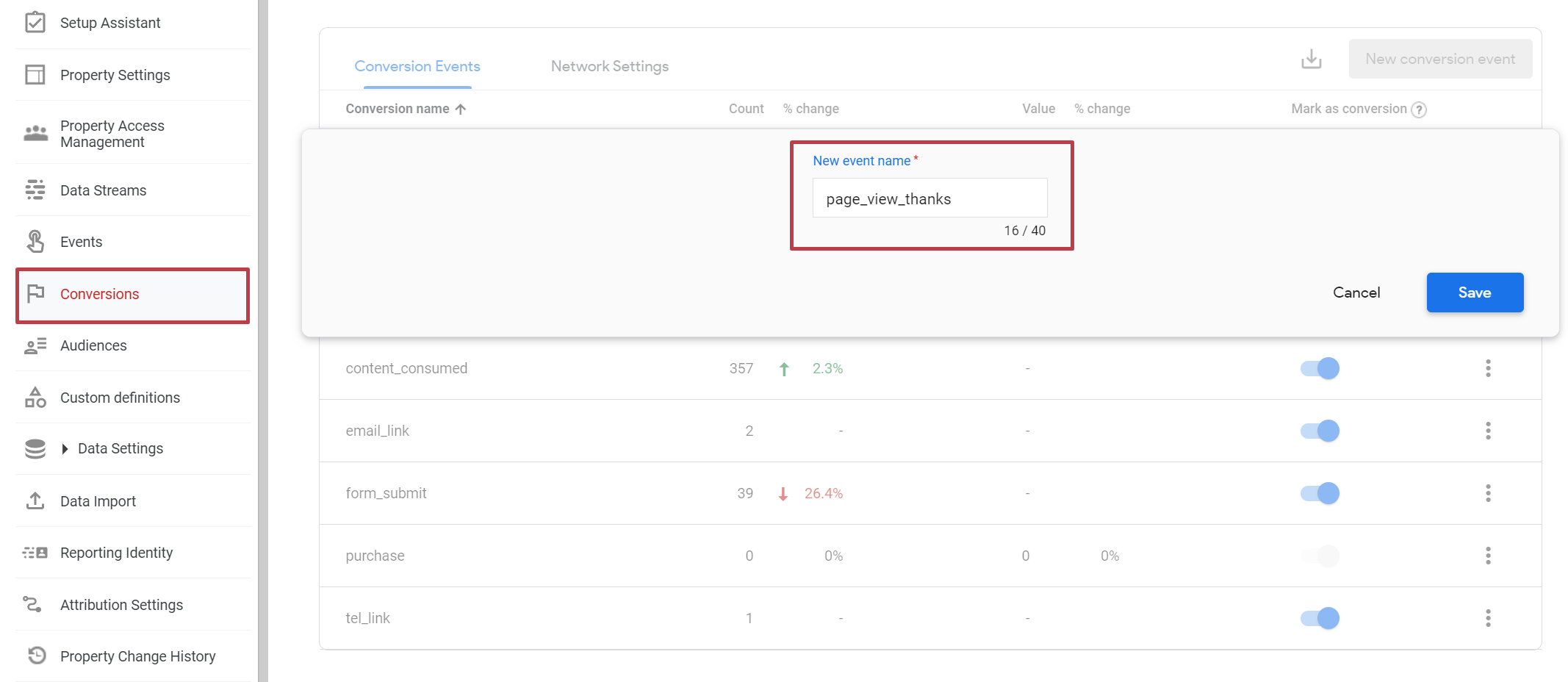
In this scenario, a page_view on that specific URL is our conversion. We don't want to mark all page_view events as conversions, just the ones for that URL. We can achieve this directly within the GA4 interface, without writing any code.
The process is:
- Go to the GA4 Admin panel.
- Use the "Create Event" feature to define a new event (e.g.,
lead_magnet_signup). - Set the condition for this new event to be triggered when the
event_nameispage_viewAND thepage_location(URL) contains/thank-you. - Mark your newly created
lead_magnet_signupevent as a Key Event.
This video provides a perfect walkthrough of this exact process.
GA4 Key Events – How to Track Conversions in Google Analytics 4 (2025 Update)
This excellent tutorial from Loves Data demonstrates how to create a new event inside GA4 based on a thank you page visit and then mark it as a Key Event (what he calls a conversion).
Watch these two sections carefully to understand the entire workflow: Creating the Event (02:40 - 07:07): Follow along as he creates a new event named 'generate_lead' that is triggered by a 'page_view' on a URL containing 'thank-you'. This is exactly the logic we need for tracking lead magnet sign-ups. Marking as a Key Event (00:46 - 02:40): This shorter section shows how to find your event in the list and simply toggle it on as a Key Event. You can do this before or after the event is first triggered.
Method 2: Tracking Core SaaS Conversions (The Custom Event)
Tracking a "thank you" page is great for lead magnets, but what about the most important SaaS conversion: a paid subscription?
When a user subscribes, the action might happen within your app and may not redirect to a unique, static URL. For instance, a payment modal from Stripe might close, and the UI simply updates to show a "Pro" badge. In these cases, you can't rely on page_view tracking.
This is where your Computer Science background comes into play. You need to instrument your application to send a custom event to GA4 when these critical actions occur.
First, let's define what to track. For a SaaS business, you should track the entire subscription lifecycle.
GA4 SaaS Subscription Tracking Guide 2024
This guide from Web Star Research provides an excellent table of essential SaaS-specific events to track. This is your blueprint for what to measure.
Read the sections 'Basic Subscription Events to Track' and 'Connecting Payment Tools to GA4'. Pay close attention to the tables listing event names like trial_start, trial_to_paid, and subscription_start, along with their recommended parameters (e.g., plan_type, price, currency).
To implement this, you or your developer would add a code snippet that fires when the conversion happens. This is typically done using Google Tag Manager (GTM) and the dataLayer, but the core concept is sending an event with a specific name and valuable parameters.
For example, when a user successfully completes a checkout for your "Pro" plan, your application's frontend or backend code would execute something like this:
// This is a conceptual example of a dataLayer.push
// It sends a custom 'subscription_start' event to GTM, which then forwards it to GA4.

dataLayer.push({
  'event': 'subscription_start',
  'plan_name': 'Pro',
  'billing_cycle': 'monthly',
  'currency': 'USD',
  'value': 29.99
});
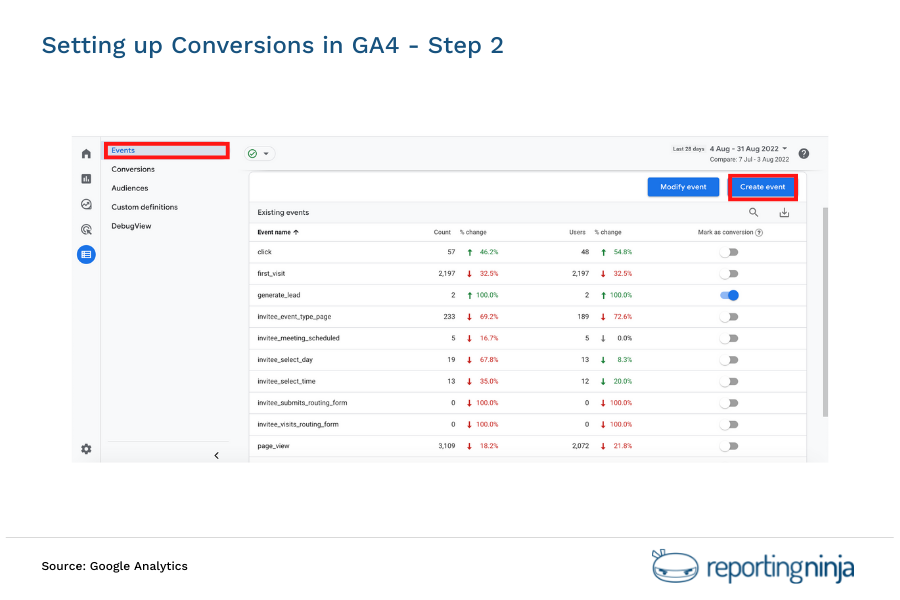
Once this custom event is being sent to GA4, the final step is the same as before: you go to Admin > Data Display > Events and mark subscription_start as a Key Event.
Test your understanding!
You want to track two key actions for your new SaaS:
- A user subscribing to your weekly newsletter via a form in the website footer. After they subscribe, they are redirected to
yoursite.com/newsletter-thanks. - A user upgrading from a free plan to a paid "Pro" plan inside your web application. This action does not have a unique URL.
How would you approach setting up conversion tracking in GA4 for these two actions?
Show answer
-
Newsletter Subscription: This is a perfect use case for Method 1 (GA4 UI). You would go to
Admin > Events > Create event. You'd create a new event called something likenewsletter_signup. The matching conditions would beevent_nameequalspage_viewandpage_locationcontains/newsletter-thanks. Then, you would marknewsletter_signupas a Key Event. -
Paid Plan Upgrade: This requires Method 2 (Custom Event). Since there's no unique URL, you would need to add code to your application. When the upgrade is successfully processed, your code would send a custom event to GA4, such as
subscription_upgrade, along with relevant parameters likenew_plan: 'Pro'andvalue: 49.00. You would then marksubscription_upgradeas a Key Event in the GA4 admin panel.
The Final, Critical Step: Test and Verify with DebugView
Never assume your tracking is working. GA4 has a built-in tool called DebugView that allows you to see events in real-time as you (or a test device) interact with your site. This is your best friend for troubleshooting.
To use it, you generally need to enable the GTM Preview mode or use the "GA Debugger" Chrome extension.
Track Events with Google Analytics 4 (GA4)
The Analytics Mania guide has a comprehensive section on using DebugView. Mastering this tool will save you countless hours of frustration.
Read the section 'Test your events in Google Analytics 4'. Focus on how to enable debug mode and how to interpret the event stream in DebugView. When you implement your own tracking, you will follow this exact process to confirm that your events and their parameters are being received correctly by GA4.
Conclusion
You have now learned how to create the feedback loop for your marketing funnel. By setting up conversion tracking, you're no longer flying blind. You can now measure which channels drive sign-ups and, ultimately, revenue.
Key Takeaways:
- In GA4, a "conversion" is a Key Event—an event you've marked as important.
- For conversions that happen on a unique URL (like a "thank you" page), you can create a new event directly in the GA4 interface based on the
page_viewevent. - For core SaaS conversions that happen within your app (like
subscription_startortrial_to_paid), you must send custom events from your application's code. - Always use DebugView to test your setup and ensure GA4 is receiving your events and parameters correctly.
Preview of the Next Lesson:
Your events are now flowing into Google Analytics. But raw event data isn't very useful on its own. In our next lesson, we will learn how to build a basic marketing dashboard in Google Analytics 4 to monitor traffic sources and conversion rates. This is where we'll turn the data you're now collecting into actionable insights to grow your SaaS.