
Hello! Welcome back to your course on building a secure ThinkPad.
Introduction
In our last lesson, we established the fundamental architectural principle of Qubes OS: the relationship between TemplateVMs and AppVMs. We used the analogy of a TemplateVM being a "class" and an AppVM being an "object" or instance. You learned that software is installed and updated in the TemplateVM, and AppVMs inherit that software in a read-only manner, providing security and efficiency.
Today, we move from theory to practice. The goal of this lesson is to walk you through the exact process of installing new software. By the end of our 60 minutes, you will be able to install a new application in a TemplateVM and make it available to its linked AppVMs.
This is a core competency for using Qubes OS effectively. We will cover the standard workflow using official software repositories and then discuss the more sensitive procedure for installing software from other sources, always with a focus on security.
1. The Template/AppVM Software Workflow in Action
Before we dive into the commands, let's watch a demonstration of the entire workflow. This will solidify the concepts from our previous lesson and show the consequences of trying to install software in the wrong place.
The following video demonstrates what happens when you try to install a program in an AppVM versus the correct procedure of installing it in a TemplateVM.
This video from the channel racingmars provides a clear, practical demonstration of the software installation workflow in Qubes OS. It's an older version of Qubes, but the principles and process remain identical.
Watch from 19:41 to 25:22. The presenter first installs 'xfig' in an AppVM and shows that it disappears after a reboot. Then, they correctly install it in the TemplateVM, shut down the template, restart the AppVM, and show that the application is now persistent. Finally, they add it to the AppVM's application menu.
This demonstration perfectly illustrates the key points:
- Changes to an AppVM's root filesystem are non-persistent.
- The correct procedure is: Install in Template -> Shut down Template -> Restart AppVM -> Add to Menu.
2. Installing Software from Default Repositories
The most common and secure way to add software is by using the official repositories of the Linux distribution your template is based on (e.g., Fedora's dnf or Debian's apt). Qubes OS is designed to facilitate this securely using the updates proxy, which allows templates to download packages without having general-purpose network access.
The official Qubes OS documentation provides a concise guide for this process.
Please read the official guide on installing software from the Qubes OS documentation. This is the canonical reference for the procedure.
Read the section 'Installing software from default repositories'. It lists the six essential steps, which we will follow in our activity.
Practical Activity: Installing an Image Editor
Let's follow those steps to install the GNU Image Manipulation Program (gimp), a powerful open-source image editor, into our standard Fedora template.
- Start the Template: From the Qube Manager or the Application Menu, start your
fedora-XX-xfcetemplate (the exact version number may vary). - Open a Terminal in the Template: Go to the Application Menu, find your running template (it will have a cube icon), and launch a Terminal. The window title bar should confirm you are in the template, e.g.,
[user@fedora-XX-xfce ~]. - Install the Software: In the template's terminal, type the following command and press Enter. You will be prompted for your user password to authorize the
sudocommand.
Thesudo dnf install gimpdnfpackage manager will resolve dependencies and ask for confirmation. Pressyto proceed. - Shut Down the Template: Once the installation is complete, shut down the template. You can do this from the Qube Manager or by typing
sudo shutdown -h nowin the template's terminal. This step "commits" the changes to the template's filesystem. - Restart the AppVM: Choose an AppVM that is based on this template, for example, your
personalqube. If it's running, restart it. If it's not running, just start it. This ensures it boots with the newly updated template filesystem. - Add the Application Shortcut:
- Open the Qube Settings for your
personalqube. - Go to the "Applications" tab.
- Find
GNU Image Manipulation Programin the "Available" list on the left, select it, and click the>button to move it to the "Selected" list. - Click "OK".
- Open the Qube Settings for your
You should now find GIMP in your Application Menu under the personal qube's submenu. Launching it will run the application within the security context of your personal compartment.
An Efficient Alternative: qvm-run
Given your background in programming and automation, you'll appreciate that these steps can be executed from the dom0 terminal, which is ideal for scripting. The qvm-run command is the tool for this.
To install gimp in the template without opening a separate terminal, you could run this command in a dom0 terminal:
qvm-run -p fedora-XX-xfce "sudo dnf install -y gimp"
qvm-run: The command to execute a program in a specified qube.-p(or--pass-io): This flag passes the standard input/output from the command in the target qube back to yourdom0terminal, so you can see the installation progress.fedora-XX-xfce: The name of the target qube."sudo dnf install -y gimp": The command to be executed inside the template. The-yflag automatically answers "yes" to the confirmation prompt.
This method is far more efficient for system administration and is the foundation for automating the setup of your Qubes environment. The article from Blunix provides more advanced scripting examples you may find interesting for future projects.
3. Installing Software from Other Sources
What if the software you need isn't in the default Fedora or Debian repositories? This requires a different, more cautious approach because it often involves enabling networking on the template, which carries inherent risks.
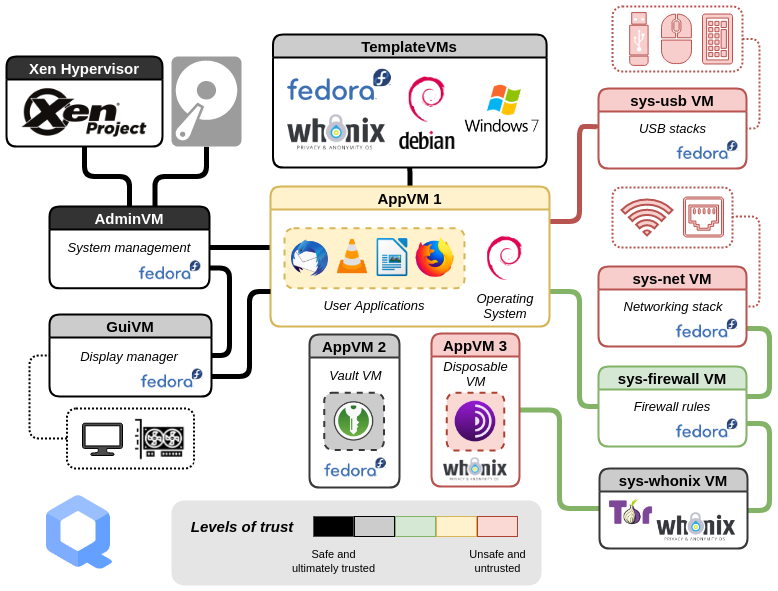
The guiding principle is to minimize the template's exposure to the network.
The official documentation provides clear warnings and a safe procedure for installing software from third-party sources. It's critical to understand and follow these steps to avoid compromising your template.
Read the sections 'Installing software from other sources' and 'Why don’t templates have normal network access?'. Pay close attention to the recommended steps: cloning the template, enabling networking temporarily, and then disabling it immediately after installation.
The recommended workflow to minimize risk is as follows:
- Clone Your Template: Never perform risky operations on your primary, trusted templates. In the Qube Manager, clone
fedora-XX-xfceto a new template, e.g.,fedora-XX-xfce-untrusted-apps. This isolates any potential damage. - Temporarily Enable Networking: In the Qube Settings for the newly cloned template, change its "Networking" setting from
default (none)tosys-firewall. It is also wise to use the firewall rule "Allow full access for 5 min" to act as a safety net that automatically cuts access. - Perform the Installation: Start the cloned template and perform the necessary installation steps. This might involve adding a third-party repository, or downloading and installing a
.rpmfile withsudo dnf install /path/to/package.rpm. - Disable Networking: As soon as you are finished, go back to the cloned template's settings and set "Networking" back to
default (none). This is the most critical step. - Assign and Use: Shut down the cloned template. You can now create a new AppVM based on this
fedora-XX-xfce-untrusted-appstemplate, or change an existing AppVM to use it. This ensures that any applications from less-trusted sources are confined to AppVMs based on this specific, semi-trusted template, and do not contaminate your primary compartments.
This process of cloning and isolating is a direct application of the compartmentalization principle at the template level.
Conclusion
You have now put the theory of Qubes OS software management into practice. You have learned the concrete steps to install applications and make them available to your secure compartments.
Key Takeaways:
- The standard, secure workflow is to install software from official repositories into a TemplateVM using its package manager (
dnf,apt). - The
qvm-runcommand indom0provides a powerful and scriptable way to manage software in templates. - Installing software from other sources poses a higher risk. The correct procedure involves cloning the template, enabling networking temporarily, performing the installation, and immediately disabling networking.
- This entire model reinforces the core Qubes OS principles: centralizing administration to improve efficiency and using isolation to contain risk.
In our next lesson, we will build on this skill. You will create and label at least two separate AppVMs for different purposes (e.g., 'work', 'personal-banking'), applying the principle of compartmentalization to organize your digital life into secure, isolated domains.
Can't find a good explanation? Sign up and we'll make it for you
Sign up