
Welcome back. In the previous lesson, you used a pull request as a controlled feedback loop: a change lived on a branch, was reviewed, revised through additional commits, and then merged into main. That workflow reduces the chance of defects reaching a shared branch, but no review process eliminates mistakes entirely.
This final lesson in the Git module is about responding to a faulty change without making the recovery worse. You will distinguish three tools that sound similar but operate at different layers of Git:
git restorerepairs or discards uncommitted file changes.git revertmakes a new commit that safely reverses a shared or published commit.git resetrewrites local, unpublished history or adjusts the staging area.
The key skill is not memorizing commands. It is diagnosing where the faulty change exists and whether others may already depend on it.
Begin with Git’s three local states
A Git repository has three relevant local states:
| State | What it represents | Useful inspection command |
|---|---|---|
| Working tree | The files currently on disk, including uncommitted edits | git diff |
| Staging area (index) | The snapshot selected for the next commit | git diff --cached |
| Commit history | Committed snapshots, with the current branch pointing at one of them | git log --oneline |
git status compares these states and tells you whether a file is modified, staged, deleted, or untracked. Treat it as your first diagnostic command, not just a message to glance past.
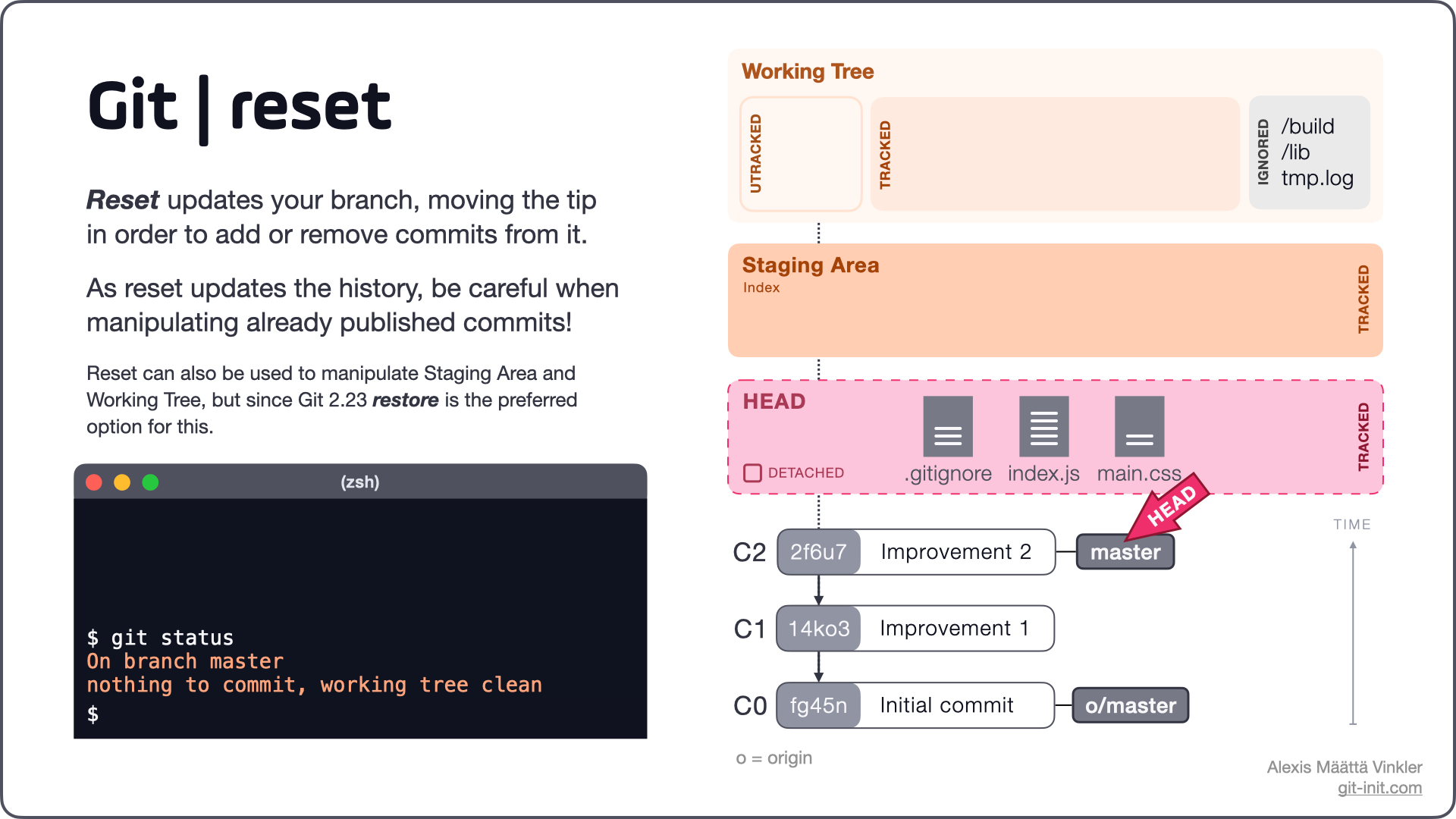
A useful operational analogy is a database change workflow:
- The working tree is like an uncommitted local edit to a deployment script.
- The staging area is the exact change set selected for release.
- A commit is an auditable, durable record of a proposed or deployed configuration state.
Deleting a working-tree edit is not equivalent to reversing a committed configuration change that has already been shared with a team.
Git Reset vs Revert - Which One Should You Use?
Watch “Git Reset vs Revert - Which One Should You Use?” from LearnThatStack for a compact visual comparison of reset modes and revert.
Watch reset modes to see how soft, mixed, and hard reset affect history, staging, and files. Then watch revert behavior for the crucial distinction: revert adds a compensating commit rather than removing history. Finish with the summary.
Before any destructive action, inspect the situation:
git status
git diff
git diff --cached
git log --oneline --decorate -n 8
If a particular commit may be faulty, inspect what it actually changed before undoing it:
git show --stat <commit-id>
git show <commit-id>
Do not rely only on a commit message such as fix: update timeout. The diff is the evidence.
Choose the recovery tool by scope and sharing status
The following table is the decision guide to keep nearby.
| Situation | Appropriate command | Why |
|---|---|---|
| You edited or deleted a tracked file, but have not committed it | git restore <file> | Restores the file in the working tree from the staging area. |
| You staged a file by mistake, but want to retain its edits | git restore --staged <file> | Removes it from the next commit while keeping the file’s working-tree changes. |
| You need one file’s content from an earlier commit | git restore --source=<commit-id> -- <file> | Brings that historical version into your working tree for review and a new commit. |
| A faulty commit is already pushed, merged, reviewed, or otherwise shared | git revert <commit-id> | Creates a new commit that reverses the selected commit while preserving history. |
| You made one or more commits only on your private, unpushed branch and want to rework them | git reset --mixed <commit-id> | Moves the branch back and keeps the changes as unstaged working-tree edits. |
| You are certain you want to discard local, tracked work and local commits | git reset --hard <commit-id> | Makes history, staging area, and tracked working files match the target commit. This is destructive. |
The boundary is simple:
Shared history should be corrected with
revert; private history may be reorganized withreset.
“Shared” means more than “on main.” A commit on a pushed feature branch may already have a reviewer, a colleague building work on top of it, or an automated pipeline consuming it. When uncertain, treat it as shared and use a revert-based correction.
Use restore for uncommitted file mistakes
git restore has a deliberately narrow purpose: it restores file content. It does not move a branch or remove commits.
Suppose you accidentally change a safe timeout in a configuration example:
sed -i 's/REQUEST_TIMEOUT_SECONDS=30/REQUEST_TIMEOUT_SECONDS=1/' \
  config/service.env.example

git status
git diff -- config/service.env.example
If the edit is clearly wrong and has not been staged, discard it:
git restore config/service.env.example
git status
Git replaces the working-tree version with the version in the staging area. In the common clean-repository case, that staged version matches HEAD, the current commit.
Unstage without discarding the edit
A more common mistake is staging too much:
git add README.md config/service.env.example
git status
If only README.md belongs in the next commit, unstage the configuration file:
git restore --staged config/service.env.example
Now verify the distinction:
git diff --cached
git diff -- config/service.env.example
The first command shows what remains staged. The second shows the configuration edit still exists locally but is no longer selected for the next commit. You can correct it, split it into a later commit, or discard it deliberately.
How to Undo Mistakes With Git Using the Command Line
Watch “How to Undo Mistakes With Git Using the Command Line” from freeCodeCamp.org for practical demonstrations of restoring local files and reverting an earlier commit.
Watch local restore to see git restore discard a modified file or recover an accidentally deleted tracked file. Then watch commit revert for the mechanics of creating a new commit that reverses a specific earlier commit.
Restore one file from an older commit
Sometimes the current project state is correct except for one file. Perhaps an operational runbook was accidentally simplified, and you need its version from a known good release:
git log --oneline -- docs/runbook.md
git restore --source=<known-good-commit> -- docs/runbook.md
git diff -- docs/runbook.md
This does not alter the history pointer. It places the selected historical file content into your working tree as a new local modification. Review it, test or validate it as appropriate, then create a normal corrective commit:
git add docs/runbook.md
git commit -m "docs: restore runbook rollback steps"
Be cautious with git restore .: it discards changes to all tracked files under the current directory. It does not remove untracked files, and it can permanently destroy uncommitted edits.
Use revert to reverse a published faulty change
A revert preserves the evidence of what happened:
- The original commit remains in history.
- Git creates a new commit containing the inverse change.
- The result can be reviewed, tested, deployed, and itself reverted later if necessary.
This auditability matters in DevOps work. If a Terraform, workflow, Dockerfile, or application configuration change causes a production problem, future responders need to see both the faulty change and the decision to roll it back.
Git Reset | Atlassian Git Tutorial
Read the Atlassian Git Tutorial’s “Git Reset” to consolidate the three-state model and, especially, the distinction between rewriting a local branch and undoing a public commit.
In “Git reset & three trees of git,” read the three states, covering the working directory, staging index, and commit history. Next, in “Main options,” focus on the explanation beginning with how reset changes state. In the “--hard” subsection, pause at the hard-reset warning. Finally, read “Resetting vs reverting” and “Don't reset public history,” including the collaboration risk.
To revert a faulty commit, first find and inspect it:
git log --oneline --decorate -n 10
git show <bad-commit-id>
Then create the revert:
git revert <bad-commit-id>
Git normally opens an editor with a generated message such as:
Revert "config: lower request timeout"
Keep that message unless there is a useful reason to add context. It makes the history legible during later debugging.
If you do not need to edit the generated message:
git revert --no-edit <bad-commit-id>
Afterward, verify both the new history and the resulting files:
git log --oneline --decorate -n 5
git show --stat HEAD
git status
Reverting through a pull request
On a protected main branch, do not bypass the collaboration workflow by reverting directly on main. Instead:
git switch main
git pull --ff-only
git switch -c fix/revert-unsafe-timeout
git revert --no-edit <bad-commit-id>
Run relevant checks, push the branch, and open a PR. GitHub also offers a Revert option for many merged pull requests, typically creating a new revert branch and pull request.
A revert can conflict if later commits changed the same lines. In that case, resolve the conflict intentionally, stage the resolved files, and continue:
git add <resolved-file>
git revert --continue
If the situation is unclear and you need to stop:
git revert --abort
A critical security exception
If the faulty commit exposed a password, API key, token, or private key, a revert is necessary but not sufficient. The secret still exists in Git history and may already have been copied by CI logs, forks, clones, or caches.
Immediately revoke or rotate the credential using the relevant provider, then remove it from current files and investigate the exposure. Rewriting history for secret removal is a specialized incident response task; do not assume git revert makes a leaked credential safe again.
Use reset only for local, unpublished work
git reset has two forms that are easy to confuse.
Unstage files without moving history
This form changes the staging area but keeps your branch at the same commit:
git reset README.md
The modern, clearer equivalent is:
git restore --staged README.md
Both are useful after you staged the wrong file. Prefer git restore --staged in everyday work because its purpose is explicit.
Move a private branch backward
When a commit has not been pushed and you decide its structure is wrong, reset can move the current branch to an earlier commit.
The reset mode determines what happens to the staging area and working tree:
| Command | Commit history | Staging area | Working tree | Typical private use |
|---|---|---|---|---|
git reset --soft HEAD~1 | Moves back one commit | Keeps changes staged | Keeps files unchanged | Recreate the last commit with a revised message or combined snapshot |
git reset --mixed HEAD~1 | Moves back one commit | Unstages changes | Keeps files unchanged | Split or rework an unpushed commit |
git reset --hard HEAD~1 | Moves back one commit | Resets to target | Resets tracked files to target | Abandon local commits and local tracked edits completely |
--mixed is the default mode. For example:
git reset --mixed HEAD~1
This removes the latest commit from the current private branch history, but leaves its content in your files as unstaged changes. It is useful when you committed an unrelated set of changes together and now want to create smaller, coherent commits.
By contrast:
git reset --hard HEAD~1
discards the latest local commit and overwrites tracked files to match the preceding commit. It also destroys any staged or unstaged tracked changes that were present before you ran it.
A hard reset does not remove untracked or ignored files. Do not mistake it for a general cleanup command.
The practical rule for reset
Never use reset to remove commits from a branch that has been pushed for collaboration, especially main. Doing so rewrites the branch’s visible history. A remote may reject your normal push; bypassing that with a force push can leave teammates with divergent histories and complicate recovery.
Before using any destructive reset, run:
git status
git log --oneline --decorate -n 8
git diff
git diff --cached
If the work matters and you are uncertain, stop. Copy the files elsewhere or create a clearly named backup branch for committed work before experimenting.
Lab: recover from three kinds of mistake safely
Use a fresh local repository for this lab. Do not perform the reset section in your portfolio repository or on a branch you intend to push.
Create the lab repository and its baseline commit:
mkdir ~/devops-labs/git-undo-lab
cd ~/devops-labs/git-undo-lab

git init -b main
mkdir -p config

cat > README.md <<'EOF'
# Git Undo Lab
EOF

cat > config/service.env.example <<'EOF'
SERVICE_PORT=8080
REQUEST_TIMEOUT_SECONDS=30
EOF

git add .
git commit -m "chore: create undo lab baseline"
1. Restore an uncommitted configuration mistake
Create an unsafe local edit and inspect it:
sed -i 's/REQUEST_TIMEOUT_SECONDS=30/REQUEST_TIMEOUT_SECONDS=1/' \
  config/service.env.example

git status
git diff -- config/service.env.example
Restore the committed version:
git restore config/service.env.example
git status
grep REQUEST_TIMEOUT_SECONDS config/service.env.example
The final command should show REQUEST_TIMEOUT_SECONDS=30.
Now experience unstaging without losing content:
printf '\nTemporary review note\n' >> README.md
git add README.md

git status
git restore --staged README.md
git diff --cached
git diff -- README.md
The staged diff should now be empty, while the normal diff still shows the temporary note. Discard it only after confirming that is what you intend:
git restore README.md
git status
2. Reset a private commit for rework
Create a private practice branch and deliberately commit the unsafe timeout:
git switch -c practice/recovery

sed -i 's/REQUEST_TIMEOUT_SECONDS=30/REQUEST_TIMEOUT_SECONDS=1/' \
  config/service.env.example

git add config/service.env.example
git commit -m "config: lower request timeout"

git log --oneline --decorate -n 3
This branch is local and unpublished, so use a mixed reset to remove the commit while retaining its content for correction:
git reset --mixed HEAD~1

git status
git diff -- config/service.env.example
Notice that the branch is back at the baseline commit, but the unsafe timeout remains as an unstaged file change. Correct it or discard it:
git restore config/service.env.example
git status
3. Revert a committed change
Recreate the bad commit, then reverse it with an auditable new commit:
sed -i 's/REQUEST_TIMEOUT_SECONDS=30/REQUEST_TIMEOUT_SECONDS=1/' \
  config/service.env.example

git add config/service.env.example
git commit -m "config: lower request timeout"

bad_commit=$(git rev-parse HEAD)
git show --stat "$bad_commit"

git revert --no-edit "$bad_commit"
Inspect the result:
git log --oneline --decorate -n 4
git show --stat HEAD
grep REQUEST_TIMEOUT_SECONDS config/service.env.example
You should now see both the faulty commit and a later Revert commit, while the file again contains the safe value of 30.
Finally, see what a hard reset does in this disposable repository:
printf '\nDiscarded local experiment\n' >> README.md
git add README.md

git status
git reset --hard HEAD
git status
The staged README modification is gone. That outcome is appropriate only because this was deliberately disposable local work.
Key takeaways
Recovering from a Git mistake starts with classification, not action:
- Use
git status,git diff,git diff --cached, andgit logto locate the mistake. - Use
git restorefor unwanted or misplaced uncommitted file changes. - Use
git revertfor a bad shared or published commit, because it preserves an auditable history. - Use
git resetto restructure or abandon private, unpushed commits. - Treat
git reset --hardas destructive: it overwrites staged and unstaged changes to tracked files. - After every recovery action, inspect the resulting diff and history, then run the relevant validation.
Git recovery fixes source state; it does not itself roll back a deployed service. In a production workflow, a revert still needs to pass the required checks, move through an approved deployment path, and be verified through service health signals.
You now have the Git practices needed to work safely in a collaborative DevOps repository: focused commits, branches, pull requests, releases, and recovery from mistakes. The next module shifts to Bash and Python, beginning with defensive Bash scripting for operational automation.
Can't find a good explanation? Sign up and we'll make it for you
Sign up