
Hello again. In the previous lesson, you learned how to find reliable local documentation with man, --help, help, info, and /usr/share/doc. Those tools answer “what does this command do?” This lesson focuses on a closely related daily task: reading a file without changing it.
Administrators constantly inspect configuration files, package metadata, and logs. The key is to select a viewer that matches the question: do you need the whole small file, an interactive view of a large file, just its opening or latest lines, or a count? By the end of this lesson, you will be able to use cat, less, head, tail, and wc deliberately rather than treating them as interchangeable.
Start with the question, then choose the command
All five commands write information to the terminal, but they serve distinct purposes.
| Command | Best use | Default behavior |
|---|---|---|
cat FILE | A short file, or displaying several files consecutively | Prints the complete contents immediately |
less FILE | Reading or searching a long file safely and interactively | Opens a scrollable, searchable pager |
head FILE | Checking a file’s beginning, such as headers or initial settings | Prints the first 10 lines |
tail FILE | Checking the most recent records in a file, especially a log | Prints the last 10 lines |
wc FILE | Measuring a file’s lines, words, bytes, or characters | Prints several counts |
A useful rule is: avoid cat for a file that is too large to read in one screenful. The output may race past the terminal, which makes it difficult to inspect and can obscure the useful part. Use less when you need to browse, search, or return to an earlier line.
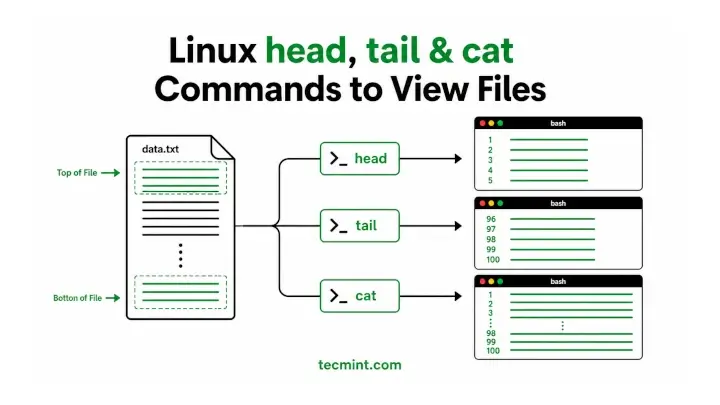
The image below captures the central distinction: head samples the top, tail samples the bottom, and cat outputs the entire file.
Linux Terminal Basics: Text Viewers - Cat, More, Less, Head, Tail, Grep, Od
Watch “Linux Terminal Basics: Text Viewers - Cat, More, Less, Head, Tail, Grep, Od” by quidsup for a compact visual comparison of the primary viewers.
Watch cat in action to see why complete output becomes unhelpful for a large file. Then watch less navigation, focusing on why a pager is more appropriate for long output. Finish with head and tail, noting the use of a chosen line count and the usefulness of the file’s ending for logs.
cat: quick display, not a universal reader
The name cat means concatenate: it places the contents of its input files together on standard output. Displaying one file is simply the most familiar form.
cat /etc/os-release
On a RHEL-compatible system, /etc/os-release is normally short and identifies the operating system. It is a sensible cat target because all of its content is likely visible at once.
You can also provide multiple files:
cat /etc/os-release /etc/hostname
cat prints the first file and then continues immediately with the second. It does not add descriptive headings or reliable visual boundaries between files. If the first file does not end with a newline, its final text can run directly into the first line of the next file. For that reason, use this form only when the order and content are already clear.
Two inspection options are especially helpful:
cat -n /etc/profile
cat -b /etc/profile
-nnumbers every output line, including blank ones.-bnumbers nonblank lines only.
Line numbers are useful when someone refers to a setting “near line 40,” or when you want to distinguish meaningful content from blank spacing. They are numbers added by cat; they do not alter the file and are not necessarily line numbers displayed by an editor.
Do not mistake “prints a file” for “is the best way to read a file.” For example, avoid running cat on an unfamiliar log or a very large configuration file merely because it is the shortest command to type. The terminal will show the data, but it gives you no practical way to pause, search, or move backward within the command.
Read the “Displaying the contents of a file on the screen” portion of this Linux Tutorial from the University of Leicester. It establishes the practical contrast between immediate output with cat and controlled viewing with less, then introduces head and tail.
In Tutorial Two, Section 2.4, begin at the paragraph comparing cat and less. Then continue through the head and tail examples at the end of that same section. Notice that the tutorial uses the older shorthand head -5; on current systems, prefer the clearer and more portable form head -n 5.
less: the default reader for long text
less is an interactive pager. It displays a file one screen at a time and lets you move in both directions. Unlike cat, it does not dump everything to the terminal at once.
Try it with a system file that is likely longer than one screen:
less /etc/services
The command opens the pager rather than returning immediately to the shell prompt. Start with these controls:
| Key or input | Result |
|---|---|
| Space | Move forward one screen |
b | Move backward one screen |
| Down Arrow or Enter | Move forward one line |
| Up Arrow | Move backward one line |
g | Go to the start of the file |
G | Go to the end of the file |
/text then Enter | Search forward for text |
n | Go to the next search match |
N | Go to the previous search match |
q | Quit and return to the shell |
For example:
less /etc/services
Type /ssh and press Enter. less moves to a match for ssh; press n for later matches and N to return to an earlier one. Press q when finished.
This is the same pager behavior you encountered while reading man pages. In fact, many man-page viewers use less behind the scenes. The habit transfers directly: search for a name, a directive, or an error phrase instead of scrolling without a target.
less does not edit the file. It is therefore a safe first step before changing any configuration later in the course. It lets you establish what is actually present, including comments, blank lines, and nearby settings that may affect interpretation.
A common operational pattern is to inspect the relevant portion of a file first:
less /etc/profile
Then, only after understanding the existing structure and confirming the intended change, use an editor. The next lesson will introduce Vim for that editing phase.
head and tail: inspect only the useful edge
Many files have predictable structure. A configuration file may begin with comments, version information, or global defaults. A log continually accumulates new entries at its end. head and tail let you inspect these areas without opening the entire file.
head: look at the beginning
Without options, head shows 10 lines:
head /etc/passwd
Specify an exact number of lines with -n:
head -n 5 /etc/passwd
head -n 20 /etc/profile
This is useful for a quick check of a header, a file format, or the first settings in a configuration file. Treat -n 5 as the preferred spelling because its meaning is clear at a glance.
tail: look at the end
Similarly, tail shows the final 10 lines by default:
tail /etc/passwd
Choose a larger or smaller sample when needed:
tail -n 5 /etc/passwd
tail -n 25 /path/to/application.log
For logs, recent entries commonly matter most. tail -n 25 gives you some context before the newest event; showing only one final line often omits the preceding error or request that explains it.
The -f option makes tail continue watching for newly appended content:
sudo tail -n 20 -f /path/to/application.log
This first displays 20 existing lines, then prints new lines as they are written. Stop monitoring with Ctrl+C. It is a live observation tool: it does not modify the log file.
Use tail -f only on a file that is actively being updated and whose content you are authorized to inspect. In later service-troubleshooting work, you will also use the system journal; the principle is the same: start with enough recent context, then observe fresh events while reproducing a problem.
wc: measure text instead of reading it all
wc stands for word count, though it can count more than words. It is particularly useful for quick checks such as:
- How many entries are in a one-record-per-line file?
- Did a command produce any output?
- Did a log or report grow?
- Is a file unexpectedly large in bytes?
Run it without an option:
wc /etc/passwd
The usual output has four fields:
lines words bytes filename
For example, a result conceptually like this:
42 75 2380 /etc/passwd
means that the file has 42 newline characters, 75 whitespace-separated words, and 2,380 bytes.
In administration, you normally request just the count relevant to the task:
wc -l /etc/passwd
wc -w /etc/profile
wc -c /etc/os-release
wc -m /etc/os-release
| Option | Reports | Typical reason |
|---|---|---|
-l | Lines | Count records or entries in a line-oriented file |
-w | Words | Get a quick word total for ordinary text |
-c | Bytes | Check storage-oriented size in bytes |
-m | Characters | Count characters under the active locale |
-L | Length of the longest line | Check whether a file has unusually long records |
There is an important precision point: wc -l counts newline characters, not an abstract idea of visual lines. If a file contains text but lacks a newline at its very end, wc -l can report one fewer line than a text editor appears to show. Most normal Linux text files end with a newline, but this detail matters when validating generated files or scripts.
Likewise, bytes and characters are not always identical. For plain ASCII text, they are commonly the same. In UTF-8 text containing accented characters or non-Latin scripts, one character can occupy multiple bytes. Use -c when byte size matters; use -m when character count matters.
Linux Command Line Tutorial For Beginners 30 - wc command
Watch “Linux Command Line Tutorial For Beginners 30 - wc command” by ProgrammingKnowledge to see the default wc output decoded and the most useful counting options demonstrated.
Watch wc overview for the command’s purpose. Then watch default output to identify the order of lines, words, bytes, and filename. Finish with counting options, focusing on -l, -w, -c, and the uppercase -L. Keep the byte-versus-character distinction in mind: on UTF-8 text, wc -c and wc -m may differ.
A read-only inspection routine
Run the following sequence in your lab. It uses ordinary system text files and makes no changes.
-
Display a small, self-contained file.
cat /etc/os-releaseNotice that the prompt returns immediately after all content is printed.
-
Use line numbering to inspect a configuration-style file.
cat -n /etc/profileDo not worry about understanding every shell setting yet. Focus on recognizing that
cat -nadds readable reference numbers. -
Browse and search an extended text file.
less /etc/servicesSearch for
ssh, visit at least one next match withn, jump to the end withG, and quit withq. -
Compare the beginning and end of a file.
head -n 5 /etc/passwd
tail -n 5 /etc/passwd
This is a quick way to confirm that
headandtailsample opposite ends rather than duplicate each other. -
Measure the same file.
wc /etc/passwd
wc -l /etc/passwd
wc -L /etc/passwd
The first command gives the broad summary; the latter two answer precise questions. Read the filename in the default output carefully, especially once you begin handling several files at once.
For any unfamiliar option, apply the documentation routine from the prior lesson:
man less
man cat
man head
man tail
man wc
Search each manual page for the exact option before relying on it. This is particularly worthwhile for commands that appear simple: small options can substantially change what is displayed.
Key takeaways
The central skill is choosing the smallest tool that answers your inspection question:
- Use
catfor short files andcat -norcat -bwhen temporary line numbering helps. - Use
lessas the normal choice for a long file: move with Space andb, search with/, repeat withnorN, and exit withq. - Use
head -n NUMBERto inspect a beginning andtail -n NUMBERfor the newest portion of a file. - Use
tail -fto watch appended log content in real time, stopping with Ctrl+C. - Use
wcto count rather than read. Its default fields are lines, words, bytes, and filename;-l,-w,-c,-m, and-Lrequest focused measures. - These commands are read-only viewers. Inspect first, then edit only when you have identified the correct file and change.
Next, you will move from inspection to controlled modification by creating and editing text files with Vim.
Can't find a good explanation? Sign up and we'll make it for you
Sign up