
Hello again. In the previous lesson, you made the prompt more efficient with history, completion, and exit-status-aware command chains. Those habits are most useful when paired with a second discipline: do not guess what a command or option does. Linux systems carry much of their own documentation, including on servers without internet access.
This lesson builds a practical lookup routine using manual pages, GNU Info documents, short command help, and package documentation in /usr/share/doc. By the end, you should be able to choose the right local source for a question, navigate it quickly, and verify a command before using it.
A local documentation strategy
Different forms of documentation answer different questions. Rather than treating them as competing sources, choose the one that matches the situation.
| If you need to know... | Start with | Why |
|---|---|---|
| The exact syntax or meaning of an option | man command | The standard concise reference for a command on this system |
| What command might solve a problem | man -k keyword or apropos keyword | Searches manual-page descriptions when you do not know the command name |
| A short reminder of a program’s options | command --help | Fast usage summary, usually visible immediately |
| How a Bash built-in or shell keyword works | help name | Built-ins such as cd are part of the shell, not separate executables |
| A fuller GNU explanation with linked topics | info topic | Often more tutorial-like and detailed than a man page |
| Package-specific examples, templates, or release notes | /usr/share/doc/ | Documentation installed alongside the software |
Start locally because local documentation reflects your installed distribution and version. This is particularly important on a RHEL-compatible system: a random online answer may describe a different release, package version, filesystem layout, or service configuration.
How to find out what a Linux command does - Red Hat
Read Red Hat’s overview, “How to find out what a Linux command does,” for a concise picture of the four local documentation sources used in this lesson.
In “The man pages,” read the man-page overview, paying attention to the purpose of manual sections and in-page searching. Then read the Info comparison in “The info command.” Finally, in “Documentation,” read the package-documentation discussion. Note that the real directory is /usr/share/doc — singular.
A good operational habit is to record the exact command, full error message, and system context before searching. “Network failed” is vague; “systemctl reports a unit not found” is a specific question that can be answered and validated.
Manual pages: the default technical reference
A man page is a local manual entry. For most external commands, it is the best first stop when you know the command name but not its exact usage.
man ls
The page opens in a viewer called a pager, commonly less. You do not need to read it from top to bottom. Treat it as a searchable reference.
The essential controls are:
| Key | Action |
|---|---|
q | Quit and return to the shell |
/word then Enter | Search forward for word |
n | Go to the next search match |
N | Go to the previous search match |
| Space | Move forward one screen |
b | Move backward one screen |
g | Jump to the start |
G | Jump to the end |
h | Display pager help |
For example, run:
man ls
Then type /long and press Enter. Use n to move through matches until you find the option that requests long listing format. Press q when finished.
Read a man page in the right order
Man pages vary, but these sections are especially useful:
- NAME: a one-line description. This tells you whether you found the right command.
- SYNOPSIS: the command’s formal syntax.
- DESCRIPTION: behavior and defaults.
- OPTIONS: individual short and long options.
- EXAMPLES: common invocations, if the author provided them.
- EXIT STATUS: what success and specific failures mean to scripts.
- FILES: relevant configuration or data files.
- SEE ALSO: related commands and documentation.
When you are under time pressure, use this sequence:
- Read NAME to confirm the command is relevant.
- Read SYNOPSIS to see the required order of command, options, and arguments.
- Search for the option or behavior you need.
- Check EXAMPLES, FILES, or EXIT STATUS only when they matter to the task.
This keeps documentation lookup focused instead of turning into unfocused reading.
Decode the SYNOPSIS before running a command
The SYNOPSIS uses compact conventions. A form such as:
command [OPTION]... FILE...
generally means:
- Text such as
commandandOPTIONsyntax is part of the command structure. - Square brackets,
[ ], mark an optional element. - An ellipsis,
..., means the preceding element may be repeated. - A vertical bar,
|, separates alternatives; select one permitted alternative rather than all of them. - A placeholder such as
FILEorDIRECTORYmust be replaced with an appropriate value.
So the line above permits no options, one option, or several options; it also permits zero, one, or multiple file arguments. The surrounding DESCRIPTION and OPTIONS sections explain which choices are meaningful.
Do not assume that two options are compatible merely because both exist. A man page may say an option “overrides,” “implies,” or “is incompatible with” another option. That language matters.
Manual sections disambiguate names
Manual entries are grouped by section. The sections most relevant to administration are:
| Section | Typical contents |
|---|---|
1 | User commands, such as ls and passwd |
5 | File formats and conventions, such as configuration-file formats |
8 | Administrative commands and daemons |
Normally, man name chooses the appropriate default. Specify a section when the same name refers to different things.
For example:
man 1 passwd
documents the passwd command, while:
man 5 passwd
documents the format and meaning of the /etc/passwd file. The name is the same, but the administrative questions are different: one asks how to run a program; the other asks how a system file is structured.
If you know the name but only want a one-line identification, use:
whatis ls
On systems where it is available, man -f ls provides the same style of lookup. If you do not know the command name, search descriptions instead:
apropos archive
or equivalently:
man -k archive
These searches can return many results. Read each entry’s short description and manual section, then open promising entries with man.
Mastering Linux Man Pages - A Definitive Guide
Watch selected parts of Linux Training Academy’s “Mastering Linux Man Pages - A Definitive Guide.” It demonstrates the pager behavior that makes large man pages practical, then distinguishes manual sections and shell built-in help.
Watch opening man pages to see man man, quitting, and built-in pager help. Continue with searching pages for forward and backward searches using /, ?, n, and N; for day-to-day work, the forward-search workflow is the one to make habitual. Watch manual sections to see why a section number can matter when identical names occur in different kinds of documentation. Finally, watch built in help for the important distinction between executable commands and Bash built-ins.
When man is not the answer: shell built-ins and quick help
A command typed at a Bash prompt is not always an executable file in /usr/bin or /usr/sbin. Some commands are implemented directly by Bash. cd is the classic example: it must change the current shell’s directory, so it cannot be a separate program that runs and exits.
Check what Bash recognizes with:
type cd
type ls
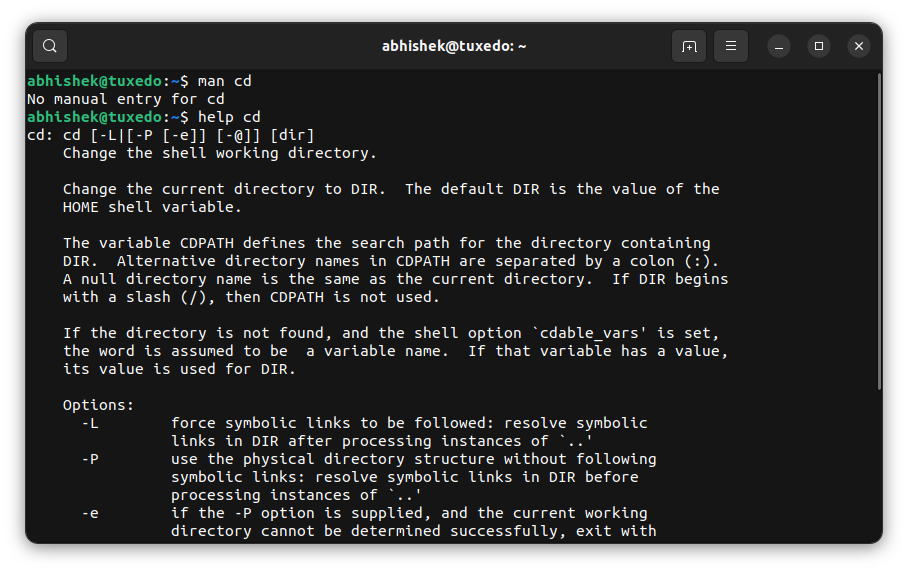
Typical output identifies cd as a shell builtin and ls as an external executable. Because cd is not a separate executable, this may not be useful:
man cd
Instead, ask Bash directly:
help cd
Use help for built-ins and shell keywords you will meet later, including cd, echo, read, test, for, and while. You can list the help topics that the current Bash shell knows with:
help
For an external program, the fastest first check is often:
ls --help
Most GNU utilities support --help and show a concise syntax and option summary. It is useful when you remember almost everything except an option name or argument order.
However, treat --help as a convention, not a universal Linux rule:
- Many programs support
--help. - Some support
-h, but others use-hfor a different meaning, such as human-readable sizes. - A full man page usually provides more complete behavior, caveats, exit statuses, and references.
A safe pattern is:
systemctl --help
man systemctl
Use the first command for a quick overview. Open the man page if the task changes system state, involves persistence, or has options whose interaction is unclear.
Info pages: fuller documentation for GNU tools
The Info system provides another locally installed documentation collection. GNU tools often have Info manuals that are more explanatory and structured than their man pages.
Try:
info ls
If an Info document is installed, it opens a node-based interface. The key controls worth remembering are:
| Key | Action |
|---|---|
q | Quit |
n | Next node |
p | Previous node |
u | Move up to the parent node |
| Enter | Follow the selected link |
| Space | Move forward one screen |
Info is especially useful when a man page tells you what an option does but you need more context about when to use it or how several features relate.
Not every installed command has an Info page, and minimal systems may not have the full Info document set installed. A missing Info topic does not mean the command is missing or broken. Fall back to man, --help, and package documentation based on the question you are trying to answer.
Package documentation in /usr/share/doc
The directory:
/usr/share/doc
contains documentation installed by packages. Its subdirectories may be named after packages, sometimes including version numbers. Begin by seeing what is actually present:
ls /usr/share/doc
Use Tab completion to select an existing directory rather than assuming a package’s documentation directory has a particular name:
ls /usr/share/doc/ba
Press Tab after ba and inspect the resulting choices. A package documentation directory may contain:
READMEorREADME.*files- example configuration files
- release notes or change logs
- license and copyright information
- sample scripts, templates, or deployment notes
This documentation is valuable when you need package-specific defaults or examples rather than generic command syntax. For instance, a service package may ship an example configuration file that matches the paths and version installed in your lab.
At this point, do not modify examples directly inside /usr/share/doc. Treat them as reference material. When a later task calls for adapting a sample configuration, copy it to the appropriate working or configuration location first, then preserve the original as a known-good reference.
You will learn reliable ways to inspect text files with cat, less, head, and tail in the next lesson. For now, the core skill is knowing where package documentation lives and confirming that it exists before looking elsewhere.
A repeatable documentation drill
Use this short, read-only workflow in your lab. It turns the four sources into a routine rather than a list to memorize.
-
Verify a command option with a man page.
man lsFind the long-listing option and quit with
q. -
Distinguish a command manual from a file-format manual.
man 1 passwd
man 5 passwd
Notice the section number in the page title and the difference in subject matter.
-
Identify an unknown command form.
type cd
type ls
Then use the matching help mechanism:
help cd ls --help -
Try a more detailed GNU reference.
info lsIf it is available, use
n,p, andq. If it is not available, note thatman lsremains the reliable local reference. -
Inspect installed package documentation directories.
ls /usr/share/docUse completion to explore one directory you can see. Do not delete, edit, or move anything there.
As you work, use this escalation rule: start with the shortest authoritative local source that can answer the question, then move to a deeper source only if needed. This is efficient, but it is also safer than copying an unfamiliar command from an unverified source.
Key takeaways
Local documentation is an administrator’s first-line troubleshooting tool:
- Use
man commandfor authoritative syntax, options, files, exit statuses, and related commands. - Navigate man pages with
q,/,n, andN; search instead of scrolling aimlessly. - Use manual section numbers when a command and a file format share a name, such as
man 1 passwdandman 5 passwd. - Use
whatisfor a one-line identification andaproposorman -kwhen you know the task but not the command name. - Use
typeto identify shell built-ins, thenhelp builtinfor their documentation. Use--helpfor a quick external-command summary, while remembering it is not universal. - Use
infofor fuller, linked GNU documentation when it is installed. - Look in
/usr/share/docfor package-specific READMEs, examples, and notes that match the software installed on the system.
Next, you will use cat, less, head, tail, and wc to inspect documentation, configuration, and log files efficiently without editing them.
Can't find a good explanation? Sign up and we'll make it for you
Sign up