
Hello, and welcome to Python. This first module establishes the working habits that will support everything else in the course: creating a browser-based Python workspace, entering code, running it, and reading what Python reports back.
Today’s goal is practical: by the end, you will be able to execute an individual Python statement and run a saved Python program in Replit. You do not need to understand every piece of Python code you see yet; the immediate skill is knowing where code goes, how it runs, and where to look for results.
Your browser-based Python workspace
We will use Replit, an online coding environment. An environment is simply the place where you write code and where Python executes it. Using one in the browser means you do not need to install Python or configure anything on your computer.
A Replit project is commonly called a Repl. For this course, think of it as one small project folder containing your Python files and the tools to run them.
How to Use Replit – A Beginner's Guide
Read the setup and execution portions of this FreeCodeCamp guide to orient yourself in Replit. The interface may look slightly different over time, but the central ideas—create a Python project, edit a file, press Run, read the console—remain the same.
In “How to create a free Replit account,” read from account setup. Then, in “What is a Repl and how do you create one?”, read the passage beginning creating a project; select the Python template when creating yours. Finally, in “How to use the Run button in Replit,” read using Run. Although the article mentions servers, for now you are simply running a Python program and viewing its output.
Create a new Python Repl, giving it a simple name such as python-practice. Replit will normally create a file named main.py. The .py ending identifies it as a Python source file.
Your screen should contain versions of these areas:
| Area | Its job in this course |
|---|---|
| Files pane | Shows files in the project, including main.py. |
| Editor | Where you write and change the saved code in main.py. |
| Run button | Starts your program. It is usually near the top of the page. |
| Console/output area | Displays results, messages, and later, error information. |
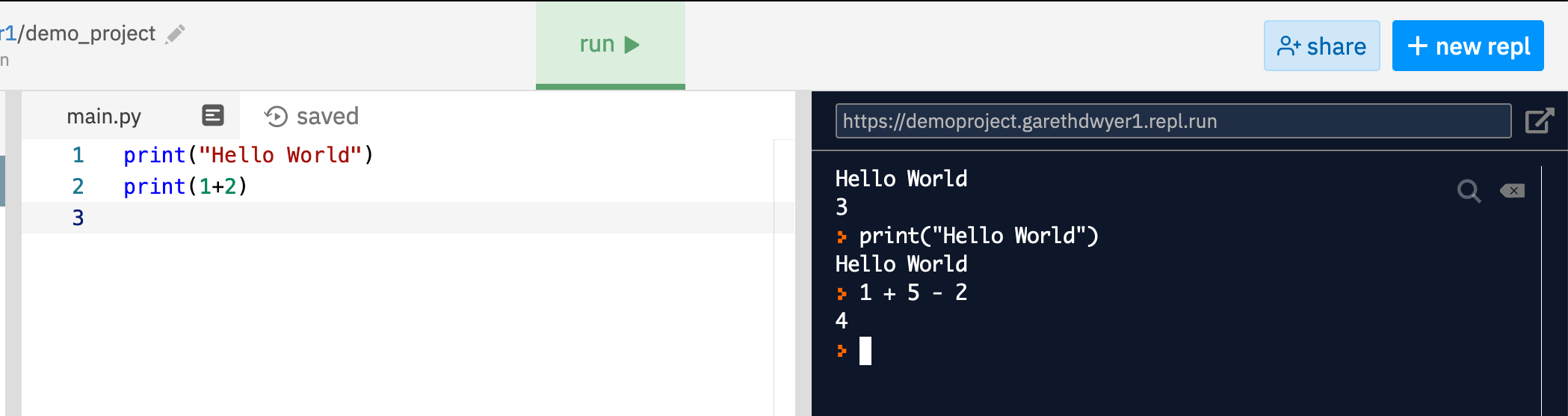
The exact placement and labels can vary with Replit updates and screen size. What matters is the distinction: the editor holds your saved program; the console shows what happens when it runs.
Code, statements, and programs
A statement is one complete instruction for Python to carry out. For example:
print("Hello, Python!")
Do not worry about the detailed meaning of print() yet—that is the focus of the next lesson. For now, notice that this is one line of code that asks Python to display some text.
A program is a saved collection of statements. Even a one-line file is a program. When you press Run, Python reads the statements in the file from top to bottom and carries them out in order.
Enter the following into main.py, replacing any starter content:
print("Hello, Python!")
print("I can run a saved program.")
Then press Run. In the console/output area, you should see:
Hello, Python!
I can run a saved program.
There are two ideas worth separating:
- The lines in
main.pyare code: instructions you have saved. - The lines appearing in the console are output: information produced when Python executes that code.
The quotation marks around the words are part of the instruction, but they usually do not appear in the output. Python treats text inside quotation marks as text to display.
Save, then run
Replit often saves edits automatically, indicated by a “saved” status near the file name. Still, develop this reliable sequence:
- Edit
main.pyin the editor. - Wait for the saved indicator, or use the save command if your interface provides one.
- Press Run.
- Read the console.
- Make one small change and run again.
Change the second line to:
print("I changed the program and ran it again.")
Run it again. The output should reflect the new version. This edit–run–observe cycle is the central loop of programming. Writing code is only half of the work; running it tells you what the computer actually did.
Executing a saved program versus trying a statement
There are two useful ways to make Python do work.
Running a saved program
This is the method you will use most often. You write multiple statements in main.py, save the file, and press Run.
For instance:
print("Morning")
print("Afternoon")
print("Evening")
When run, Python executes the first statement, then the second, then the third. The console should preserve that order:
Morning
Afternoon
Evening
A key fact: each time you press Run, Python starts the program again from the beginning. It does not resume in the middle just because the console still shows old output.
Executing a single statement interactively
An interactive console lets you type a statement directly at a prompt and execute it immediately, usually by pressing Enter. If your Replit console shows a Python prompt such as >>> or >, try:
2 + 3
Python should respond with:
5
This is useful for quick experiments. You can also try:
print("Testing one statement")
The interactive console evaluates each submitted statement immediately. In contrast, a saved program waits until you run the file.
Some Replit layouts show program output but do not provide an active Python prompt in the same panel. If that is what you see, do not get stuck trying to force it. The essential course workflow is the saved-program workflow: place code in main.py and use Run. Later, as you learn more Python, saved programs will be the dependable place for your work.
Reading the console carefully
Treat the console as Python’s report about the program. It can show three broad kinds of information:
| What you see | What it means | What to do |
|---|---|---|
| Your expected text | The program ran as intended. | Compare it carefully with what you expected. |
| A message asking for input | The program is paused and waiting for you to type something. | This will become important in a later lesson. |
| An error message | Python could not understand or carry out some code. | Read it; later lessons will make these messages much easier to diagnose. |
For now, intentionally make a tiny change to see the difference between code and output. In main.py, write:
print("The console is my program's report.")
Run the program. Then change only the text between the quotation marks:
print("The console shows what Python did.")
Run again. You changed the program’s instruction, so you changed its output. This may sound obvious, but consistently comparing your code with the console is one of the most valuable debugging habits you can build.
A helpful practical routine is to keep each early program small. If its output surprises you, change one line—not five—and run it again. That makes the cause of any change visible.
Common first-session issues
A few difficulties at this stage are ordinary and usually easy to resolve:
- Nothing appears in the console: Confirm that you pressed Run after editing, and that you are editing the Python file, usually
main.py. - The console still shows earlier output: Run the file again. If the old text makes it hard to read, use the console’s clear control if available.
- You see an error after typing code: Check for a missing quotation mark or a misspelled word. You will learn to read error messages systematically in a later module.
- Replit created a different starter file or shows a different layout: Look for the file intended to run when you press Run. In a Python project it is commonly
main.py; if unsure, create or open a file ending in.py.
At this point, the goal is not a polished program. It is confidence with the feedback loop: edit the saved file, run it, and inspect the result.
Key takeaways
You now have the basic operational model for this course:
- Replit gives you a Python workspace in the browser.
- The editor contains your saved source code, typically in
main.py. - A statement is one instruction for Python; a program is a saved sequence of statements.
- Pressing Run executes the saved program from the beginning.
- The console displays output and, when needed, messages about problems.
- Small, repeated edit–run–observe cycles are the most reliable way to learn programming.
Next, you will look closely at print()—how to display text, values, and the results of calculations deliberately, rather than simply using it as a first example.
Can't find a good explanation? Sign up and we'll make it for you
Sign up