Hello! Welcome to Module 8 of your course.
In the last module, we focused on maximizing sales within the TikTok platform by creating engaging live sessions and using promotional tools like Flash Deals and vouchers. Now, we're going to shift gears and learn how to drive traffic to your products from external sources. We'll start with one of the most powerful channels available: Google.
This lesson addresses the learning outcome: Set up Google Merchant Center and create a product feed for your marketplace listings. Think of Google Merchant Center (GMC) as the central library for all your product information. Google Ads will borrow books (your product data) from this library to show them to potential customers. Our job today is to build that library and stock its shelves correctly.
1. What is Google Merchant Center?
Before we start building, let's understand the tool. Google Merchant Center (GMC) is a free platform that acts as a bridge between your e-commerce store and Google's advertising ecosystem. You upload your product data to GMC, and it makes that data available for Google Shopping ads, free product listings, and other Google services.
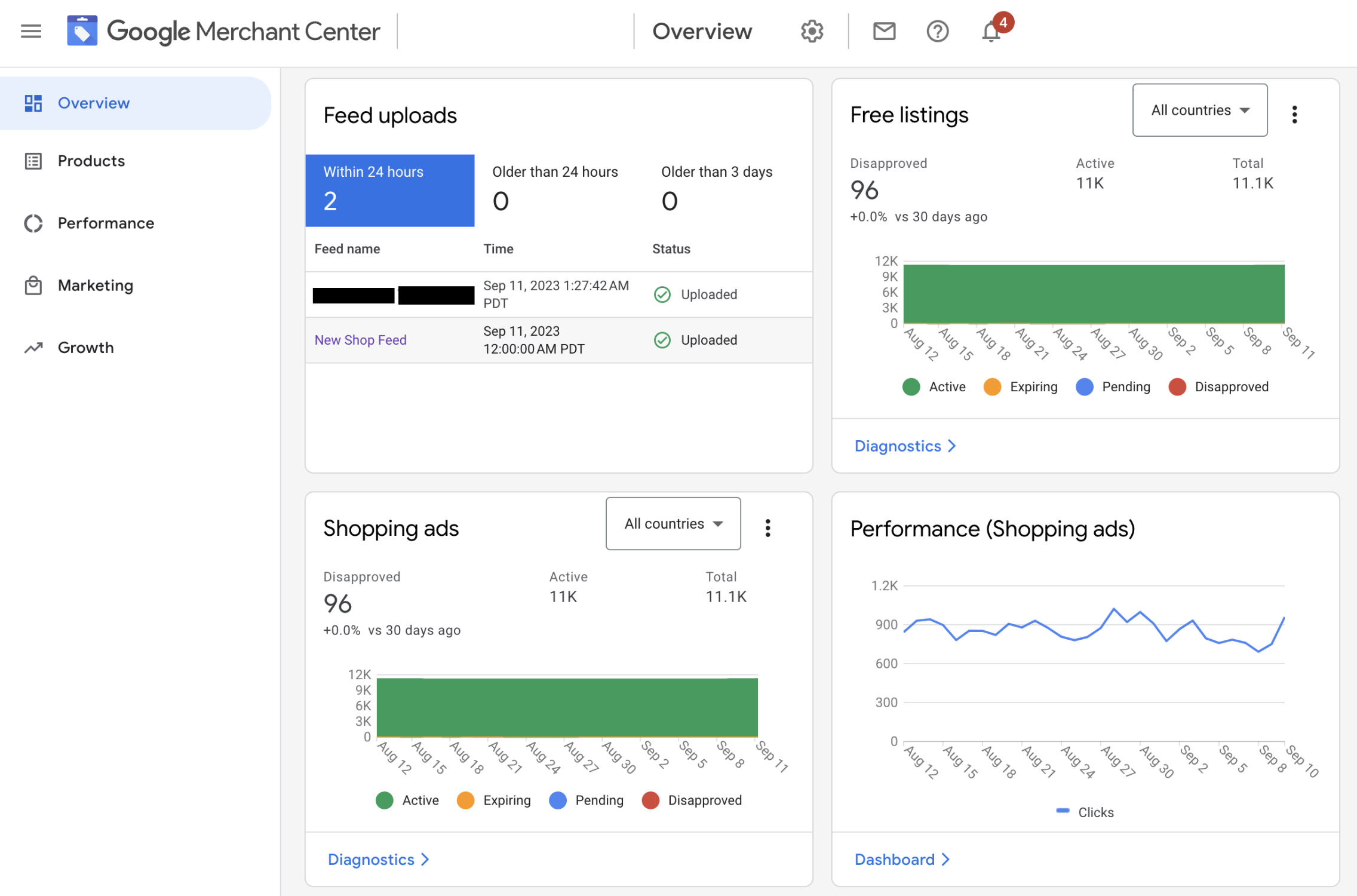
The video below gives a concise explanation of GMC's role. Note that Google has updated the interface to "Google Merchant Center Next," which is what we'll be using.
Google Merchant Center Next: Everything You Need to Know!
Watch this short introduction from the video 'Google Merchant Center Next: Everything You Need to Know!' by KeyCommerce to understand why GMC is a crucial first step.
Watch the first 1 minute and 21 seconds. Pay attention to the analogy of GMC as a 'gatekeeper' for your Google Shopping ads.
In short, without a properly configured GMC account, you cannot run Google Shopping ads.
2. Setting Up Your Google Merchant Center Account
Creating your GMC account is a straightforward process that involves providing information about your business and verifying that you own your website. Given your IT background, this process should be quite familiar.
The following guide outlines the necessary steps.
The Ultimate Guide to Google Shopping Ads Dropshipping ...
This article from NicheDropshipping, 'The Ultimate Guide to Google Shopping Ads Dropshipping', provides a clear, text-based overview of the setup process.
Read the section titled 'Step 4: Set Up Google Merchant Center'. Focus on the list of required information and the importance of verifying and claiming your website.
For a live-action walkthrough, the video we just saw also demonstrates the entire sign-up and initial configuration.
Google Merchant Center Next: Everything You Need to Know!
Now, let's watch the account creation process in action. This segment from the KeyCommerce video will guide you through each screen.
Watch from 01:55 to 04:17. Follow along as the presenter creates an account, adds business details, and verifies the phone number. Note the important tip: use your public-facing business name, not your legal corporate name.
Once you've completed these steps, you'll have an empty but functional GMC account, ready for your product data.
3. Understanding the Product Feed
The heart of Google Merchant Center is the product feed. A product feed is a file—most commonly a spreadsheet or an XML file—that contains all the information about your products in a structured format that Google can easily read and understand.
The quality of your product feed is one of the most critical factors for success with Google Shopping. A well-optimized feed can significantly improve your ad performance, while a poor one can lead to disapproved products and wasted ad spend.
At a minimum, your feed must include these core attributes for each product:
| Attribute | Description | Example |
|---|---|---|
id |
A unique identifier for the product. | SKU123 |
title |
The name of your product. Be descriptive. | Men's Waterproof Hiking Boots - Size 10 |
description |
A detailed description of the product. | Durable leather boots with ankle support... |
link |
The URL of the product's landing page. | https://yourstore.com/product/hiking-boots |
image_link |
The URL of the product's main image. | https://yourstore.com/images/boots.jpg |
availability |
The current availability of the product. | in stock, out of stock, preorder |
price |
The price of the product. | 99.99 USD |
brand |
The brand name of the product. | TrailBlazer Gear |
gtin |
The Global Trade Item Number (barcode). | 012345678912 |
google_product_category |
Google's predefined category for the product. | Apparel & Accessories > Shoes |
For dropshippers, providing accurate brand and gtin (or mpn - Manufacturer Part Number if GTIN isn't available) is especially important as it helps Google correctly identify your product and compare it to others.
4. Creating and Uploading Your Product Feed
There are several ways to get your product data into GMC. You can use an app or plugin that connects your e-commerce platform via an API, or you can set up a scheduled fetch where GMC pulls a file from a URL.
For this lesson, we will focus on the most hands-on and universally applicable method: creating a feed using a Google Sheet. This method gives you maximum control and is an excellent way to learn the fundamentals of feed structure.
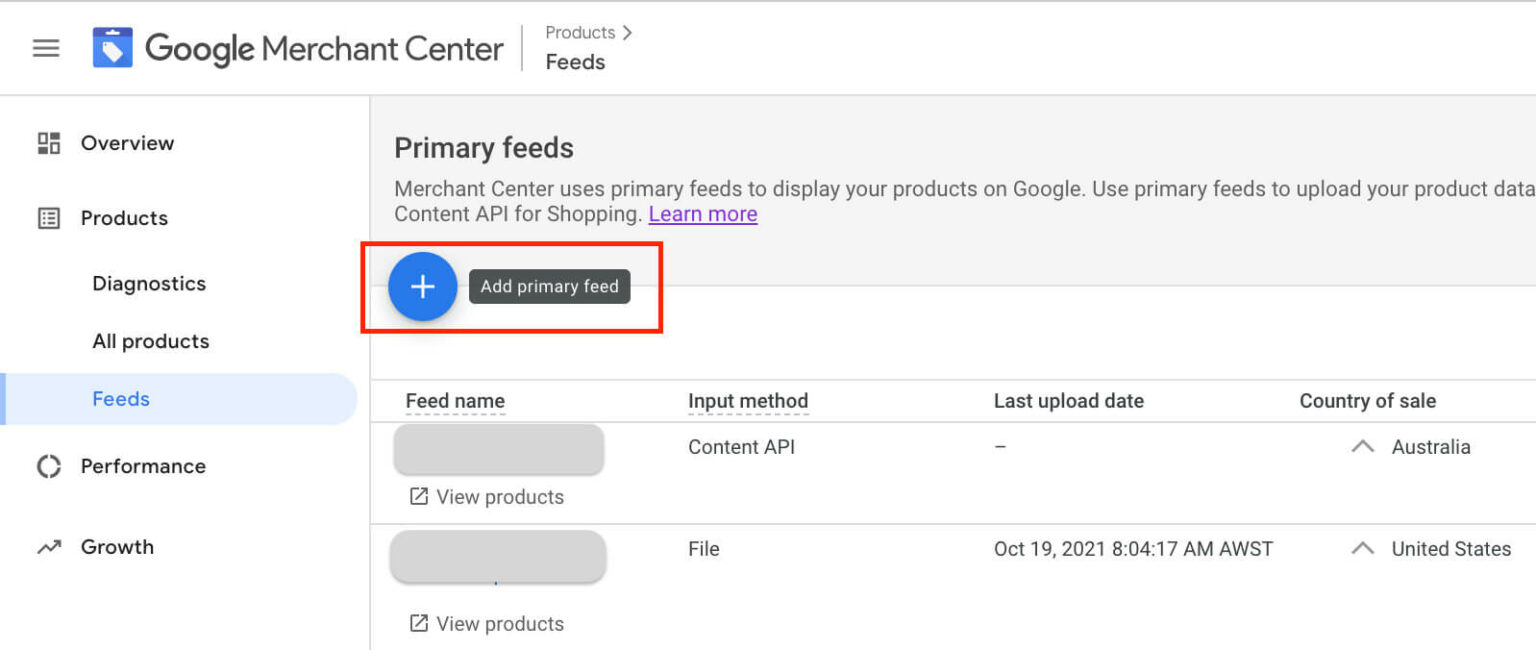
The following video provides an incredibly detailed, step-by-step tutorial on building a product feed from scratch using Google Sheets. It uses Shopify as an example for exporting data, but the principles of mapping and optimizing the data in the spreadsheet apply no matter which platform you use.
How to Add Products to Google Merchant Center (Google Sheets)
This video, 'How to Add Products to Google Merchant Center (Google Sheets)' by KeyCommerce, is your primary guide for this section. It will walk you through every step, from creating the feed to optimizing the data.
This is a detailed tutorial. I recommend watching it in segments and pausing as you go. Focus on these key stages: Creating the Feed (00:49 - 02:14): See how to generate the Google Sheets template from within GMC. Getting Your Data (02:14 - 03:58): Observe how to export product data from your store and import it into a new tab in your sheet. Mapping Essential Data (03:58 - 08:52): This is the most crucial part. Pay close attention to how the presenter maps fields like id, title, link, price, and availability. Optimizing Identifiers (08:52 - 17:05): Learn how to add vital information like brand, gtin, mpn, and especially the google_product_category. Finalizing and Fetching (17:05 - 18:59): Understand the correct price format and how to tell GMC to process your completed sheet.
The video mentions several important optimization strategies. For example, your title is not just a name; it's a key targeting tool. Instead of "Cool Backpack," a much better title is "SnoozeGuard Travel Backpack, 40L, Anti-Theft, Grey" because it includes the brand, product type, capacity, key features, and color—all terms a customer might search for.
Test your understanding!
You are selling a white, unbranded, ceramic coffee mug. Following the best practices from the video, what information would you absolutely need to include in the brand and mpn columns of your product feed since you do not have a gtin?
Show answer
Because the product is unbranded and you don't have a GTIN, you must still provide a brand and an mpn.
- Brand: You would use your own store's name as the brand (e.g., "The Morning Cup Store").
- MPN (Manufacturer Part Number): Since there is no official MPN, you would create your own unique identifier. The best practice is to use the product's SKU (e.g.,
MUG-WHT-11OZ). This satisfies Google's requirement for unique product identifiers.
Leaving these fields blank when no GTIN is present would likely cause your product to be disapproved.
While the Google Sheets method is excellent for learning, be aware of other upload options. The article below briefly describes the pros and cons of fetching a feed from a URL (the most common automated method) versus a direct file upload (not recommended).
Boost Shopify Sales with Google Merchant Center Next
To round out your knowledge, review this section from the article 'Boost Shopify Sales with Google Merchant Center Next'. It explains the different ways to upload your feed file.
Read the section 'Upload Google Shopping Feed to the GMC Next'. Pay attention to the three options: by URL, over SFTP, and direct file upload. Note why the URL method is recommended for automation.
Conclusion
Excellent work! You have just completed a critical foundational step for advertising on Google. You now understand the role of Google Merchant Center and, most importantly, know how to construct and optimize a high-quality product feed—the very blueprint for your future Shopping ads.
Key Takeaways:
- GMC is Your Product Hub: It's a non-negotiable tool for managing product data for Google Shopping and other Google services.
- The Feed is Everything: The quality, accuracy, and completeness of your product feed directly determine your potential for success.
- Attributes Matter: Fields like
title,google_product_category, and unique identifiers (gtin,brand,mpn) are powerful levers for optimizing ad performance. - Multiple Upload Methods Exist: While we focused on the manual Google Sheets method for learning, automated methods like scheduled fetches (URL) are more efficient for long-term management.
Next Up:
With your products now successfully loaded into Google Merchant Center, the next logical step is to create the ads themselves. In our next lesson, we will launch a standard Google Shopping campaign in Google Ads to drive traffic to your products. We'll link your GMC and Google Ads accounts and build your very first campaign.