
Hello! Welcome to your fourth lesson in the "Connecting Product Data with Joins" module.
Introduction
In our previous lessons, you learned how to use INNER JOIN to find relationships between tables, like linking users to the events they've triggered. You also mastered using table aliases (AS) to write cleaner, more professional queries.
However, INNER JOIN only shows you where a connection exists. As a product designer, some of the most critical insights come from understanding what doesn't happen. For example:
- Which users signed up but never created a project?
- Which users saw the new feature announcement but never clicked it?
- Which customers have items in their cart but have never completed a purchase?
Answering these questions is impossible with an INNER JOIN. Today, we'll learn the tool that makes it possible: the LEFT JOIN.
This lesson directly addresses the learning outcome: Use LEFT JOIN to find users who have or have not performed a certain action. By the end of this session, you'll be able to analyze both user engagement and disengagement, a crucial skill for identifying friction points and opportunities in your product.
1. Understanding the LEFT JOIN
An INNER JOIN looks for the intersection of two sets of data. A LEFT JOIN is different: it takes everything from the first table (the "left" table) and pairs it with any matching data from the second table (the "right" table).
If a row in the left table has no match in the right table, it still appears in the results. The columns from the right table are simply filled with NULL values for that row.
This diagram is a fantastic visual summary of different JOIN types. For now, focus on the top-left diagram for LEFT JOIN.

Let's watch a short video that walks through this concept.
SQL LEFT JOIN - SQL Tutorial #23
The video 'SQL LEFT JOIN' from the Data with Baraa channel provides a clear, step-by-step explanation of how a LEFT JOIN works and what the results look like.
Please watch from the beginning to 03:05. The video introduces a common product scenario (finding customers who haven't placed orders) and then visually breaks down how the database processes the LEFT JOIN to include all customers, marking non-matching orders as NULL.
As the video explained, the key is that all records from the left table (the one specified in the FROM clause) are preserved.
Here is another visual that reinforces this idea, joining a Customers table with an Orders table.
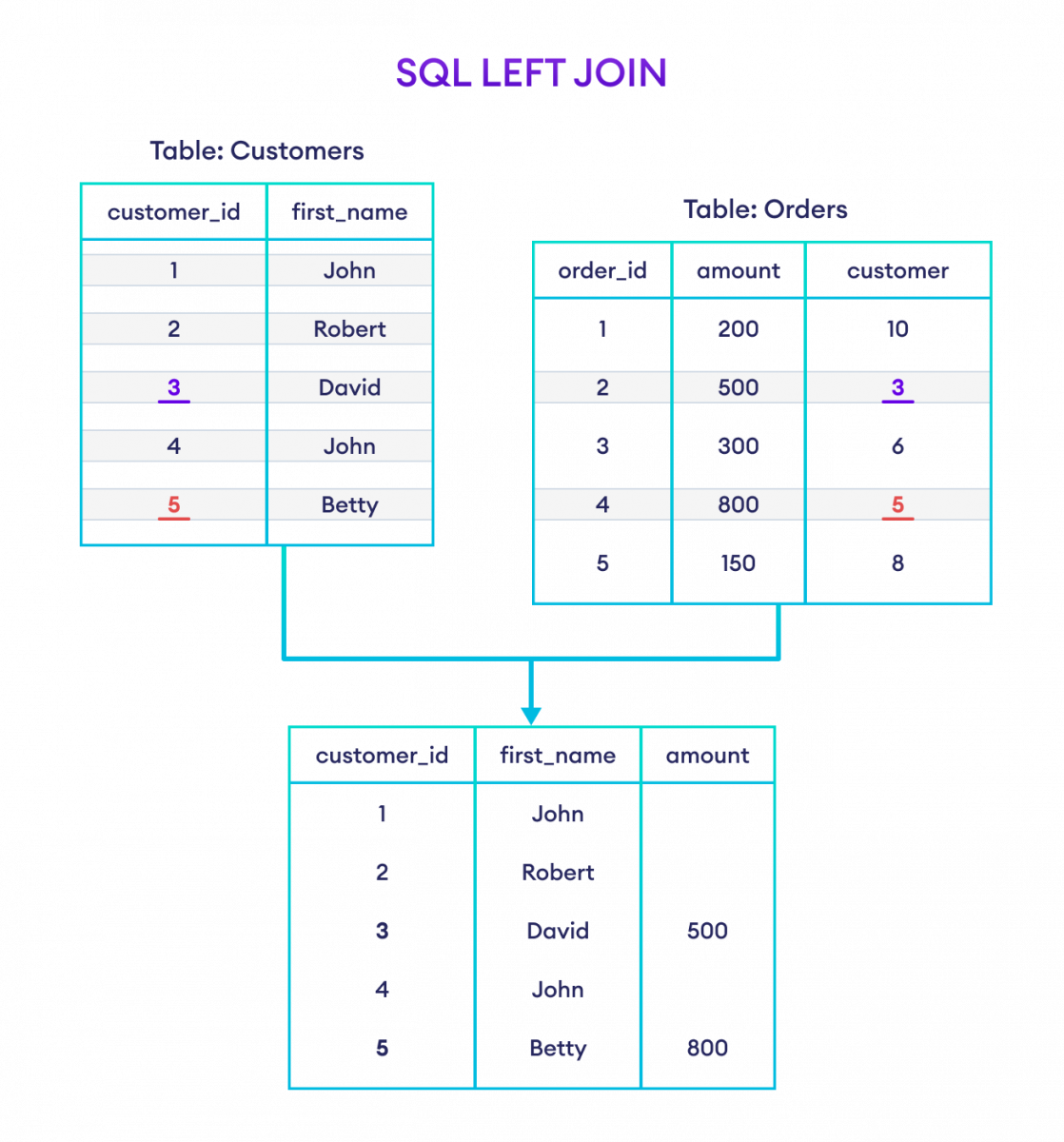
2. LEFT JOIN Syntax and a Practical Example
The syntax for a LEFT JOIN is very similar to the INNER JOIN you already know. You just replace INNER JOIN with LEFT JOIN.
SELECT
    u.user_id,
    u.email,
    p.project_name
FROM
    users AS u
LEFT JOIN
    projects AS p ON u.user_id = p.user_id;
In this query:
usersis the left table. We will get every single user back.projectsis the right table. We will only get project data where theuser_idmatches a user.- If a user has no projects,
p.project_namewill beNULL.
Let's look at a complete example with sample data.
The article 'SQL LEFT JOIN' from Codecademy provides a full, self-contained example that is perfect for seeing the syntax in action.
Please read the sections 'Syntax explanation' and 'Example 1: Basic LEFT JOIN Example'. Pay close attention to the query and the final output table. You'll see how customers Carol Brown and David Wilson, who have no orders, are still included in the result with NULL values.
3. Finding Users Who Have NOT Performed an Action
Now for the most powerful application of LEFT JOIN for product analysis: finding the absence of an action.
We can do this by combining a LEFT JOIN with a WHERE clause that filters for NULL values in the right table. If a column from the right table is NULL, it means no match was found.
The logic is:
LEFT JOINtheuserstable to anactionstable (e.g.,projects,events,purchases).- This gives you all users, with
NULLs where they haven't performed the action. - Add
WHERE actions_table.id IS NULLto filter the results down to only those users.
Look back at the SQL Joins Cheatsheet image. The diagram directly below the LEFT JOIN one shows this exact pattern. It isolates the part of circle A that does not overlap with B.
Let's see the query in action.
SQL LEFT JOIN: Syntax, Usage, and Examples
The Mimo glossary page on LEFT JOIN has a concise and direct example of this specific technique.
Please read the section 'Example 1: LEFT JOIN with WHERE Clause'. This short section shows the exact query pattern for finding customers who have never placed an order. This is the core pattern you'll use to find inactive users.
This LEFT JOIN ... WHERE ... IS NULL pattern is one of the most valuable tools in your SQL toolkit for user behavior analysis.
4. Practice Exercise
Let's apply this to a realistic product design scenario.
Scenario:
Your team recently launched a new "bookmarks" feature. You want to analyze its adoption. You have two tables: users and bookmarks.
users table:
| user_id | signup_date | |
|---|---|---|
| 101 | ana@email.com | 2023-05-01 |
| 102 | ben@email.com | 2023-05-03 |
| 103 | chloe@email.com | 2023-05-05 |
| 104 | david@email.com | 2023-05-08 |
bookmarks table:
| bookmark_id | user_id | article_id | created_at |
|---|---|---|---|
| 5001 | 102 | 78 | 2023-06-10 |
| 5002 | 101 | 45 | 2023-06-11 |
| 5003 | 102 | 91 | 2023-06-12 |
Your Task:
Write a SQL query to find the email addresses of all users who signed up but have never created a bookmark.
Take a few minutes to construct your query. Remember to use aliases!
Click here to see the solution
SELECT
    u.email
FROM
    users AS u
LEFT JOIN
    bookmarks AS b ON u.user_id = b.user_id
WHERE
    b.bookmark_id IS NULL;
Explanation:
SELECT u.email: We want to get the email of the users.FROM users AS u: We start with theuserstable as our left table, aliasing it asu. This ensures all users are included initially.LEFT JOIN bookmarks AS b ON u.user_id = b.user_id: We join to thebookmarkstable. For users who have bookmarks, the columns frombwill be filled. For users who don't, they will beNULL.WHERE b.bookmark_id IS NULL: This is the crucial step. We filter the joined result to show only the rows wherebookmark_id(a column from the right table) isNULL. This isolates the users who had no matching entry in thebookmarkstable.
The query would return chloe@email.com and david@email.com.
Conclusion
Great job! You've now added one of the most versatile types of JOIN to your skillset. You've moved beyond simply connecting data to actively finding gaps and absences in that data—a leap forward in analytical capability.
Key Takeaways:
LEFT JOINkeeps all rows from the left table, regardless of whether a match is found in the right table.- When no match is found, columns from the right table are filled with
NULL. - The
LEFT JOIN ... WHERE right_table.key IS NULLpattern is the standard way to identify records that lack a relationship, such as users who haven't performed a specific action. - This is essential for analyzing user onboarding, feature adoption, and churn.
Preview of the Next Lesson
So far in this module, we've learned to combine tables with INNER JOIN and LEFT JOIN. The ON clause sets the linking condition, and we've just seen how WHERE can filter for NULLs. In the next lesson, we'll expand on this by learning how to apply the WHERE clause to filter the results of a joined table using a variety of conditions. This will allow you to answer much more specific questions, like "Show me all the 'button_click' events from users in Brazil who signed up in the last 30 days."
Can't find a good explanation? Sign up and we'll make it for you
Sign up