
Hello again. In the previous lesson, you attached arena.gd to the Arena node and used _ready() to verify that the script runs. That script can now do more than print fixed text: it can store changing game state such as health and ammunition, and it can keep fixed design rules such as melee damage and the one-bullet kill reward.
In this lesson, you will declare typed variables and constants, then update variable values using arithmetic expressions. These small pieces of state are the foundation for the melee, enemy, and pistol systems you will build later.
State: values your game needs to remember
A game constantly tracks facts. For the action prototype you are working toward, examples include:
- an enemy’s current health;
- the player’s pistol ammunition;
- whether an encounter is active;
- the amount of damage a melee attack causes.
A variable is a named place to store a value that may change while the game runs. In GDScript, declare one using var:
var enemy_health: int = 60
Read this as: “Create a variable named enemy_health, restrict it to whole numbers, and give it an initial value of 60.”
This line has four important parts:
| Part | Meaning |
|---|---|
var | Declares a variable. |
enemy_health | The variable’s descriptive name. |
: int | A type hint: this variable stores integers. |
= 60 | Initializes it with its first value. |
The word state refers to the values currently stored in these variables. If an enemy starts with 60 health and takes 25 damage, its state changes.
The core types for this project
For now, these four types will cover much of the data you need:
| Type | Stores | Combat-oriented example |
|---|---|---|
int | Whole numbers | ammunition, health, kill count |
float | Decimal numbers | movement speed, cooldown duration, accuracy |
String | Text in quotation marks | enemy name, debug message |
bool | true or false | whether an encounter is active |
For example:
var pistol_bullets: int = 0
var enemy_move_speed: float = 3.5
var arena_label: String = "Training Arena"
var encounter_active: bool = true
Use int for values that should occur in discrete steps. Pistol ammunition is a good example: you want 0, 1, or 2 bullets, not 1.7 bullets. Use float when fractional values are meaningful, such as a 0.35-second attack cooldown.
Why make variables typed?
GDScript permits untyped variables:
var enemy_health = 60
This works, but it leaves the variable dynamically typed. A later line could accidentally replace its number with text:
enemy_health = "defeated"
That does not make sense for a health value, but an untyped variable gives Godot less information to catch the mistake early.
A typed declaration makes your intent explicit:
var enemy_health: int = 60
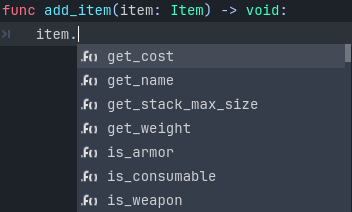
Now Godot knows that enemy_health must remain an integer. Attempting to assign a String or a decimal value that does not fit the declared type is reported as a type error. Type hints also improve the editor’s code completion and make a script easier to read months later, when it contains player, enemy, weapon, and HUD logic.
Godot can also infer a variable’s type if you use :=:
var enemy_health := 60
var enemy_move_speed := 3.5
var arena_label := "Training Arena"
Godot infers that these are an int, float, and String, respectively. For simple, obvious values, this is concise and still typed.
For this course, prefer explicit types for important game state:
var player_health: int = 100
var pistol_bullets: int = 0
The extra few characters make the script’s game rules immediately visible. You will see := in Godot code and documentation, so recognize it as “infer a static type from this initial value.”
Intro to GDScript for Programming Beginners
Watch “Intro to GDScript for Programming Beginners” by GDQuest for a visual explanation of explicit typing, inferred typing, constants, and arithmetic updates.
Start with explicit types to see how the colon type hint prevents mismatched assignments. Continue with type inference for the meaning of :=, then watch constants for the distinction between fixed and changing values. Focus on the reason for each declaration style, rather than trying to memorize every example.
Constants name rules that must not change
A constant is a named value that cannot be changed while the game runs. Declare one with const rather than var:
const MELEE_DAMAGE: int = 25
The convention is to write constant names in UPPERCASE_WITH_UNDERSCORES. This is not merely decoration. It lets you identify a fixed rule at a glance:
const KILL_REWARD_BULLETS: int = 1
const STARTING_ENEMY_HEALTH: int = 60
const POWERED_MELEE_DAMAGE: int = MELEE_DAMAGE * 2
Each of these expresses a rule rather than a current, changing situation:
MELEE_DAMAGEis the base amount a melee hit deals.KILL_REWARD_BULLETSstates the intended reward rule: one bullet.STARTING_ENEMY_HEALTHgives enemies a shared initial health value.POWERED_MELEE_DAMAGEis calculated from another constant and remains fixed.
By contrast, this is a variable because it changes during play:
var enemy_health: int = STARTING_ENEMY_HEALTH
The distinction matters:
| Use a constant when… | Use a variable when… |
|---|---|
| The value is a fixed rule or fixed reference. | The value represents current game state. |
| You never intend to reassign it at runtime. | Your code must update it during play. |
Example: MELEE_DAMAGE | Example: enemy_health |
This is invalid:
const MELEE_DAMAGE: int = 25
MELEE_DAMAGE = 30
Godot will report an error because a constant cannot be reassigned. If you anticipate tuning melee damage during a run, it must be a variable instead. Later, exported variables will let you tune selected design values in the Inspector; for now, use constants to practise representing genuinely fixed rules.
GDScript reference — Godot Engine (stable) documentation in English
Read the official Godot documentation to reinforce the exact syntax and the difference between a typed variable and a constant.
In the Variables section, begin at variable declarations. Focus on the var name: Type = value form and the := form for inferred types. Then find the Constants section and read the constant explanation, including the examples of constant expressions. Do not worry yet about enums, casting, or typed collections.
Expressions: calculate a new value
An expression combines values, variable names, constants, and operators to produce a result.
For example:
var enemy_health: int = 60
const MELEE_DAMAGE: int = 25

enemy_health = enemy_health - MELEE_DAMAGE
The expression on the right side is:
enemy_health - MELEE_DAMAGE
Godot reads the current values, calculates , then stores the result, 35, back in enemy_health.
The repeated variable name is so common that GDScript has a shorter update operator:
enemy_health -= MELEE_DAMAGE
It has exactly the same meaning as the longer version:
enemy_health = enemy_health - MELEE_DAMAGE
Here are the update operators you will use most often:
| Code | Meaning | Example use |
|---|---|---|
value = expression | Replace a variable with a calculated result. | Set health to a calculated value. |
value += amount | Add to the current value. | Award ammunition. |
value -= amount | Subtract from the current value. | Apply damage. |
value *= amount | Multiply the current value. | Apply a temporary multiplier. |
value /= amount | Divide the current value. | Calculate a proportion. |
For health and ammunition, subtraction and addition are the most natural operations:
enemy_health -= MELEE_DAMAGE
pistol_bullets += KILL_REWARD_BULLETS
The first line subtracts 25 from the current health. The second adds exactly 1 to the current ammunition.
Expression order matters
Godot runs ordinary arithmetic before assignment. Parentheses let you make the intended order unmistakable:
var damage: int = 10
var damage_after_bonus: int = damage * 2 + 5
var damage_after_shield: int = damage * (2 + 5)
The first expression gives 25. The second gives 70. Parentheses are valuable whenever a combat calculation has more than one operation.
One detail to remember: dividing two integers produces an integer result.
var half_ammo: int = 5 / 2
half_ammo becomes 2, not 2.5. When a fractional result matters, use a float:
var cooldown: float = 5.0 / 2.0
That produces 2.5.
Build a small combat-state test
Open scripts/arena.gd. Replace its current contents with the following script:
extends Node3D


const MELEE_DAMAGE: int = 25
const KILL_REWARD_BULLETS: int = 1
const POWERED_MELEE_DAMAGE: int = MELEE_DAMAGE * 2

var enemy_health: int = 60
var pistol_bullets: int = 0
var arena_label: String = "Training Arena"
var encounter_active: bool = true


func _ready() -> void:
	print("Arena: ", arena_label)
	print("Encounter active: ", encounter_active)
	print("Enemy health before swings: ", enemy_health)

	enemy_health -= MELEE_DAMAGE
	enemy_health = enemy_health - MELEE_DAMAGE
	pistol_bullets += KILL_REWARD_BULLETS

	var damage_for_powered_swing: int = POWERED_MELEE_DAMAGE

	print("Enemy health after two swings: ", enemy_health)
	print("Pistol bullets after simulated reward: ", pistol_bullets)
	print("Damage for a powered swing: ", damage_for_powered_swing)
This script contains two useful kinds of variables.
The declarations above _ready() are member variables. They belong to the Arena script instance, so code in its functions can access them. enemy_health begins at 60 every time this scene starts.
The damage_for_powered_swing declaration is inside _ready(). It is a local variable, available only while _ready() runs. It is useful for a temporary calculation, but you would not store persistent player or enemy state this way.
Save with Ctrl + S, run the current scene with F6, and open the Output panel. You should see output similar to:
Arena: Training Arena
Encounter active: true
Enemy health before swings: 60
Enemy health after two swings: 10
Pistol bullets after simulated reward: 1
Damage for a powered swing: 50
Notice that the two health updates happen in order:
- Health begins at 60.
- The first subtraction reduces it to 35.
- The second subtraction reduces it to 10.
Similarly, ammunition begins at 0, and the addition expression raises it to 1.
The “simulated reward” is deliberately simple: it runs automatically when the scene starts. It is not yet a complete kill-reward feature, because no enemy has died and no code checks who killed it. Later, a real enemy-death event will execute this kind of update only when the player is the killer.
Make one controlled change
To verify that the values genuinely come from your declarations, change:
const MELEE_DAMAGE: int = 25
to:
const MELEE_DAMAGE: int = 20
Run again. The two swings should now leave the enemy at 20 health, and POWERED_MELEE_DAMAGE should print 40. One change updated every expression that refers to that constant. This is the practical benefit of giving an important rule a descriptive name rather than scattering raw numbers throughout a script.
Finally, restore MELEE_DAMAGE to 25 so the project remains aligned with the lesson’s examples.
Common mistakes to recognize
When the script does not run as expected, compare the code carefully with these cases:
| Mistake | Why it is a problem | Correct approach |
|---|---|---|
var enemy_health = 60 | Valid, but leaves the type unspecified. | Prefer var enemy_health: int = 60 for core state. |
enemy_health = "defeated" | Text is incompatible with an int. | Keep health numeric; later use conditions to decide whether health means death. |
const MELEE_DAMAGE: int = 25 followed by MELEE_DAMAGE = 30 | Constants cannot change during runtime. | Create a var only when changing is truly intended. |
enemy_health - MELEE_DAMAGE on its own | Calculates a result but does not store it. | Use enemy_health -= MELEE_DAMAGE or assign the result back. |
enemy_health = enemy_health - 25.5 | A decimal result does not fit integer health. | Use whole-number damage for int health, or deliberately design health as a float. |
Declaring needed state inside _ready() | The variable exists only in that function. | Put reusable script state above functions. |
A useful debugging habit is to print a value immediately before and after an update. You do not need to guess what the computer did; use the Output panel as evidence.
Key takeaways
A typed variable uses the pattern:
var name: Type = initial_value
For this game, int is appropriate for health and ammunition, float for decimal quantities such as speed or time, String for text, and bool for true-or-false state.
A constant uses const, follows the uppercase naming convention, and represents a rule that must not change during play:
const KILL_REWARD_BULLETS: int = 1
Expressions calculate values, while assignment stores them. The compact operators += and -= are especially useful for rewards and damage.
Next, you will organize these operations into reusable functions, including functions that receive parameters and return values.
Can't find a good explanation? Sign up and we'll make it for you
Sign up