
Dynamic Message Management
Hello! In our last lesson, you mastered the art of providing immediate feedback for inline button clicks using ctx.answerCallbackQuery. We learned that acknowledging every callback query is a contractual obligation to ensure a smooth user experience.
This lesson takes the next logical step. Instead of just acknowledging a click or sending a new message, we will now learn how to dynamically modify the original message—its text, its keyboard, or both—directly in response to user interaction. This is the cornerstone of building the interactive "tech UIs" you're aiming for, allowing you to create things like settings panels, paginated lists, and confirmation flows that don't clutter the chat history. For someone with your front-end development background, you can think of this as re-rendering a component with new state.
The Core of Dynamic Messages: Editing Context
When you handle a callbackQuery, the Context object (ctx) contains everything you need to modify the message that the button was attached to. The grammY framework provides a set of intuitive methods for this purpose, chief among them being ctx.editMessageText().
This single method is surprisingly powerful. It can:
- Change the text of the message.
- Change the inline keyboard attached to the message.
- Change both simultaneously.
Let's look at a practical example. The "Confirmation Dialog" is a classic UI pattern that showcases this perfectly.
The official grammY documentation has a concise and excellent example of a confirmation dialog. It demonstrates precisely how to use editMessageText in response to different button clicks.
In the documentation, find the "Confirmation Dialog" heading. Study the code block. Notice how the /delete command first sends a message with "Confirm" and "Cancel" buttons. Then, two separate bot.callbackQuery handlers listen for the confirm-delete and cancel-delete data. The core of the interaction lies in what these handlers do: they each call await ctx.editMessageText to update the original prompt with a final status.
As you saw in the documentation, the flow is straightforward:
- A message is sent with an inline keyboard offering a choice.
- The user clicks a button, sending a
callback_queryupdate. - The bot's handler catches this update and calls
ctx.editMessageText()to change the original message's content, effectively replacing the prompt and its buttons with a result message like "Deleted!" or "Cancelled."
This creates a clean, self-contained interaction within a single message bubble.
Updating Text and Keyboards Together
The ability to update a message in-place is the key to building navigable menus. You can present one set of options, and when the user makes a choice, you edit the message to show a new set of options.
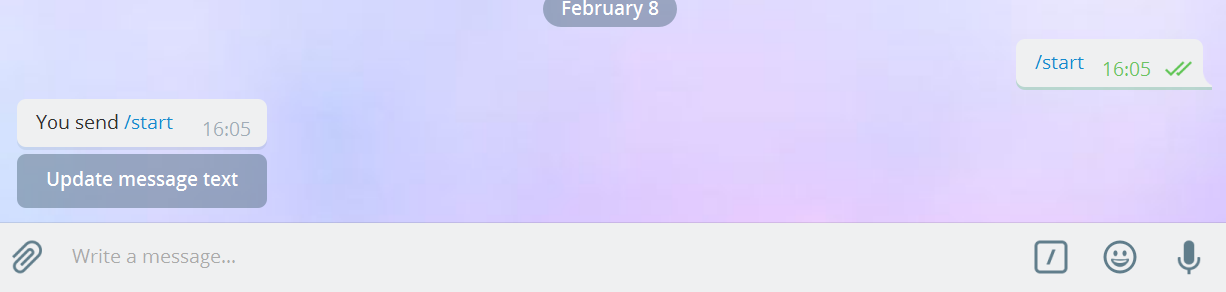
The following tutorial provides a great example of this navigation pattern. It demonstrates how clicking a "Settings" button edits the message to replace the main menu keyboard with a settings menu keyboard.
Build a Telegram Bot with grammY and TypeScript: From Zero to ...
This tutorial walks through building a simple bot with a multi-level menu, using message editing as the core navigation mechanic.
Focus on "Step 4: Inline Keyboards and Callback Queries". Observe how the mainMenu and settingsMenu keyboards are defined separately. Then, look at the bot.callbackQuery("settings", ...) handler. It calls ctx.editMessageText, passing not only new text ("⚙️ Settings:") but also a new reply_markup object containing the settingsMenu. This is how you transition from one "screen" to another.
A Practical Example: A Simple Counter
To solidify this concept, let's build a simple counter. This is a classic pattern in UI development that demonstrates state management. The bot will send a message with a count and "+"/"-" buttons. Clicking the buttons will update the count directly in the message.
import { Bot, InlineKeyboard } from "grammy";

const bot = new Bot(process.env.BOT_TOKEN || "");

// We create a function to generate the keyboard, so we can easily reuse it.
const createCounterKeyboard = (count: number) =>
  new InlineKeyboard()
    .text("-", `counter-minus-${count}`)
    .text(`+`, `counter-plus-${count}`);

bot.command("counter", async (ctx) => {
  const count = 0;
  await ctx.reply(`Count: ${count}`, {
    reply_markup: createCounterKeyboard(count),
  });
});

// We use a regular expression to match both 'plus' and 'minus' actions.
// We also capture the current count from the callback data itself.
bot.callbackQuery(/counter-(plus|minus)-(\d+)/, async (ctx) => {
  // `ctx.match` is populated by the regex match.
  const action = ctx.match[1]; // "plus" or "minus"
  let count = parseInt(ctx.match[2]); // The count from the button that was pressed

  if (action === "plus") {
    count++;
  } else {
    count--;
  }

  // Edit the message with the new count and a new keyboard.
  // Note: It's important to update the keyboard's callback data with the new count!
  try {
    await ctx.editMessageText(`Count: ${count}`, {
      reply_markup: createCounterKeyboard(count),
    });
  } catch (e) {
    //
  }

  // Don't forget to acknowledge the query!
  await ctx.answerCallbackQuery();
});

bot.start();
console.log("Bot started!");
In this example, instead of parsing the message text (which can be fragile), we've encoded the current state (the count) directly into the callback_data of the buttons. When a button is clicked, we extract the action and the count, calculate the new state, and then call ctx.editMessageText to re-render the "component" with the new text and a new keyboard reflecting the updated state. This is a robust way to manage the state of your interactive messages.
Note on try...catch: Editing a message to its exact same content (text and keyboard) will throw an error from the Telegram API. While our counter logic prevents this, in more complex UIs, it's a possibility. Wrapping the editMessageText call in a try...catch block can prevent your bot from crashing if it tries to perform a redundant edit.
Deleting Messages
Sometimes, editing a message isn't enough. You might want to remove it entirely. This is achieved with ctx.deleteMessage(). This is particularly useful for cleaning up prompts after an action has been completed.
Let's modify the confirmation dialog logic from earlier. Instead of editing the message to say "Deleted!", we'll actually delete it.
// Assume a /delete command sends this keyboard:
const confirmationKeyboard = new InlineKeyboard()
  .text("✅ Yes, delete it", "confirm-delete")
  .text("❌ No, cancel", "cancel");

// Handler for the 'confirm' button
bot.callbackQuery("confirm-delete", async (ctx) => {
  // Acknowledge first, maybe with feedback
  await ctx.answerCallbackQuery({ text: "Deleting message..." });

  // Now, delete the message the button was on
  await ctx.deleteMessage();
});

// Handler for the 'cancel' button
bot.callbackQuery("cancel", async (ctx) => {
  // Here, we can just edit the message to show the action was cancelled.
  await ctx.answerCallbackQuery();
  await ctx.editMessageText("Deletion cancelled.");
});
This combination of deleting and editing gives you complete control over the chat flow, allowing you to guide the user and clean up UI elements as they become obsolete.
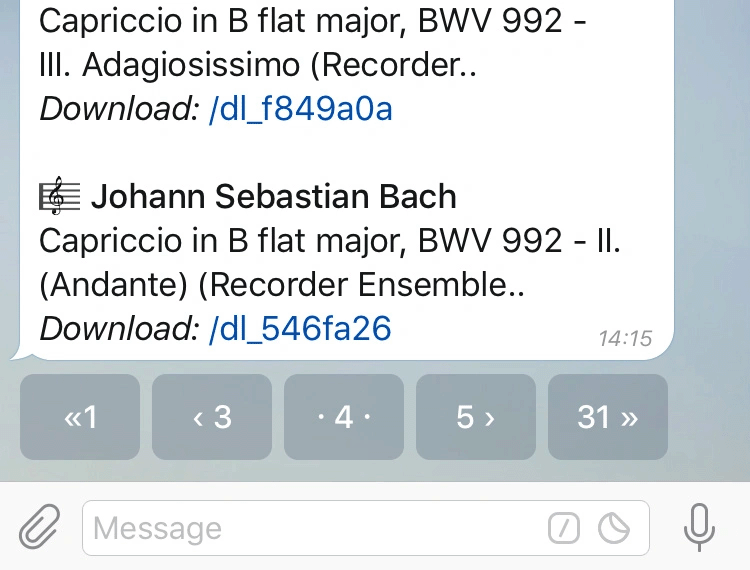
The techniques you've learned today are the building blocks for almost any complex interactive bot UI, such as the pagination keyboard shown below. Each button click edits the message to show a new page of content and an updated keyboard.
Conclusion
You now have the complete toolkit for the "action" part of an interactive menu. You can create buttons, listen for clicks, provide instant feedback, and now, dynamically change the very message the user is interacting with. This shift from a linear chat history to a dynamic, single-message interface is a significant step in creating polished, application-like bots.
Key Takeaways:
- Use
ctx.editMessageText(text, { reply_markup: newKeyboard })to update a message's content and its inline keyboard in one call. - Use
ctx.deleteMessage()to remove a message, often used for cleaning up prompts after an action is complete. - The combination of these methods allows you to build complex, stateful UIs like menus, forms, and paginated lists within a single Telegram message.
- Encoding state into callback data (like our counter example) is a robust pattern for managing the state of an interactive message.
In our next lesson, we will focus on designing the data itself. We'll explore how to structure your callback_data strings to represent hierarchical menu systems, making it easy to manage navigation between a main menu, sub-menus, and actions, which is essential for building more complex bots.
Can't find a good explanation? Sign up and we'll make it for you
Sign up