
Hello again. In the previous lesson, you learned to confirm the active AWS account, identity, and Region before acting, and to use tags to mark learning resources. Those habits now become cost controls: a budget only protects the account it is created in, and a resource that is clearly tagged is much easier to locate and delete later.
This lesson establishes a cost-management baseline for your learning account. You will create a monthly AWS Budget with email alerts, inspect Free Tier usage and credits, and review the billing settings that matter before you start launching services. This is the final lesson in the account-foundations module; the next module moves into IAM authorization.
A budget is an early-warning system, not a hard spending cap
AWS services are generally metered as you use them. A cost budget compares that accumulating cost with an amount you choose and sends notifications when a threshold is crossed. A budget is therefore a monitoring control, not an enforcement mechanism.
If you set a monthly budget of USD, AWS does not automatically stop services when costs reach USD. An EC2 instance, NAT gateway, database, or other resource can continue running unless you intervene or explicitly configure a budget action. For this course, use email notifications and manual cleanup as the default. Automated budget actions are useful later, but they require careful permissions and can interrupt workloads.
There are two alert types worth distinguishing:
| Alert basis | Meaning | Why it matters |
|---|---|---|
| Actual spend | Charges recorded so far have reached the threshold. | Confirms that spending has already occurred. |
| Forecasted spend | AWS estimates that the account will reach the threshold by the end of the budget period. | Gives an earlier warning when a resource is accumulating cost. |
Budgets and cost data are not real-time protection. Usage reporting, forecasts, and email delivery can take time. Treat an alert as a prompt to investigate quickly, not as proof that no additional charges can occur.
For a personal learning account, start with one recurring monthly cost budget covering all AWS services. This gives you a broad account-level guardrail. Later, when you use multiple projects or accounts, you can add budgets filtered by service, tag, or linked account.
Before configuring yours, watch this concise AWS walkthrough.
AWS Budgets Tutorial - Setup Alerts for AWS Billing | Amazon Web Services
Watch “AWS Budgets Tutorial - Setup Alerts for AWS Billing” from Amazon Web Services. It explains why budgets matter, demonstrates the console flow, and shows the stricter zero-spend option.
Watch the purpose for the distinction between monitoring spend and avoiding surprises. Then watch budget creation for the monthly budget, amount, and threshold workflow. Finish with zero spend alerts to understand the optional alert for the first charge beyond Free Tier allowances.
Choose a sensible starting configuration
The dollar amount should reflect the maximum amount you are prepared to investigate immediately, not a prediction of what AWS will cost. For a Free Tier and low-cost learning account, a USD monthly budget is a reasonable example. If you want a stricter boundary, choose USD or use a zero-spend alert.
A practical initial configuration is:
| Setting | Recommended initial choice | Rationale |
|---|---|---|
| Budget type | Cost budget | Tracks money spent rather than service-specific usage units. |
| Period | Monthly | Matches the normal billing cycle and resets each month. |
| Renewal | Recurring | Continues protecting the account without recreation. |
| Budget method | Fixed | Keeps your learning limit predictable. |
| Scope | All AWS services | Catches charges from services you might overlook. |
| Cost aggregation | Unblended costs | Closely reflects resource charges at time of use in a single account. |
| Alert 1 | Actual cost at 50% | Early confirmation that billable usage exists. |
| Alert 2 | Forecasted cost at 80% | Warns when a running resource is projected to approach the limit. |
| Alert 3 | Actual cost at 100% | Escalates when the chosen monthly amount is reached. |
| Delivery | Your monitored email address | Makes the alert actionable even when you are not in the console. |
For a USD budget, the 50% actual threshold is USD. The forecasted 80% threshold asks whether current consumption is likely to reach USD by the end of the month.
AWS provides a simplified template as well as an advanced workflow. The simplified Monthly cost budget template is quick, but the advanced workflow is better for this first setup because it lets you deliberately choose thresholds and actual-versus-forecasted alerts.

Read the official procedure before making the changes. It is detailed, but concentrate on the path for a recurring, fixed monthly cost budget and the alert choices.
Creating a cost budget - AWS Cost Management
Read “Creating a cost budget” in the AWS Billing and Cost Management User Guide. This is the authoritative reference for the advanced cost-budget workflow and notification settings.
In the “To create a cost budget” procedure, read the budget definition steps through the period, renewal, and budget-method decisions. Continue through the “Budget scope” and “Advanced options” part, focusing on the explanation that unblended costs show resource costs at the time of usage. In the alert portion, read alert and delivery details. Notice that each alert needs an email recipient, an SNS topic, or a budget action before AWS lets you create it.
Hands-on: create the monthly budget alert
Sign in with the separate administrative identity created earlier. Do not make the root user your normal operating identity merely to configure a budget.
- Open Billing and Cost Management in the AWS Management Console.
- In the left navigation pane, choose Budgets, then choose Create budget.
- Select Customize (advanced), choose Cost budget, and continue.
- Use a descriptive, account-specific name, such as
AWS-Learning-Monthly-10USD. Budget names must be unique in the account. - Under budget details, choose:
- Monthly period
- Recurring budget
- Fixed budgeting method
- Your chosen amount, such as USD
- Leave the budget scope unfiltered so that it covers all AWS services. Use unblended costs for this initial single-account budget.
- Add the following alert thresholds:
- 50% of budgeted amount, Actual, sent to your email address.
- 80% of budgeted amount, Forecasted, sent to the same address.
- 100% of budgeted amount, Actual, sent to the same address.
- Do not attach an automated budget action at this stage. An email alert requires you to act, but it cannot accidentally shut down a resource while you are learning.
- Review the amount, scope, thresholds, and recipient address carefully. Then choose Create budget.
AWS times for budgets are in UTC. Near the start or end of a month, do not assume the budget period follows your local midnight.
After creation, open the new budget and confirm:
- The budget name and monthly amount are correct.
- The scope covers all services.
- Your three alert thresholds appear with the intended Actual or Forecasted basis.
- The displayed actual spend is plausible, often in a new account.
- The email address is spelled correctly and is an inbox you monitor.
Check the inbox and spam folder for AWS messages over the next day. You normally cannot safely “test” a budget alert by deliberately creating a charge; visual verification of the budget configuration is sufficient for this course.
Optional stricter guardrail
If your rule is “notify me as soon as any nonzero cost appears,” create an additional Zero spend budget using the simplified template. It is designed to alert when spending passes a minimal threshold, such as USD.
This is especially useful when you do not intend to run paid services. It can, however, generate an alert for small legitimate charges, so it supplements rather than replaces the monthly budget. Both types of budget remain notifications, not automatic service shutdowns.
Verify Free Tier usage, credits, and billing status
The term Free Tier does not mean every AWS service is free or that any eligible service is free without limit. An offer has a service-specific limit, time window, and eligibility conditions. Once you exceed a limit, use an ineligible configuration, or let a limited-duration offer expire, normal charges can apply.
AWS has changed its new-account Free Tier and credit programs over time. The exact offers available to you depend on factors such as account creation date and selected plan. Therefore, do not rely on a generic list of “free” instance types or a screenshot from another account. Your own Billing console is the source of truth.
Open Billing and Cost Management and review these areas:
-
Free Tier or the Free Tier widget
Look for offers currently in use, their remaining allowance, and any end-of-month forecast. If AWS says an offer is forecasted to exceed its limit, investigate before continuing the lab. -
Credits
If your account has promotional or Free Tier credits, confirm the balance and expiration date. Credits can reduce what you owe, but they are not a reason to ignore usage limits or leave resources running. -
Bills
Open the current billing period. Look for charges grouped by service and Region. A newly created account may show no charges, and usage can take time to appear. If you see an unfamiliar service, identify the relevant account, Region, and tagged resources before deleting anything. -
Payments and payment preferences
Confirm that the account has a valid payment method and check for an outstanding balance or a payment issue. Do not enter card details in notes, tags, or screenshots. -
Support plan and account settings
Review the selected support plan and any displayed account or billing notices. In a learning account, an unexpectedly paid support plan deserves immediate attention.
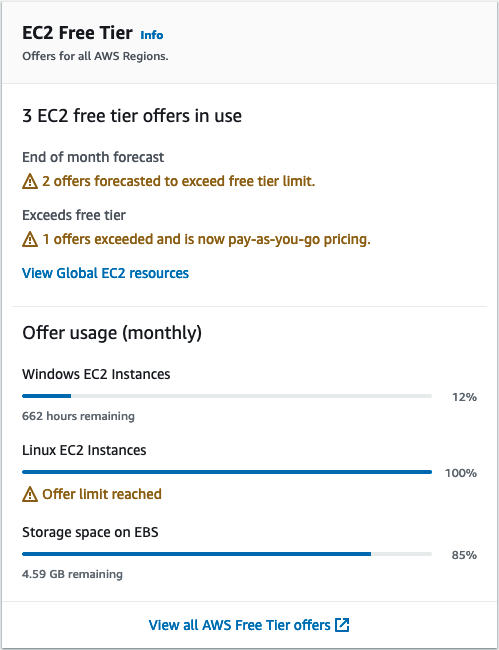
The key distinction in the widget is between current usage, forecasted overage, and an offer that has already exceeded its allowance. A resource can look inexpensive today yet be forecasted to cross a monthly limit if it remains running.
If you cannot access billing information
Billing access is account-sensitive. If your administrator identity receives an access-denied message or cannot see the billing pages:
- Confirm you are in the intended account by checking the 12-digit account ID.
- Do not work around the issue by creating access keys or routinely using root.
- Ask the account owner to enable IAM access to Billing and Cost Management, or to grant the appropriate billing permissions to the administrator identity.
- Once access is enabled, return to the Billing console and complete the verification checklist above.
In a company environment, Billing access is often deliberately restricted. As an architect, you should be able to identify the limitation and request the correct access, rather than assuming that an EC2 administrator role automatically has access to financial data.
Build a cost-control habit for every lab
The budget is your safety net; cleanup is your primary control. Before creating a lab resource, write down:
- The account ID and intended Region.
- The resource’s intended purpose.
- A deletion or termination condition, such as “delete immediately after testing.”
- Tags such as
Purpose=AWS-LearningandOwner=your-name.
At the end of each study session:
- Open the service console in the Region used for the lab.
- Stop or delete resources according to the service’s lifecycle requirements.
- Check for dependent billable components. For example, deleting a compute instance does not always delete attached storage, public IP addresses, snapshots, load balancers, or NAT gateways.
- Review the Free Tier page and current bill periodically, especially after trying a new service.
- Keep the monthly budget in place even when your account appears idle.
A common early AWS mistake is treating “Free Tier eligible” as equivalent to “free by default.” Architecture choices still determine cost: instance size, storage capacity, data transfer, Region, running duration, and attached resources all matter.
Key takeaways
A monthly cost budget provides notifications when actual or forecasted spending crosses thresholds, but it does not stop charges automatically. For this course, create a recurring, fixed, account-wide budget with early actual-spend, forecasted-spend, and full-budget alerts sent to a monitored email address.
Verify Free Tier usage, forecasts, credits, current bills, payment status, and support-plan details in the Billing and Cost Management console. Because Free Tier offers and credits vary by account and change over time, use the values shown in your own account rather than relying on general examples.
You now have a safer AWS learning environment: root access is protected, routine work uses a separate administrator identity, operational context is visible, and cost alerts are configured. Next, you will begin IAM authorization by distinguishing IAM users, groups, roles, identity-based policies, and resource-based policies.
Can't find a good explanation? Sign up and we'll make it for you
Sign up