
Using JavaScript Conditionals to Respond to Game State
Hello again. Your dungeon explorer can now respond to W, A, S, and D because each frame checks the current state of those keys. This lesson takes the same if idea one step further: instead of responding only to what a player is pressing right now, the game will respond to something it remembers.
You already declared a promising game-state variable:
let hasDungeonKey = false;
By the end of this lesson, the dungeon exit will look locked while hasDungeonKey is false, then change to an unlocked exit after the game sets it to true. Plan on roughly 35–40 minutes.
Game state is the game’s memory
A game constantly stores facts about its current situation. These stored facts are called game state.
Your sketch already has several state variables:
playerXandplayerY: where the player isplayerHealth: how much health the player hasplayerSpeed: how fast the player moveshasDungeonKey: whether the player possesses the key
Some state uses numbers. But a question with only two possible answers is well represented by a Boolean value:
let hasDungeonKey = false;
At the start of the game, the player does not have the key. Later, after finding it, the game can change that one value:
hasDungeonKey = true;
The important difference is that this change lasts. The key’s state stays true until you deliberately change it again or restart the sketch.
Do not put this line inside draw():
hasDungeonKey = false;
Since draw() repeats many times per second, that would repeatedly erase the fact that the player acquired the key.
One condition, two possible game responses
An if statement lets the game choose what to do when a condition is true:
if (hasDungeonKey) {
  // Code for when the player has the key.
}
Since hasDungeonKey already contains either true or false, JavaScript can test it directly. Read this as:
“If the player has the dungeon key, run this code.”
Often, you want the game to perform a different action when the condition is false. Add else:
if (hasDungeonKey) {
  // The player has the key.
} else {
  // The player does not have the key.
}
Exactly one of these blocks runs each time the conditional is checked.
Value of hasDungeonKey | Code that runs |
|---|---|
false | The else block |
true | The first if block |
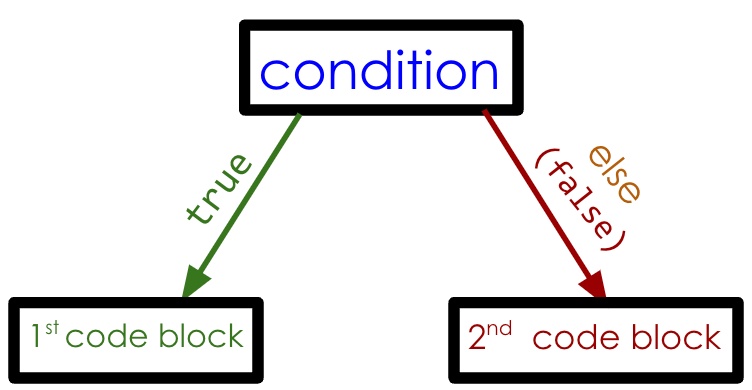
This differs from the four movement checks in the previous lesson. W, A, S, and D were separate checks because two keys can be held at once for diagonal movement. A door cannot reasonably be both locked and unlocked in the same frame, so if and else are the right structure.
See Boolean state in action
The Coding Train video connects the two ideas you need here: a Boolean variable holds a true or false state, and a conditional changes the sketch’s behavior according to that state.
3.4: Boolean Variables - p5.js Tutorial
Watch “3.4: Boolean Variables” from The Coding Train for a visual explanation of Boolean variables and a custom state variable that changes how a sketch behaves.
First watch Boolean values to reinforce that a Boolean is different from a number or text. Then watch custom state, where a variable beginning as false is checked with if/else, then changed by an interaction. Focus on the distinction between changing a state variable and checking its current value.
There are two pieces of JavaScript that look similar but have different jobs:
if (hasDungeonKey) {
This checks whether the variable is true.
hasDungeonKey = true;
This assigns the value true to the variable. It changes the game’s memory.
The single equals sign is correct in the second example because you are storing a new value. Avoid writing this:
if (hasDungeonKey = true) {
That line changes the variable instead of properly asking whether it is true. For a Boolean state, the clean beginner-friendly check is simply:
if (hasDungeonKey) {
Add a locked and unlocked dungeon exit
Return to the sketch from the movement lesson. Keep the variable declarations and all four W, A, S, and D movement checks.
1. Add a temporary key-acquisition test
Inside draw(), place this block after the four movement checks and before background(...):
// Temporary test control: K gives the player the dungeon key.
if (keyIsDown('KeyK')) {
  hasDungeonKey = true;
}
This is only a testing shortcut. For now, pressing K represents finding the key. In a later part of the course, an actual collectible will set a value like this when the player touches it.
Notice the order of ideas:
- The player presses K.
- The sketch stores
trueinhasDungeonKey. - The exit-rendering conditional reads
hasDungeonKey. - The unlocked version of the exit is drawn.
You do not need arrows in your code for that sequence; it happens naturally as draw() runs again and again.
2. Draw the exit based on the key state
Find the end of the four stone-wall rect(...) lines. Immediately after the walls and before the player is drawn, add this code:
// Draw a different exit depending on the game state.
textAlign(CENTER, CENTER);
textSize(18);

if (hasDungeonKey) {
  // Unlocked exit
  fill(58, 184, 158);
  stroke(202, 255, 237);
  strokeWeight(3);
  rect(572, 140, 28, 120);

  noStroke();
  fill(225, 255, 244);
  text("EXIT UNLOCKED", 300, 52);
} else {
  // Locked exit
  fill(112, 69, 90);
  stroke(230, 174, 111);
  strokeWeight(3);
  rect(572, 140, 28, 120);

  noStroke();
  fill(255, 221, 151);
  text("Find the dungeon key — press K to test", 300, 52);
}
The right wall already occupies the area from x = 572 to x = 600. This code draws the exit over part of that wall, making it visible as a special place in the dungeon.
Your relevant section of draw() should now have this overall shape:
function draw() {
  // Read keyboard input and update the player position.
  if (keyIsDown('KeyW')) {
    playerY = playerY - playerSpeed;
  }

  if (keyIsDown('KeyA')) {
    playerX = playerX - playerSpeed;
  }

  if (keyIsDown('KeyS')) {
    playerY = playerY + playerSpeed;
  }

  if (keyIsDown('KeyD')) {
    playerX = playerX + playerSpeed;
  }

  // Temporary test control: K gives the player the dungeon key.
  if (keyIsDown('KeyK')) {
    hasDungeonKey = true;
  }

  // Redraw the dungeon floor.
  background(18, 21, 31);

  // Stone walls
  fill(63, 54, 75);
  stroke(109, 92, 126);
  strokeWeight(3);

  rect(0, 0, 600, 28);
  rect(0, 372, 600, 28);
  rect(0, 0, 28, 400);
  rect(572, 0, 28, 400);

  // Draw a different exit depending on the game state.
  textAlign(CENTER, CENTER);
  textSize(18);

  if (hasDungeonKey) {
    fill(58, 184, 158);
    stroke(202, 255, 237);
    strokeWeight(3);
    rect(572, 140, 28, 120);

    noStroke();
    fill(225, 255, 244);
    text("EXIT UNLOCKED", 300, 52);
  } else {
    fill(112, 69, 90);
    stroke(230, 174, 111);
    strokeWeight(3);
    rect(572, 140, 28, 120);

    noStroke();
    fill(255, 221, 151);
    text("Find the dungeon key — press K to test", 300, 52);
  }

  // Draw the player.
  fill(95, 204, 180);
  stroke(220, 255, 245);
  strokeWeight(2);
  circle(playerX, playerY, 30);

  // Draw the player's sword.
  stroke(245, 215, 120);
  strokeWeight(4);
  line(playerX + 8, playerY, playerX + 21, playerY - 13);
}
Test the two game states
Press Play, click inside the canvas if needed, and inspect the opening state:
- The exit should be reddish-brown.
- The message should say that you need the dungeon key.
- W, A, S, and D should still move the player normally.
Then press and release K:
hasDungeonKeybecomestrue.- The exit becomes green.
- The message changes to
EXIT UNLOCKED. - It stays unlocked after you release K.
That last point proves that hasDungeonKey is persistent game state, not merely a key check. The K key is no longer held, but the game remembers that it was acquired.
If your exit is unlocked as soon as the sketch starts, make sure the declaration at the top is exactly:
let hasDungeonKey = false;
If the sketch reports an error, check the structure of the conditional carefully:
if (hasDungeonKey) {
  // True-state code
} else {
  // False-state code
}
Common details to check:
- Parentheses go around the condition:
(hasDungeonKey). - Curly braces surround each code block.
elsecomes after the closing brace of theifblock.hasDungeonKeyuses the same capitalization everywhere.
At this stage, the unlocked exit is a visual and text-based response. The player can still move through walls because the game has not yet enforced room boundaries. That rule is next.
Key takeaways
You have used a JavaScript conditional to make the dungeon react to its own remembered state:
- Game state is information the game stores, such as player position, health, or whether an item was collected.
hasDungeonKeyis a Boolean state variable with the valuestrueandfalse.if (hasDungeonKey)checks whether the player has the key.elsesupplies the alternative behavior when the player does not have it.hasDungeonKey = truechanges the stored state; it is different from checking the state.- Pressing K is a temporary way to test the state change; a future collectible will do this through player interaction.
Next, you will use more conditionals to keep the player inside the dungeon room rather than allowing them to walk through its walls.
Can't find a good explanation? Sign up and we'll make it for you
Sign up