
Hello, and welcome. This first module builds the PowerShell foundation you will use throughout IAM work: inspecting directory data, transforming identity records, and eventually automating carefully controlled changes. The central idea is deceptively important: PowerShell usually passes objects, not the text you see in the console.
By the end of this lesson, you should be able to trace what a pipeline stage receives and emits, inspect an object’s actual type and properties, and recognize the point at which useful data has become presentation-only output. Those habits prevent many common mistakes in identity automation.
Working with the PowerShell Pipeline
Watch Working with the PowerShell Pipeline by TechThoughts for a practical first view of data moving between cmdlets and of the current pipeline object.
Watch pipeline basics to see Get-Process feed Sort-Object. Then watch object action, where a process object is passed to Stop-Process, but do not run the destructive example yourself. Continue with input limits for the importance of compatible object types, and current object for the meaning of $_ inside a pipeline-processing block.
Objects travel through the pipeline
A PowerShell pipeline is a chain of commands separated by the pipe character, |.
Get-Process | Sort-Object -Property Id
At first glance, this may look like one command prints a table and another command rearranges the printed rows. That is not what happens. Get-Process emits .NET process objects. Sort-Object receives those objects, reads each object’s Id property, orders the objects, and emits process objects again. Only after the pipeline has finished does PowerShell choose how to display the final objects.
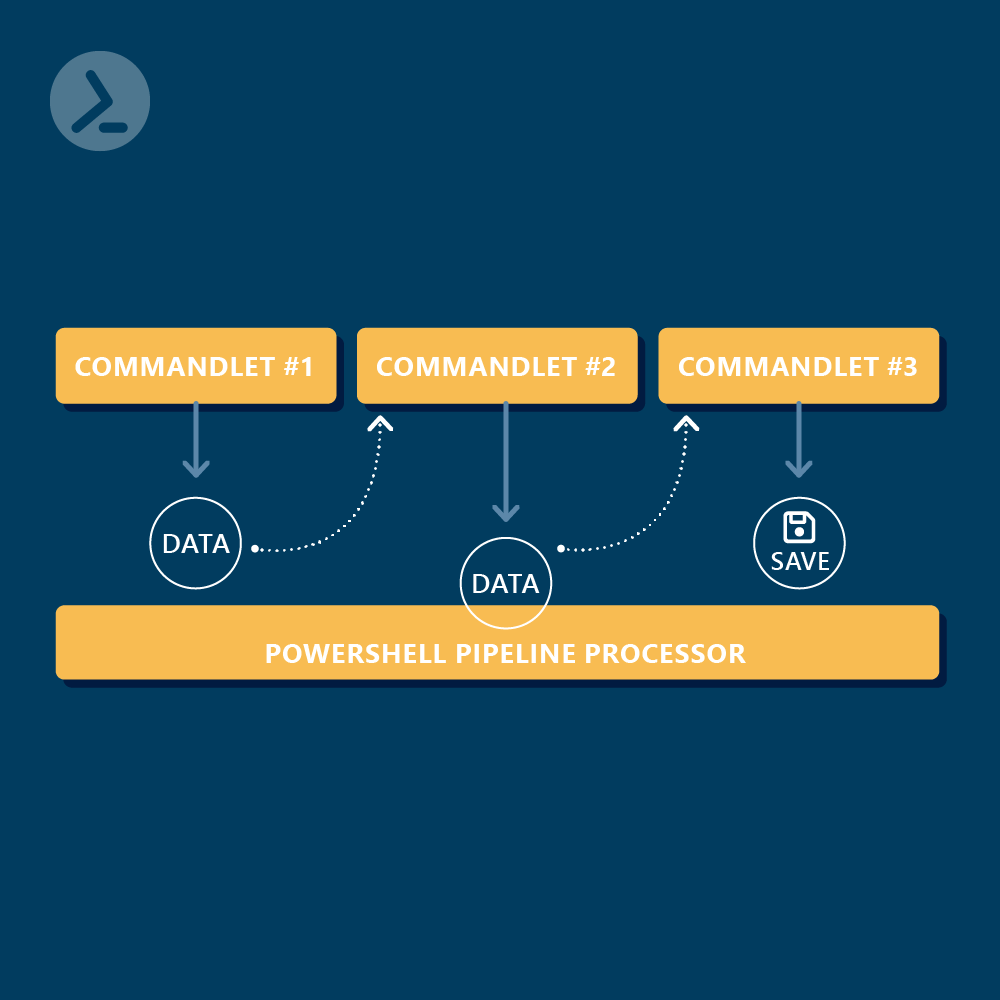
An object is a structured value. It has:
- a type, such as
System.DateTimeorSystem.Diagnostics.Process; - properties, which hold data about it, such as a process’s
IdandProcessName; - sometimes methods, which are actions the object supports.
For an IAM analogy, a directory user object is not merely a line such as:
Jordan Lee jlee@contoso.com Enabled
It is structured data with separately addressable properties: a display name, user principal name, account status, immutable identifier, group memberships, and more. A console table may show only a few of those properties. The object can contain substantially more information than its display suggests.
Consider Get-Date:
Get-Date
The console displays a pleasant date and time. It is tempting to conclude that Get-Date returned a string. Test that assumption instead:
Get-Date | Get-Member
Near the top of the result, look for:
TypeName: System.DateTime
System.DateTime is a date-and-time object, not a plain text string. Its properties include values such as Day, DayOfWeek, Hour, and Year. The default console display is just a view chosen for humans.
Get-Member is therefore your first diagnostic tool whenever you wonder, “What is actually in this pipeline?”
Get-Process | Get-Member
This reports the type of the incoming process objects and lists their available properties and methods. To focus only on data you might read or use in later commands, narrow the view:
Get-Process | Get-Member -MemberType Property
Discovering objects, properties, and methods - PowerShell 101
Read the “Get-Member” section of Microsoft Learn’s PowerShell 101. It establishes the distinction between an object’s properties, its methods, and its default display.
In the “Get-Member” section, read from the opening explanation through the service example. Focus on the TypeName line and on the difference between properties, which describe an object, and methods, which act on it.
A pipeline processes a stream of values
PowerShell commonly sends pipeline input one object at a time. For a small, visible demonstration:
1, 2, 3 | ForEach-Object { "Received: $_" }
ForEach-Object runs its script block once per incoming item. During each run, $_ means “the current pipeline object.” The output is:
Received: 1
Received: 2
Received: 3
With structured objects, $_ lets you access the property of the object currently being processed:
Get-Date | ForEach-Object { $_.DayOfWeek }
Here is the trace:
Get-Dateemits oneSystem.DateTimeobject.ForEach-Objectreceives that object.- Inside the braces,
$_refers to the date object. $_ .DayOfWeekreads itsDayOfWeekproperty.- The pipeline emits that property value as the final output.
Do not read $_ as a mysterious symbol. Read it operationally: the object currently arriving at this stage of the pipeline.
How PowerShell decides whether a pipeline works
A command on the receiving side of | cannot accept arbitrary input. It must have a parameter that accepts pipeline input, and the input needs a compatible type or compatible property.
For example, a process-management command can accept a process object:
Get-Process -Name notepad | Stop-Process
The first command emits a process object representing Notepad. Stop-Process has an input parameter designed to accept process objects, so PowerShell can bind the incoming value to that parameter.
Do not run that command merely as a test: it closes the target process. The lesson is that it works because the two commands agree on the object shape and type, not because their displayed output happens to look compatible.
There are two common ways a receiving parameter can accept input:
| Binding method | What PowerShell looks for | Conceptual example |
|---|---|---|
| By value | An incoming object of the expected type, or one PowerShell can convert to that type | A process object passed to a parameter expecting a process |
| By property name | An incoming object with a property whose name matches the receiving parameter | An object with a Name property supplied to a parameter accepting Name from the pipeline |
You can inspect a cmdlet’s parameter rules with help:
Get-Help Stop-Process -Full
Within the parameter descriptions, look for Accept pipeline input. It specifies whether the parameter accepts input and whether it does so by value, property name, or both.
The pipeline will fail when either of these conditions is not met:
- the receiving cmdlet does not accept pipeline input;
- the incoming object cannot bind to any parameter that accepts it.
For instance, a service object and a process object are different kinds of data. A service named bits is not automatically meaningful input for Stop-Process; PowerShell cannot safely pretend that a service object is a process object.
about_Pipelines - PowerShell | Microsoft Learn
Read Microsoft Learn’s about_Pipelines for the formal model behind the examples: commands emit objects, receiving parameters bind them, and collections are generally enumerated item by item.
Start in “Long description” and “Using pipelines.” Read the core pipeline description, including the file example. Then read “How pipelines work,” from parameter binding. Focus on the two acceptance modes: by value and by property name. Finally, in “One-at-a-time processing,” read the collection distinction and the following array and hash table examples. The key rule is that normal pipeline processing delivers collection members individually, rather than treating the whole collection as one object.
A practical troubleshooting sequence for an IAM script is:
- Inspect the producer’s output with
Get-Member. - Inspect the receiver’s accepted parameters with
Get-Help <Command> -Full. - Compare the source object’s type and property names with what the destination parameter accepts.
- If binding still seems surprising, use
Trace-Command -Name ParameterBindingto see PowerShell’s binding attempts.
The first two steps solve most beginner pipeline failures. The more advanced tracing tool is useful when a command has several parameter sets or similarly named properties.
The display is not the data
The distinction between objects and text matters most at the end of a pipeline.
When you run:
Get-Process
PowerShell eventually sends the final process objects to the output system. The output system applies a default display view, usually a table. That table is designed for your eyes. It is not evidence that the pipeline itself contained rows of text.
Formatting cmdlets let you explicitly choose that view:
Get-Process | Format-Table -Property ProcessName, Id
This is appropriate when your goal is to display a compact table. However, Format-Table is not a data-transformation cmdlet. It converts the incoming objects into formatting instructions for PowerShell’s display system. At that point, you no longer have the original process objects available for ordinary property-based processing.
A reliable rule is:
Format only at the end of a pipeline intended for human display.
Compare these endings:
| Pipeline ending | What is being passed onward | Suitable for further data processing? |
|---|---|---|
Get-Process | Sort-Object Id | Process objects, now ordered | Yes |
Get-Process | Format-Table ProcessName, Id | Formatting records, not original process objects | No, not for ordinary data operations |
Get-Process | Format-Table ProcessName, Id | Out-String | A string containing rendered table text | No |
Get-Process | Out-Host | Nothing on the success-output pipeline after display | No |
There is a useful technical nuance here. Format-Table does not immediately create one ordinary string; it emits specialized formatting data that an Out-* cmdlet can render. But for practical scripting, treat the formatting stage as the boundary between data work and presentation work.
You can observe the difference directly:
Get-Process | Get-Member
This inspects process objects. In contrast:
Get-Process |
    Format-Table -Property ProcessName, Id |
    Get-Member
will show PowerShell formatting-related types instead of the normal process type. The exact formatting type names can vary, but the important point is that they are no longer the original System.Diagnostics.Process objects.
Out-String performs the final text conversion:
Get-Date | Out-String | Get-Member
Now the resulting type is System.String. A string is useful for a message, a report body, or a log entry, but it does not retain the rich date properties such as .Year or .DayOfWeek.
Out-Host is even more final:
Get-Date | Out-Host | Get-Member
Out-Host displays the input directly in the terminal and does not emit object-based success output for Get-Member to inspect. It is a display endpoint.
Working with the PowerShell Pipeline
Continue Working with the PowerShell Pipeline by TechThoughts to see how the same object can be rendered in different display formats without changing the underlying source object.
Watch formatting views. Pay particular attention to the distinction between the limited properties displayed by default and the larger set of properties exposed with Format-List. Treat these as different views of the object, not proof that the source object changed.
Discovering objects, properties, and methods - PowerShell 101
Return to Microsoft Learn’s PowerShell 101 to connect property selection with the crucial warning about presentation-oriented output.
First, in the “Properties” section, read the explanation beginning “Notice when you piped Get-Service to Get-Member” and follow the Select-Object examples. Notice that the default view does not reveal every property. Then read the final examples in the “Get-Member” section, especially the Out-Host explanation. This is the clearest example of why visible console output is not necessarily reusable pipeline data.
Why this matters in identity automation
An identity report often begins with live directory objects and ends with a file or readable table. Keep the work in the middle object-based for as long as possible.
Conceptually, an audit pipeline should work in this order:
- Retrieve identity objects.
- Filter, inspect, compare, or enrich their properties.
- Create the structured data needed for a report.
- Export structured data or format a final human-readable view.
A common mistake is to format early:
# Avoid this pattern
Get-Process |
    Format-Table -Property ProcessName, Id |
    Export-Csv -Path .\processes.csv
Export-Csv expects useful data objects with properties to write as columns. After Format-Table, it instead receives formatting records. The resulting file will not be a meaningful process report.
Keep the objects intact instead:
Get-Process |
    Export-Csv -Path .\processes.csv -NoTypeInformation
Later in the course, you will learn to deliberately select the exact fields needed before exporting identity data. For now, preserve this ordering principle: shape data first; format it last.
In production IAM work, this has both correctness and security implications. If you misread a screen display as the actual object shape, you can query the wrong property, omit evidence fields from a report, or pipe an unintended object into a state-changing command. Inspecting with Get-Member before writing an automated action is a low-cost safety check.
Key takeaways
- The PowerShell pipeline passes objects between commands, typically one at a time; it does not normally pass the console’s rendered text.
- An object has a type, properties, and sometimes methods. Use
Get-Memberto see what a command actually emitted. - A receiving cmdlet needs a parameter that accepts pipeline input, either by compatible value type or matching property name.
$_represents the current object at a pipeline-processing stage.- Default console output is a view of an object, not the object itself.
- Use
Format-Table,Format-List,Out-String, andOut-Hostonly at the presentation boundary. Formatting early breaks later data processing.
Next, you will create and update variables containing the values and collections that PowerShell pipelines operate on: strings, numbers, Boolean values, arrays, and hash tables.
Can't find a good explanation? Sign up and we'll make it for you
Sign up