
Welcome back. Last time, you created a project-local virtual environment for churn-demo, installed a package using python -m pip, and recorded its versions in requirements.txt. That environment is still useful today, although the two libraries we will use, csv and json, come with Python’s standard library and need no installation.
Now you will make the project handle actual data files reliably. By the end of the lesson, you will be able to read a CSV into Python records, load JSON configuration, write a filtered CSV and JSON summary, and construct paths that work across operating systems and do not depend on where you happened to run the command.
Plan for roughly 40 minutes: a short conceptual review, about 13 minutes of focused video, and a hands-on build in your churn-demo project.
Files are resources: open them, use them, release them
A file on disk is not the same thing as data already stored in a Python variable. Before Python can read or write the file, the operating system gives Python an open connection to it, usually called a file object or file handle.
That connection consumes an external resource. If code leaves files open unnecessarily, a long-running application can eventually run out of available file handles; an output file may also remain incompletely written. The safe default is a context manager:
with path.open(mode="r", encoding="utf-8") as file:
    content = file.read()
Read this as:
- Open the file represented by
path. - Temporarily call the open file object
file. - Run the indented block.
- Close the file automatically when the block ends, even if an error occurs inside it.
The file variable is meaningful only while you are inside the with block. However, data that you read into an ordinary Python object, such as a list or dictionary, remains available after the file closes.
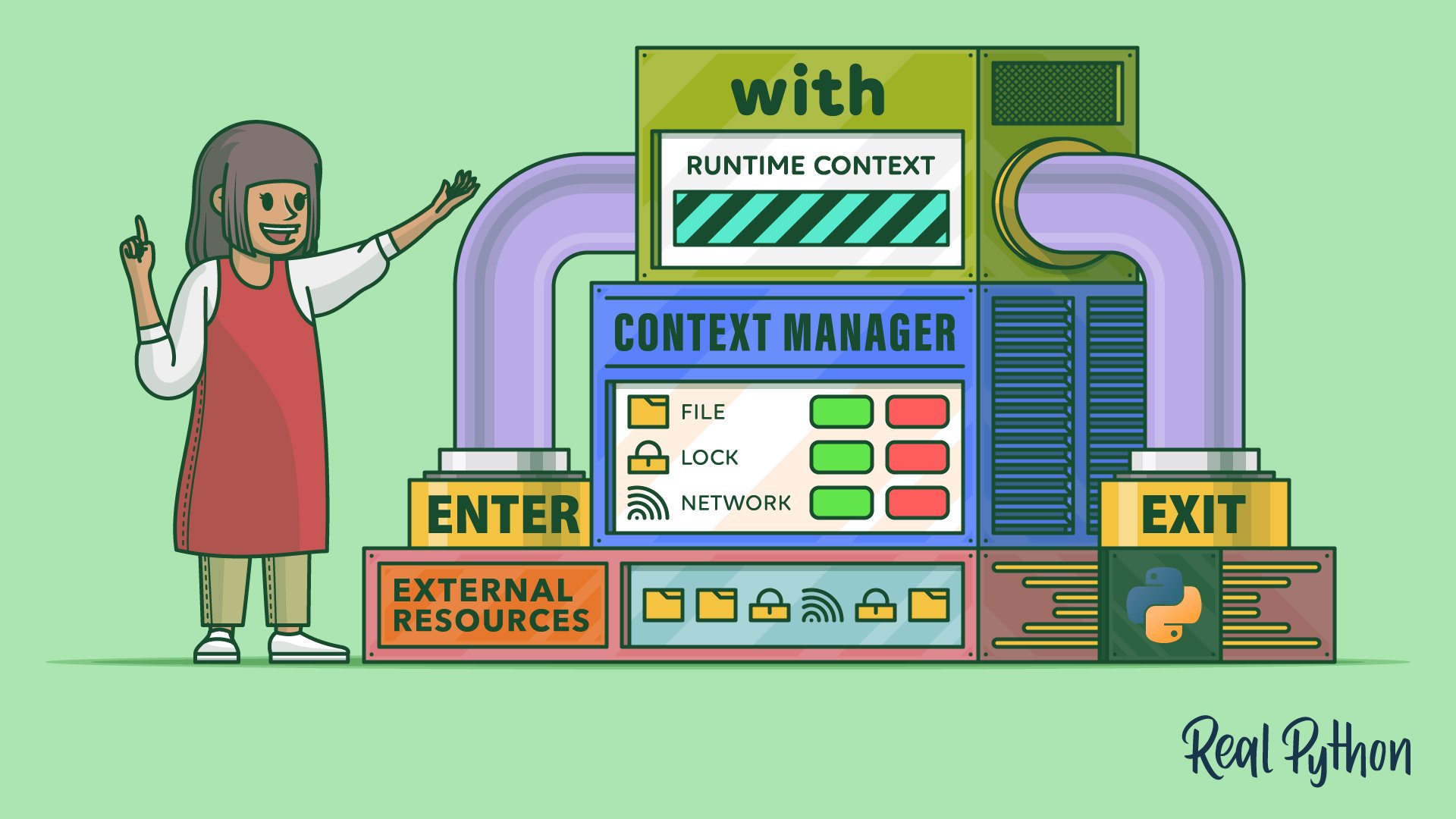
The context-manager illustration uses a machine metaphor, but the practical rule is simple: when your code opens a file, use with. Do not rely on remembering to call .close() later.
Python's with Statement: Manage External Resources Safely
Read Real Python’s explanation of the with statement to establish the resource-management habit before using it with data files.
In “The with Statement,” read from the paragraph beginning “The Python with statement creates” through the first file-writing example. Then, in “Working With Files,” read the opening discussion through the Path.open() example. Focus on the distinction between the indented with block, where the file is usable, and the automatic cleanup afterward. Near the end, note the reminder about file risks; you will begin handling such problems more deliberately in the next lesson.
File modes: make your intent explicit
The mode tells Python what you plan to do with a file:
| Mode | Meaning | Important behavior |
|---|---|---|
"r" | Read | The file must already exist. |
"w" | Write | Creates a new file or replaces the contents of an existing one. |
"a" | Append | Adds new content to the end of an existing file. |
Use "r" for source data in data/raw/. Use "w" intentionally for generated outputs in data/processed/. Accidentally opening a raw data file with "w" can erase it, so keeping raw and generated data in separate folders is a valuable project convention.
The encoding="utf-8" argument is also a good default for text files. It makes the character encoding explicit, which helps prevent differences across machines and protects names, punctuation, and non-English text from being interpreted incorrectly.
Portable paths with pathlib
A path identifies a file’s location. It is tempting to write a string such as:
"data/raw/churn_events.csv"
That is a relative path: Python interprets it relative to the current working directory, the directory from which the command was run. If you run your script from the project root, it works. If you run the same script from another directory, it may fail with FileNotFoundError.
Hard-coded absolute paths are worse:
"/Users/your_name/projects/churn-demo/data/raw/churn_events.csv"
That path will not work on a colleague’s machine, a cloud runner, a container, or usually even a different account on your own computer.
Use pathlib.Path instead:
from pathlib import Path

PROJECT_ROOT = Path(__file__).resolve().parents[1]
EVENTS_PATH = PROJECT_ROOT / "data" / "raw" / "churn_events.csv"
There are three ideas here:
__file__is the path to the running Python script..resolve()turns it into a full, unambiguous path..parents[1]moves fromsrc/file_io.pyup to the project root.- The
/operator combinesPathsegments. It is not division in this context.
If the script is at churn-demo/src/file_io.py, then the path calculation has this structure:
| Expression | Location represented |
|---|---|
Path(__file__).resolve() | .../churn-demo/src/file_io.py |
.parents[0] | .../churn-demo/src |
.parents[1] | .../churn-demo |
PROJECT_ROOT / "data" / "raw" | .../churn-demo/data/raw |
Path uses the correct separator for the operating system. That means you do not need to manually choose between forward slashes and Windows backslashes.
A Path object describes a location; it does not guarantee that a file exists. Opening a missing input file still raises an error, which is useful evidence that the expected project structure or filename is wrong.
CSV: rows and columns in a text file
A CSV file is a plain-text table. Usually, its first row contains column names, and every later row contains values in the same order:
customer_id,event_type,days_since_last_login,notes
1001,login,0,"mobile, iOS"
1002,login,29,"asked for a callback"
Although the name says “comma-separated,” related files may use tabs or semicolons. More importantly, values themselves may contain commas. The note "mobile, iOS" is one field, not two, because it is quoted.
For this reason, do not parse CSV by calling .split(","). Use Python’s built-in csv module. It handles delimiters, quoted values, and other format details correctly.
Python Tutorial: CSV Module - How to Read, Parse, and Write CSV Files
Watch “Python Tutorial: CSV Module - How to Read, Parse, and Write CSV Files” by Corey Schafer for a compact walkthrough of why Python’s csv module is safer than manual string splitting and why dictionary-based rows are readable.
Watch CSV reading for the structure of CSV files, context-managed opening, iteration, headers, and why parsing by simple splitting is fragile. Then skip to dictionary rows to see DictReader and DictWriter; focus on how headers become meaningful dictionary keys rather than opaque numeric positions.
Prefer DictReader for named columns
A basic csv.reader returns each row as a list:
["1002", "login", "29", "asked for a callback"]
You would have to remember that row[2] means days_since_last_login. That is error-prone when a dataset changes or another person reads your code.
csv.DictReader uses the header row as dictionary keys:
{
    "customer_id": "1002",
    "event_type": "login",
    "days_since_last_login": "29",
    "notes": "asked for a callback",
}
You can then write code that expresses its intent:
days_inactive = int(event["days_since_last_login"])
One important detail: CSV values are read as strings by default. The text "29" looks numeric but is still a string until you convert it with int() or float(). Later, pandas will automate much of this work, but understanding the underlying behavior makes data-type problems easier to diagnose.
A reliable CSV-reading pattern is:
import csv

with EVENTS_PATH.open(mode="r", encoding="utf-8", newline="") as input_file:
    reader = csv.DictReader(input_file)
    events = list(reader)
list(reader) consumes the reader and stores all records in memory as a list of dictionaries. Once the with block ends, input_file is closed, but events remains available.
The newline="" argument is recommended when working with the csv module. In particular, it prevents extra blank rows from appearing in CSV output on some platforms and lets the module manage line endings correctly.
Write CSV using DictWriter
To write dictionaries back to a CSV, Python needs to know the intended column order. That is why csv.DictWriter requires fieldnames.
fieldnames = [
    "customer_id",
    "event_type",
    "days_since_last_login",
    "notes",
]

with OUTPUT_PATH.open(mode="w", encoding="utf-8", newline="") as output_file:
    writer = csv.DictWriter(output_file, fieldnames=fieldnames)
    writer.writeheader()
    writer.writerows(events)
Two method names matter:
.writeheader()writes the column names as the first row..writerows(events)writes every dictionary in a collection.
The csv module will quote a value automatically when needed. You should pass it Python values and let it handle CSV formatting rather than adding quote characters yourself.
JSON: structured configuration and records
JSON is another plain-text format. It is commonly used for API responses, configuration files, experiment settings, and structured records.
This JSON configuration file contains a project name and a threshold:
{
  "project_name": "churn-demo",
  "minimum_inactive_days": 14
}
It resembles a Python dictionary but is not Python code. A few translations happen when JSON is loaded:
| JSON | Python |
|---|---|
| Object | Dictionary |
| Array | List |
| String | String |
true / false | True / False |
null | None |
For files, remember this pairing:
| Function | Input | Result |
|---|---|---|
json.load(file) | Open JSON file | Python object |
json.dump(data, file) | Python object and open file | JSON written to the file |
json.loads(text) | JSON string | Python object |
json.dumps(data) | Python object | JSON string |
The extra s means “string.” For this lesson, use load and dump because you are working with files.
Python Tutorial: Working with JSON Data using the json Module
Watch “Python Tutorial: Working with JSON Data using the json Module” by Corey Schafer to connect context-managed file access with JSON loading and writing.
Watch JSON files. Focus on the distinction between json.load() for an already-open file and json.dump() for writing a Python dictionary or list to an already-open output file. Notice how indent=2 makes generated JSON reviewable in an editor.
A standard JSON pattern is:
import json

with CONFIG_PATH.open(mode="r", encoding="utf-8") as config_file:
    config = json.load(config_file)

with SUMMARY_PATH.open(mode="w", encoding="utf-8") as summary_file:
    json.dump(summary, summary_file, indent=2)
Use indent=2 for project configuration and small summary files. It makes Git diffs and manual inspection much easier.
Guided build: create a CSV filter and JSON summary
You will now make one small but realistic project script. It will:
- Load an inactivity threshold from JSON configuration.
- Read churn events from CSV.
- Select events whose inactivity days meet the threshold.
- Write the selected events to a new CSV.
- Write a JSON run summary.
From the churn-demo project root, activate the environment if it is not already active:
source .venv/bin/activate
Then create the folders:
mkdir -p config data/raw data/processed
1. Create the input CSV
In your editor, create data/raw/churn_events.csv:
customer_id,event_type,days_since_last_login,notes
1001,login,0,"mobile, iOS"
1002,login,29,"asked for a callback"
1003,cancel,31,""
1004,login,2,""
Notice that the first note contains a comma. This is deliberate: it demonstrates why a dedicated CSV parser matters.
2. Create the JSON configuration
Create config/project_config.json:
{
  "project_name": "churn-demo",
  "minimum_inactive_days": 14
}
JSON requires double quotes around keys and text values. Do not use Python dictionary syntax such as single quotes or True.
3. Write the script
Create src/file_io.py. Type the code in sections rather than pasting it all at once. After each with block, identify what is now stored in memory and what was only temporarily open.
from pathlib import Path
import csv
import json


PROJECT_ROOT = Path(__file__).resolve().parents[1]

CONFIG_PATH = PROJECT_ROOT / "config" / "project_config.json"
EVENTS_PATH = PROJECT_ROOT / "data" / "raw" / "churn_events.csv"
OUTPUT_DIR = PROJECT_ROOT / "data" / "processed"
AT_RISK_PATH = OUTPUT_DIR / "at_risk_events.csv"
SUMMARY_PATH = OUTPUT_DIR / "run_summary.json"


with CONFIG_PATH.open(mode="r", encoding="utf-8") as config_file:
    config = json.load(config_file)

with EVENTS_PATH.open(mode="r", encoding="utf-8", newline="") as input_file:
    reader = csv.DictReader(input_file)
    events = list(reader)

threshold = config["minimum_inactive_days"]

at_risk_events = [
    event
    for event in events
    if int(event["days_since_last_login"]) >= threshold
]

OUTPUT_DIR.mkdir(parents=True, exist_ok=True)

fieldnames = [
    "customer_id",
    "event_type",
    "days_since_last_login",
    "notes",
]

with AT_RISK_PATH.open(mode="w", encoding="utf-8", newline="") as output_file:
    writer = csv.DictWriter(output_file, fieldnames=fieldnames)
    writer.writeheader()
    writer.writerows(at_risk_events)

summary = {
    "project_name": config["project_name"],
    "total_events": len(events),
    "at_risk_events": len(at_risk_events),
    "minimum_inactive_days": threshold,
}

with SUMMARY_PATH.open(mode="w", encoding="utf-8") as summary_file:
    json.dump(summary, summary_file, indent=2)

print(f"Read {len(events)} events from: {EVENTS_PATH}")
print(f"Wrote {len(at_risk_events)} at-risk events to: {AT_RISK_PATH}")
print(f"Wrote summary to: {SUMMARY_PATH}")
Trace the script before running it
The first with block places a Python dictionary in config. The second places a list of row dictionaries in events.
For example, after the CSV is read, the second record has this form:
{
    "customer_id": "1002",
    "event_type": "login",
    "days_since_last_login": "29",
    "notes": "asked for a callback",
}
The list comprehension checks each record. int(...) is necessary because the CSV reader supplied "29" as text. The resulting at_risk_events list should contain the records for customers 1002 and 1003.
OUTPUT_DIR.mkdir(parents=True, exist_ok=True) ensures that data/processed/ exists before the script tries to write outputs:
parents=Trueallows Python to create missing parent directories.exist_ok=Trueprevents an error when the directory already exists.
Finally, the two output with blocks create new files in data/processed/. They do not modify the raw input CSV.
4. Run and inspect the outputs
From the project root:
python src/file_io.py
You should see three messages containing full paths. Then inspect the generated files:
cat data/processed/at_risk_events.csv
cat data/processed/run_summary.json
Your CSV should contain a header plus two records, for customers 1002 and 1003. Your JSON should look broadly like this:
{
  "project_name": "churn-demo",
  "total_events": 4,
  "at_risk_events": 2,
  "minimum_inactive_days": 14
}
The exact ordering of JSON keys is not the important part. The key evidence is that the summary values agree with the input data and that the two output files are in data/processed/.
Debugging file-input problems systematically
File errors are usually easier to solve when you first identify which layer failed: the path, opening the file, parsing the format, or using the loaded data.
| Symptom | Likely cause | First check |
|---|---|---|
FileNotFoundError | Incorrect filename, missing file, or unexpected project structure | Check pwd, inspect data/raw/ and config/, then compare names carefully. |
PermissionError | Your account cannot read or write at that location | Confirm the output location and avoid writing to restricted system folders. |
json.decoder.JSONDecodeError | Invalid JSON syntax | Check commas, double quotes, and matching braces or brackets. |
KeyError: 'minimum_inactive_days' | JSON key differs from the key your code expects | Compare config["minimum_inactive_days"] character-for-character with the configuration file. |
ValueError from int(...) | A CSV cell expected to be numeric is blank or contains non-numeric text | Print the problematic row and inspect the raw CSV value. |
| Output has one giant column | The file uses a different delimiter, such as a tab or semicolon | Pass the correct delimiter to csv.DictReader. |
| Extra blank lines in a CSV output | File was opened without newline="" on an affected platform | Add newline="" when opening CSV files. |
Avoid “fixing” errors by catching every exception and continuing silently. At this stage, a visible traceback is often useful: it tells you which line failed and provides evidence about what to inspect. In the next lesson, you will learn to validate inputs and raise targeted, informative exceptions for problems your own functions can anticipate.
Key takeaways
Use with whenever you read or write a file. It safely closes the external file resource when the indented block ends, including when an error interrupts the block.
Use Path objects to build locations from meaningful project directories rather than hard-coding machine-specific absolute paths or relying accidentally on the current working directory. A script-relative project root is a sturdy baseline for this kind of repository.
For CSV files, prefer csv.DictReader and csv.DictWriter when columns have meaningful names. CSV values begin as strings, and newline="" is the reliable setting when using the csv module. For JSON files, use json.load() and json.dump() with context-managed file objects, and write readable project files with indent=2.
Next, you will make this code more trustworthy by validating function inputs and raising specific exceptions with messages that help someone diagnose a bad value or unexpected file-derived record.
Can't find a good explanation? Sign up and we'll make it for you
Sign up