
Welcome back. In the previous lesson, you used pseudocode to separate what a program should do from the Python syntax used to implement it. That same habit carries into command-line work: before running a command that changes files, identify your current location, the target path, and the intended result.
This module builds the reliable workflow around your Python work. Today you will use a Bash-compatible shell to inspect where you are, navigate a project directory, create and manage files safely, and run a Python script outside a notebook. By the end, you should be able to create a small project structure and explain why a command acts on the files it does.
These commands assume a Bash-compatible terminal: Terminal on macOS/Linux, or Git Bash/WSL on Windows. If your prompt begins with PS, you are in PowerShell; some concepts transfer, but option syntax can differ. Pick one shell for now rather than mixing command examples.
The shell is a file-system workspace
A terminal is the application window; a shell is the program inside it that reads commands and runs them. You can think of the shell as another way to interact with the same files you see in Finder, Windows Explorer, or VS Code.
The key fact is this:
At any moment, a shell session has one current working directory.
Most commands interpret relative file paths from that directory. If you accidentally run a script from the wrong location, Python may not find the file or may read a different data file than you intended. This is why experienced developers frequently check their location rather than assuming it.
In command examples, do not type the prompt symbol such as $; type only the command following it.
Watch “Basic Linux Navigation” by Nathan Backman for a compact visual introduction to the terminal prompt, navigation, creating files, running a Python script, and removing a file.
Watch terminal context to see why the active folder and home directory matter. Then watch a small workflow for mkdir, cd, creating files, and running python3 hello.py. Finish with file removal to reinforce that removal is an explicit action, not an undoable edit.
The video uses a small homework example. In data work, the same mechanics apply to a project with source code, notebooks, raw data, processed outputs, and tests.
Directories form a tree; paths identify locations
A file contains information, such as Python code in train.py, tabular data in customers.csv, or notes in README.md. A directory—often called a folder—holds files and other directories.
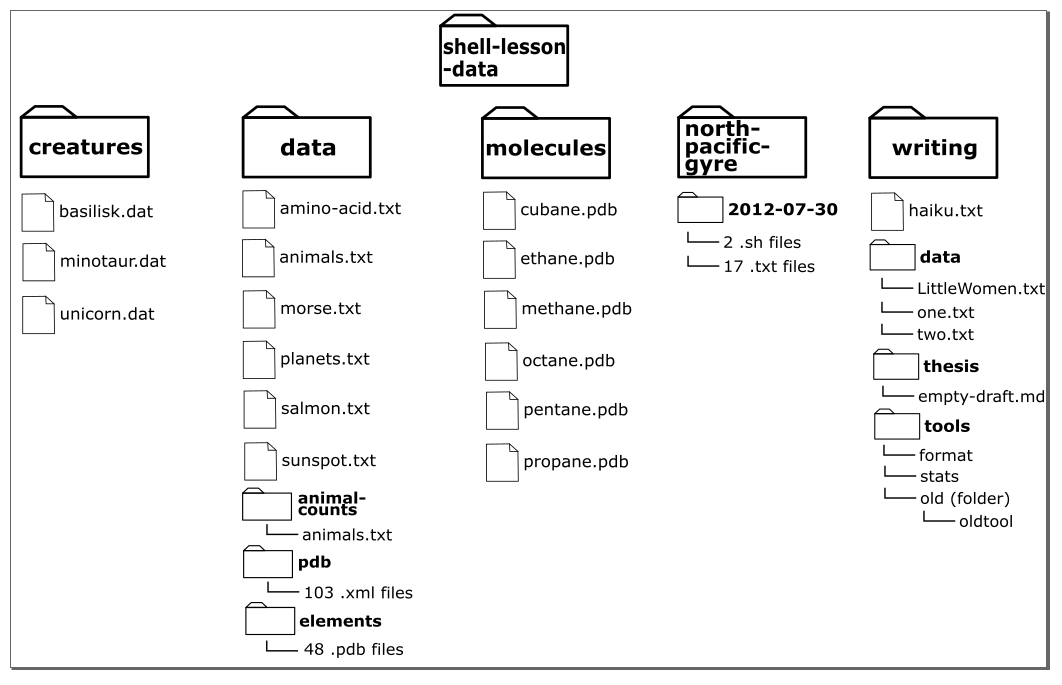
The image is a directory tree. A path names a route through that tree. For example, if your project is called churn-demo, then src/train.py means:
- start from the current directory,
- find the
srcsubdirectory, - find the
train.pyfile inside it.
A path may be relative or absolute.
| Path form | Meaning | Example |
|---|---|---|
| Relative path | Starts from the shell’s current working directory. | src/train.py |
| Absolute path | Starts from the root of the file system and identifies one fixed location. | /Users/sam/projects/churn-demo/src/train.py |
. | The current directory. | ./src/train.py |
.. | The parent directory, one level above the current directory. | ../shared-data |
~ | Your home directory. | ~/projects/churn-demo |
On macOS and Linux, absolute paths begin with /. In Git Bash on Windows, you will also use forward slashes in shell commands, even though File Explorer displays paths using backslashes.
The Unix Shell: Navigating Files and Directories
Read this Software Carpentry lesson as a reference for the core navigation model. It explains why the working directory matters, how ls and cd interpret paths, and how options change command behavior.
In “Navigating Files and Directories,” read the opening explanation of the file system and pwd; note that operating-system-specific paths vary in the path examples. Then read the beginning of the ls discussion in the same section, including the explanation of -F and the brief help discussion. In “Exploring Other Directories,” read the examples using cd, .., ., ~, relative paths, and absolute paths. Pay particular attention to why successful navigation is silent: verify movement with pwd and ls, not by waiting for a success message. Finally, skim “General Syntax of a Shell Command” and the tab-completion discussion. Read the command-spacing explanation, then practice pressing Tab while typing directory names rather than retyping long paths.
The essential command vocabulary
The most useful initial command pattern is:
command option argument
- A command says what action to perform.
- An option changes that command’s behavior; options often begin with
-. - An argument tells the command which file, directory, or other item to act on.
For example:
ls -F src
Here, ls lists contents, -F adds a marker after directory names, and src is the directory to inspect.
The following commands are enough for a large share of day-to-day local project work.
| Command | Purpose | Example | Useful check |
|---|---|---|---|
pwd | Print the current working directory. | pwd | Confirm where you are before changing files. |
ls | List directory contents. | ls | See files and directories in the current location. |
ls -F | List contents and mark directories with /. | ls -F | Distinguish directories from files quickly. |
ls -la | Show a detailed list including hidden files. | ls -la | Inspect files such as .gitignore. |
cd path | Change current working directory. | cd src | Run pwd afterward. |
mkdir name | Create a directory. | mkdir models | Run ls -F. |
mkdir -p path | Create a directory path, including missing parents. | mkdir -p data/raw | Useful when setting up a project. |
touch file | Create an empty file if it does not exist. | touch README.md | Run ls. |
cp source destination | Copy a file. | cp config.json config_backup.json | Verify that both files exist. |
mv source destination | Move or rename a file. | mv draft.py train.py | Check the old and new locations. |
rm file | Permanently remove a file. | rm old_notes.txt | Use only after checking the exact name. |
Two details prevent many beginner mistakes:
-
cdchanges the shell’s location; it does not move a directory.cd srcmeans “work from insidesrcnow.” Thesrcfolder remains where it was. -
The second argument of
mvandcphas two possible meanings.
If it is a new file name, the command renames or copies to that name. If it is an existing directory, the source keeps its name and is placed inside that directory.
For example:
mv src/train.py src/model_train.py
renames the file within src.
mv src/train.py notebooks/
moves the file into notebooks while retaining the name train.py.
Use Tab completion whenever possible. Type enough of a name to make it unambiguous, then press Tab. This both saves typing and reduces errors in long file names.
File-management habits that protect projects
File operations are ordinary, but they can be destructive. Treat each command as a small implementation of a specification:
- Current location: Where am I?
- Source: What file or directory will change?
- Destination: Where should it end up?
- Verification: Which command will confirm the intended result?
This is the same reasoning pattern you used with pseudocode. Before mv data/raw/customers.csv data/archive/, confirm that the source exists and that data/archive/ is really the destination you intend.
The Unix Shell: Working With Files and Directories
Use this Software Carpentry lesson as a safety-oriented reference for creating directories and managing project files. Focus on the meaning of each operation rather than trying to memorize every option.
In “Creating directories,” read the mkdir and mkdir -p examples, then the naming guidance. In particular, review why spaces cause trouble. Prefer lowercase names with hyphens or underscores, such as customer-churn or model_metrics.csv. In “Moving files and directories,” read the mv examples and pause on the overwrite warning. Then read “Copying files and directories,” including the explanation of recursive copying. Finally, read “Removing files and directories,” especially the deletion warning. Do not use recursive deletion on real project directories while learning.
Names, spaces, and quoting
A command uses spaces to separate its pieces. Therefore, a directory called client files is interpreted as two separate arguments unless you quote it:
cd "client files"
Quoting works, but consistent naming is simpler. Use names such as:
customer-churn
feature_store
raw_data
train_model.py
Avoid names that begin with -, since shells may interpret them as options.
Copying and removing directories
Files can be copied directly:
cp src/train.py src/train_backup.py
Directories require a recursive option because they can contain other directories and files:
cp -r data data_backup
Removal deserves more care. rm normally removes files, while rm -r can remove an entire directory and all its contents. That is permanent in a typical shell workflow.
For deliberate cleanup of a small practice directory, prefer an interactive form:
rm -ri old_practice_folder
The shell asks before removing each item. Never use forceful recursive deletion commands merely to “see what happens,” and pause before confirming any deletion prompt.
Guided terminal build: create and run a small project
This short build turns the commands into a repeatable workflow. Type each command yourself. Before pressing Enter, state what you expect it to do; then verify the result rather than assuming success.
First, go to your home directory and make a project:
cd ~
mkdir -p projects/churn-demo
cd projects/churn-demo
pwd
Your pwd output will differ from someone else’s, but it should end with something like:
projects/churn-demo
Now create a small, conventional project structure:
mkdir -p data/raw data/processed notebooks src tests
touch README.md
ls -F
ls -F data
You should see data/, notebooks/, src/, and tests/ as directories. Inside data, you should see processed/ and raw/.
For now, the folder meanings are:
| Directory | Initial purpose |
|---|---|
src/ | Reusable Python source code, such as training or cleaning functions. |
notebooks/ | Exploratory notebook work. |
data/raw/ | Original data received from a source; avoid manually changing it. |
data/processed/ | Derived, cleaned, or transformed data. |
tests/ | Automated checks for code behavior. |
This is a useful convention, not a universal law. The important thing is that the structure makes it clear where code and data belong. Later modules will add configuration, model artifacts, tests, and reproducibility metadata to this kind of repository.
Next, create a Python script. If nano is available, run:
nano src/train.py
Enter the following code:
project_name = "churn-demo"
print(f"Running {project_name}")
In Nano, save with Ctrl + O, press Enter to confirm the file name, then exit with Ctrl + X. If Nano is not available, create the same file in your code editor and make sure it is saved at exactly src/train.py.
Confirm its location:
ls -F src
Now identify the Python command available on your machine:
python3 --version
If that reports a Python 3 version, use python3 in the next command. If it says the command is not found, try:
python --version
If python reports a Python 3 version, use python instead of python3 below. Use the same interpreter command consistently within one session.
From the project root, run your script:
python3 src/train.py
You should see:
Running churn-demo
This command has two parts:
python3starts the Python interpreter.src/train.pyis the relative path to the script from the project root.
Now change your current directory and run the same script with a different relative path:
cd src
pwd
python3 train.py
cd ..
Both invocations run the same file. The path changes because your working directory changed. This is the practical reason that pwd is so important: a relative path is meaningful only in relation to the current working directory.
Finally, practice copying, renaming, moving, and safely deleting a harmless file:
cp src/train.py src/train_copy.py
mv src/train_copy.py src/train_draft.py
mkdir src/archive
mv src/train_draft.py src/archive/
ls -F src
ls -F src/archive
rm -i README.md
When rm -i README.md asks for confirmation, check that it names README.md before typing y. Then verify:
ls -F
The project’s important script remains at src/train.py; the copied draft sits at src/archive/train_draft.py; and the temporary README.md is gone.
Running scripts is not the same as proving they are correct
The command line lets you run code independently of a notebook, which is essential for reproducible ML workflows. But a script that runs without an error is not automatically correct.
For example, a training script can execute successfully while using the wrong input file, selecting the wrong target column, or writing outputs into an unintended directory. Keep the previous lesson’s discipline:
- State what the script should do.
- Predict what output or files it should produce.
- Run the command.
- Inspect the observed output and the resulting files.
- Compare the result with your prediction.
When a command fails, diagnose the category of failure before changing several things at once.
| Symptom | Likely cause | First checks |
|---|---|---|
No such file or directory | A path is wrong, misspelled, or interpreted from the wrong directory. | Run pwd, then ls -F and inspect the path one component at a time. |
| Python cannot open a script file | The script path is wrong for the current directory. | Run ls -F src or navigate to the script’s directory before running it. |
python3: command not found | The interpreter has a different command name or Python is not installed/configured. | Try python --version; do not randomly install packages yet. |
SyntaxError | The shell successfully found Python and the script, but Python cannot parse your code. | Read the file and traceback; compare the code with your intended plan. |
| Script runs but output is unexpected | The logic may be wrong even though execution succeeded. | Return to pseudocode and trace variables or file paths with a tiny example. |
A useful command-line reflex is:
pwd
ls -F
Run those before any command that would overwrite, move, or delete a file. They turn uncertainty into observable state.
Key takeaways
The shell gives you a reproducible way to work with projects outside a notebook. Your current working directory controls how relative paths are interpreted, so use pwd to orient yourself and ls to inspect what exists before changing anything.
The central commands are:
pwd,ls, andcdfor orientation and navigation;mkdirandtouchfor creating directories and empty files;cpandmvfor copying, moving, and renaming;rmfor deliberate, permanent removal;python3 path/to/script.pyorpython path/to/script.pyfor running a script.
Most importantly, verify every meaningful operation. A command with no output may have succeeded, and a script that runs may still contain a logic error.
Next, you will create an isolated Python environment, install a package into it, and record dependency versions. That will connect the interpreter you use from the command line to a controlled, reproducible project setup.
Can't find a good explanation? Sign up and we'll make it for you
Sign up