
Good to continue. In the previous lesson, you established the prerequisite: the backend project must be obtained locally, and its backend folder should contain package.json. Before installing that project’s packages, we need to confirm that Windows can run the two tools npm projects rely on: Node.js and npm.
This check does not require you to be inside the project folder yet. You can run it from any PowerShell location. By the end, you will know whether both commands are available and how to interpret the result.
Node.js and npm: two related tools
Node.js runs JavaScript outside a web browser. Your backend’s development server will ultimately run through Node.js.
npm is the Node Package Manager. It reads package.json, installs the project’s dependencies with npm install, and runs defined project scripts such as npm run dev.
They are usually installed together, but check both separately:
- Node.js being available means PowerShell can find and run
node. - npm being available means PowerShell can find and run
npm. - A version number confirms that the command is available in your current terminal session.
The official npm documentation uses exactly these two checks:
Downloading and installing Node.js and npm
Read the short “Checking your version of npm and Node.js” part of the official npm documentation. It establishes the two commands you will use and what they verify.
Under the section “Checking your version of npm and Node.js,” read the two checks. Notice that the commands are separate: success with one does not replace checking the other.
Run the version checks in PowerShell
Open Windows PowerShell:
- Select the Start menu.
- Type PowerShell.
- Open Windows PowerShell. A window with a prompt such as
PS C:\Users\YourName>appears.
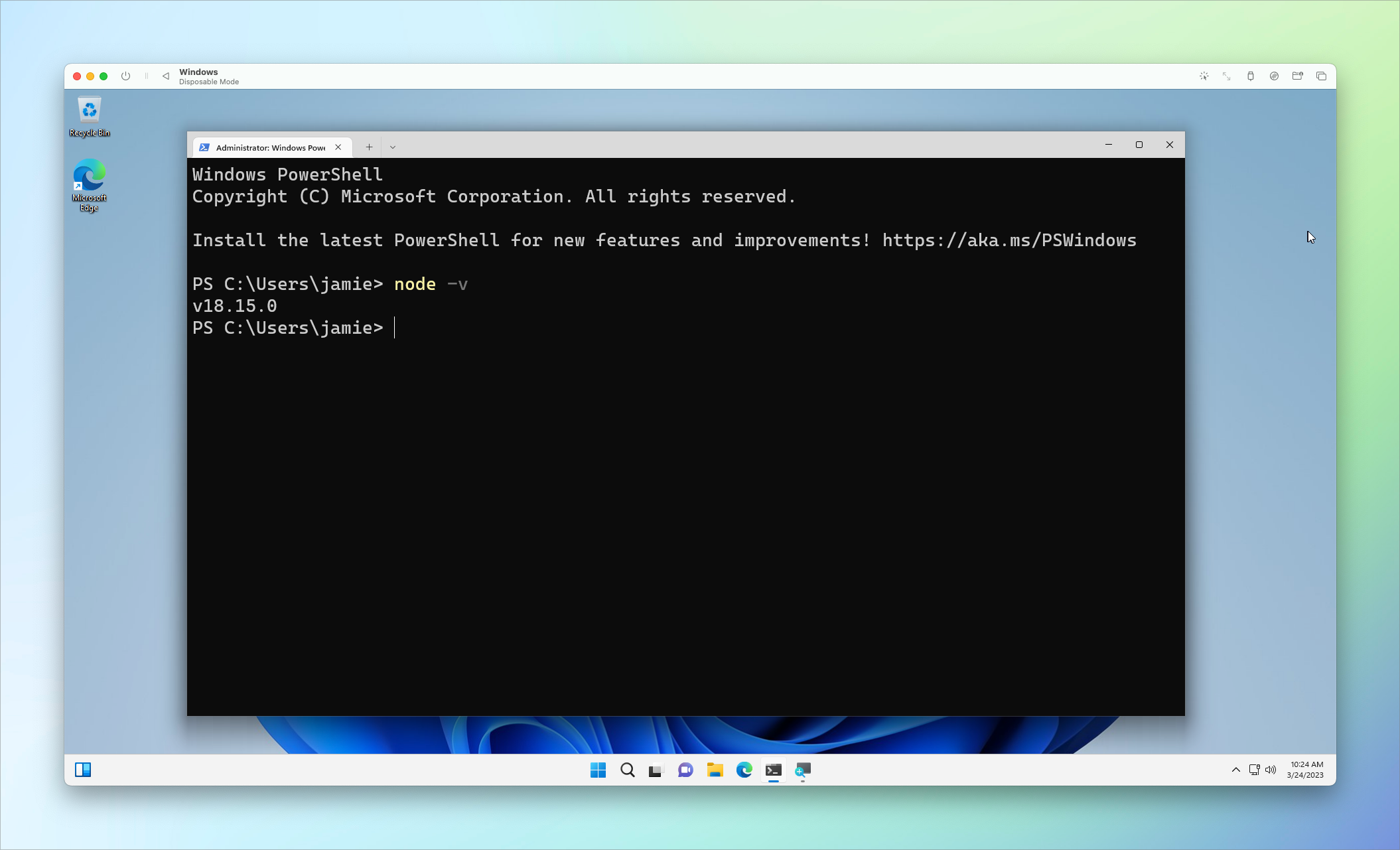
At that prompt, type the following command and press Enter:
node -v
Then run:
npm -v
You may also see npm --version in documentation. It performs the same version check as npm -v.
Do not type the PS C:\...> part shown in your terminal. That is PowerShell’s prompt, showing its current folder. For these checks, the folder does not matter: node -v and npm -v ask Windows about installed tools, not about the backend project.
A successful result looks like a version number. Node versions commonly begin with v; npm versions usually do not.
PS C:\Users\YourName> node -v
v22.0.0

PS C:\Users\YourName> npm -v
10.0.0
The particular numbers above are only examples. Your installed versions may be different. For this lesson, the key evidence is that both commands return version numbers without an error.
Read your result correctly
Use this table to classify what happened.
| Result in PowerShell | What it means | What to record |
|---|---|---|
| Both commands display version numbers | Node.js and npm are available. | Copy or note both versions. |
node -v displays a version, but npm -v errors | Node is available, but npm is not available from this shell. | Copy the npm error exactly. |
| Both commands say they are not recognized | Neither command is currently available in PowerShell. | Copy one complete error message. |
| A command displays an error after a recent installation | The terminal may have been open before Windows updated its command search path. | Close it and open a fresh PowerShell window, then check again. |
In PowerShell, the unavailable-command message commonly includes wording like:
The term 'node' is not recognized as the name of a cmdlet,
function, script file, or operable program.
That message does not mean anything is wrong with your backend project. It means PowerShell cannot currently locate the node program. The same principle applies if it cannot locate npm.
A subtle but useful distinction: seeing version numbers proves availability, not necessarily that the version is the one your particular project expects. For now, do not change anything merely because your number differs from a screenshot or example. First establish whether both tools work; the following installation lesson handles the case where they do not.
Why a fresh PowerShell window sometimes matters
Windows finds commands such as node and npm using environment settings, including the system PATH. A terminal receives a copy of those settings when it opens.
Consequently, if Node.js was installed while PowerShell was already open, that existing window may still fail to recognize node or npm. Close the window, open a new PowerShell window, and rerun the two commands. This is a safe first recheck; it does not alter the project or install packages.
For a quick visual walkthrough of this exact verification pattern, the following video demonstrates the decision point before setup and the successful checks afterward. It uses Command Prompt in the demonstration, but node -v and npm -v work the same way in PowerShell.
How to Install Node.js & npm on Windows 11 WITHOUT Errors (2026)
Watch these brief segments from “How to Install Node.js & npm on Windows 11 WITHOUT Errors (2026)” by Lite AI Lab to see the expected version-number result and why a fresh terminal matters after installation.
Watch the initial check to see how a version number differs from an unrecognized-command result. Then watch the final verification, focusing on the instruction to use a brand-new terminal and run both version commands.
Your completion checkpoint
This lesson is complete when you have done all of the following:
- Opened PowerShell.
- Run
node -v. - Run
npm -v. - Noted the output of each command.
- Closed and reopened PowerShell once if you had installed Node.js shortly before checking.
Avoid running npm install at this stage. That command belongs later, after you have navigated into the real backend folder containing package.json.
You now have a clear, low-risk diagnostic: version output means Node.js or npm is available; an unrecognized-command error means PowerShell cannot currently access it. Both tools must be available before the backend can install its dependencies and start its development script.
Next, you will install a current Node.js LTS release on Windows if either node -v or npm -v did not succeed.
Can't find a good explanation? Sign up and we'll make it for you
Sign up