
Good to see you again. In the previous lesson, you wrote the behavioral boundary for the Downloads organizer: it should process regular files directly inside the chosen source folder, while leaving folders and all nested contents alone. That decision is the safety boundary we will implement today.
This lesson builds one small, reusable function: given a folder, it returns the files immediately inside it. It will not move, classify, rename, or exclude incomplete downloads yet. Those are separate decisions we will layer on later. For now, the function has one precise responsibility: discover direct files.
A folder contains different kinds of items
Consider this test folder:
organizer_sandbox/
    invoice.pdf
    notes
    Images/
        holiday.jpg
    Archives/
        old_backup.zip
The direct contents of organizer_sandbox are:
invoice.pdf, a filenotes, a fileImages, a folderArchives, a folder
The files holiday.jpg and old_backup.zip are not direct contents. They are inside subfolders, so our function must not even inspect them.
That gives us two rules to enforce:
- Look at the specified folder’s immediate children only.
- Keep a child only if it is a file, not a directory.
pathlib is Python’s standard library for representing paths as objects. A Path object can represent either a file or a folder, and it provides useful operations such as checking whether that path is a file.
The screenshot below shows the basic pathlib pattern: create a Path, call .iterdir(), and inspect each item it finds.
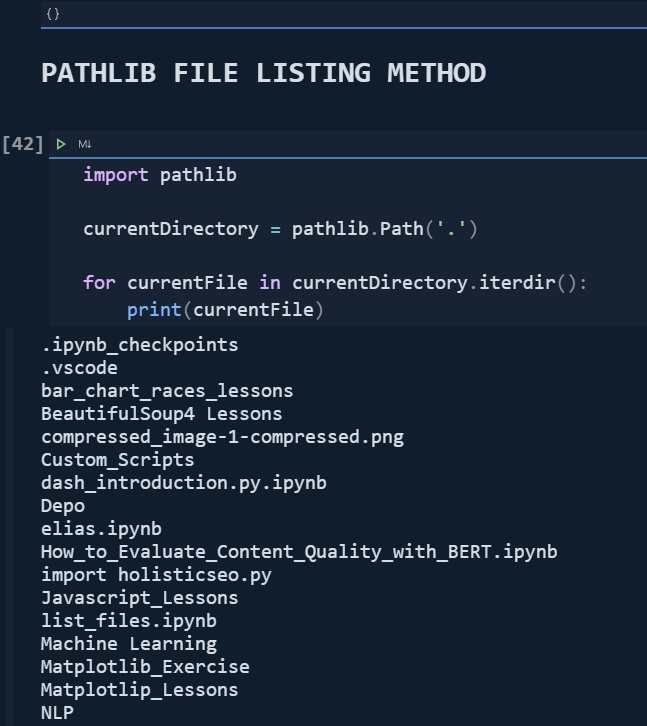
One important caution from the image: Path(".") means “the current working directory.” That is useful for experimentation, but it is not automatically your Downloads folder. Its meaning depends on where you launched Python. For an organizer, we will eventually pass the intended source folder explicitly.
Python Tutorial: Pathlib - The Modern Way to Handle File Paths
Watch “Python Tutorial: Pathlib - The Modern Way to Handle File Paths” by Corey Schafer for a quick visual demonstration of listing the contents of the current directory with Path and .iterdir().
Watch directory listing. Notice that .iterdir() visits every immediate item in the folder, including both ordinary files and directories. The filtering step comes next.
The two pathlib operations we need
The official documentation describes the two methods that make the function possible:
folder.iterdir()visits the items directly insidefolder.item.is_file()tells us whether one visited item is a regular file.
pathlib — Object-oriented filesystem paths
Read the relevant parts of the official Python pathlib documentation. It defines the behavior we want to rely on rather than merely memorizing a pattern.
In the “Reading directories” section, read directory iteration. Focus on two details: the returned children are Path objects, and they are only the directory’s contents, not a recursive search. Then find the “Path.is_file()” entry. Read the regular-file check. For this project, “regular file” corresponds to the ordinary downloaded files we want to consider; directories do not pass this test.
A useful mental model is that .iterdir() gives us a stream of candidates. At that point, Python has not decided which candidates matter to our script. .is_file() applies the rule that removes folders from consideration.
The directness boundary is built into .iterdir(). We do not need to write code that says “do not enter subfolders,” because .iterdir() does not descend into them in the first place.
This distinction matters because other tools do search deeper:
Path.glob("*")looks only at direct contents, but it includes both files and folders.Path.glob("**/*")searches recursively through subfolders, which violates our version 1 specification.Path.rglob("*")is also recursive and is not appropriate here.
For the Downloads organizer, .iterdir() plus .is_file() is the clearest expression of the required behavior.
Build the discovery function
Create a Python file in your project folder—preferably outside Downloads—such as organizer.py. Start with this code:
from pathlib import Path


def get_direct_files(folder: Path) -> list[Path]:
    """Return regular files immediately inside folder."""
    return [item for item in folder.iterdir() if item.is_file()]
This is compact, so unpack it carefully.
folder: Path
folder is the function’s input parameter. The caller chooses which folder to inspect; the function does not secretly depend on a hard-coded Downloads location.
The : Path portion is a type hint. It documents that callers should provide a Path object. Python will not enforce the hint at runtime, but it helps you and code editors understand the intended interface.
-> list[Path]
The return type hint says the function produces a list of Path objects. It does not return filename strings such as "invoice.pdf".
Keeping Path objects is useful because later steps will need path behavior:
.namefor a filename.suffixfor an extension/to construct a destination path- methods for moving or checking a file
A returned item might display on Windows like this:
WindowsPath('C:/Users/YourName/Desktop/organizer_sandbox/invoice.pdf')
The object represents the location of the file, not just its name.
The list comprehension
This part is a list comprehension:
[item for item in folder.iterdir() if item.is_file()]
Read it in English:
“Make a list of each
itemin this folder’s direct contents, but only when that item is a file.”
The equivalent expanded version is longer but logically identical:
def get_direct_files(folder: Path) -> list[Path]:
    files = []

    for item in folder.iterdir():
        if item.is_file():
            files.append(item)

    return files
Use the shorter version in your script once it makes sense. The expanded version is valuable when you need to add more steps inside the loop later.
Call the function with a deliberate folder
For a first run, use a safe sandbox folder rather than your real Downloads folder. Create a folder manually in File Explorer, for example:
C:\Users\YourName\Desktop\organizer_sandbox
Place a couple of ordinary files in it and add at least one folder. For example:
organizer_sandbox/
    invoice.PDF
    notes
    example.png
    KeepThisFolder/
        nested_file.txt
Then add this temporary runner code below the function:
sandbox = Path(r"C:\Users\YourName\Desktop\organizer_sandbox")

files = get_direct_files(sandbox)

for file_path in files:
    print(file_path.name)
Replace YourName with your actual Windows user-folder name. The r before the string creates a raw string, which prevents Windows backslashes from being treated as Python escape characters.
When you run the script, the output should include:
invoice.PDF
notes
example.png
It should not include:
KeepThisFolder
nested_file.txt
KeepThisFolder fails is_file() because it is a directory. nested_file.txt is never encountered because .iterdir() stops at the sandbox folder’s immediate contents.
You could also form the usual Downloads path like this:
downloads = Path.home() / "Downloads"
On many Windows setups, that works well. However, Downloads can be redirected to OneDrive or another location. For now, using an explicit sandbox path avoids assumptions and makes the behavior easy to verify. Later, command-line arguments will let the person running the script choose the source folder.
Keep this function narrowly responsible
It is tempting to add every rule from the specification immediately. Resist that temptation. get_direct_files() should remain a focused discovery function.
At this stage, it correctly includes all direct regular files, including files we will eventually skip:
organizer.py
unfinished_download.crdownload
temporary_file.tmp
unknown-format.xyz
That is not a bug. These are files, so they satisfy this function’s contract. Later, a separate eligibility rule will decide whether a discovered file should be processed or skipped. Separating discovery from policy makes the script easier to read, test, and change.
Likewise, this function does not classify .PDF as a document, create a Documents folder, or move anything. It only reads the folder’s contents. Listing is safe: no files or directories are modified.
There is one failure case worth understanding now. If folder does not exist, is not a directory, or cannot be accessed, .iterdir() raises an OSError rather than returning an empty list. That is a good default: an empty list would misleadingly imply that the folder was checked and contained no files. We will add user-friendly validation and error reporting as the script becomes executable.
Finally, do not rely on the order of the returned list. The documentation notes that directory children may be yielded in arbitrary order. Our future organizer will make a decision about each file independently, so its correctness will not depend on whether invoice.pdf appears before photo.jpg.
Wrap-up
You now have the first working building block of the organizer:
from pathlib import Path


def get_direct_files(folder: Path) -> list[Path]:
    return [item for item in folder.iterdir() if item.is_file()]
Its behavior follows directly from the specification:
.iterdir()looks only at immediate folder contents..is_file()filters out directories.- The function returns reusable
Pathobjects rather than printing or moving files. - Nested files remain untouched because no recursive search occurs.
- The function makes no changes to the file system.
Next, we will take each returned file and implement a classification function: normalize its extension, look it up in the category mapping, and send unfamiliar or extensionless files to the Other category.
Can't find a good explanation? Sign up and we'll make it for you
Sign up