
Hello, and welcome to your first Python lesson. This first module is about getting a reliable place to write and run code on your Windows computer. That may sound like setup work, but it is an important programming habit: cybersecurity and software work both depend on being able to save a program, run the exact version you saved, and find it again later.
By the end of this lesson, you will have created a small Python script (a saved file of Python instructions), stored it in a sensible folder, and run it with IDLE. For now, the program will only display a message—nothing on the internet is accessed and no system settings are changed.
IDLE: the two windows you will use
IDLE stands for Integrated Development and Learning Environment. It is installed along with many Windows Python installations and is a good, lightweight place to begin.
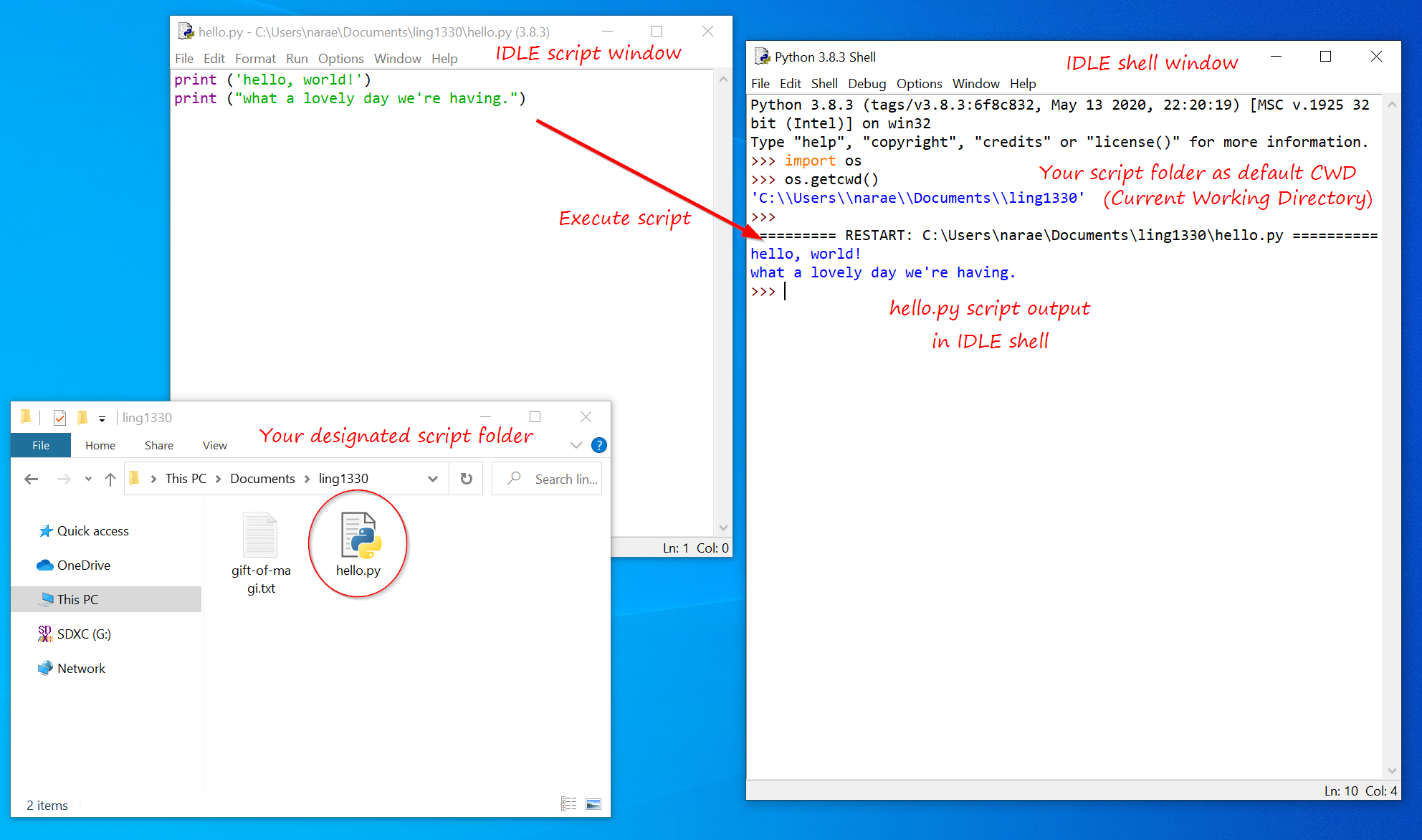
IDLE commonly uses two separate windows:
- The Python Shell is where Python displays results and messages. It has a prompt that looks like
>>>. - The editor window is where you write and save a script. This is where today’s code belongs.
A useful distinction:
- In the Shell, you can try one short command and see an immediate result.
- In the editor, you create a program you can save, improve, reopen, and run again.
That second approach is how real projects are built. A security tool, game feature, or Sony application cannot rely on commands someone typed once and lost; its code needs to exist in files that can be checked, tested, and changed carefully.
If IDLE is already available, open the Windows Start menu, type IDLE, and choose the result that mentions Python. You should see the Shell window.
If Windows search cannot find IDLE, Python may not be installed yet. The first part of the following video shows the installation process; the rest demonstrates the exact save-and-run cycle you will use.
Python Tutorial #1: Write your First Program using IDLE (for beginners) 🐍
Watch “Python Tutorial #1: Write your First Program using IDLE (for beginners)” by Professor Hank Stalica for a visual walkthrough of installing Python if necessary, creating a script, saving it, and running it.
Only if IDLE is missing, watch installation steps. It uses the official Python site and shows where IDLE appears in the Windows Start menu. Then watch creating and saving to see the editor window, the first print command, and the .py filename. Finish with running the script, focusing on the Run Module menu option and the output in the Shell.
Create your first script
With the Python Shell open, create an editor window:
- Select File in the Shell window.
- Choose New File.
- The keyboard shortcut is often
Ctrl+N.
- The keyboard shortcut is often
- A blank editor window opens. Click in its large white text area.
Type this line exactly:
print("My first Python script is running!")
Do not worry about understanding every piece of that line yet. The next lesson will explore print properly. For now, know that this instruction tells Python to display the words inside the quotation marks.
A few details matter:
printis all lowercase.- The opening and closing parentheses
(and)are both needed. - The quotation marks tell Python that the words are text.
- Write this in the editor window, not after the
>>>prompt in the Shell.
Before running the script, save it.
Save code where you can find it
Saving is not just about preventing lost work. It gives your script a location and a filename, so Python can run the saved program.
In the editor window—not the Shell—choose File, then Save As. Create or choose a folder that will be easy to remember. A good starting choice is a folder in Documents named:
PythonProjects
Inside that folder, save your file with this name:
first_script.py
The ending .py is called a file extension. It tells Windows and Python that this is Python source code.
A clean beginner project folder might eventually look like this:
Documents
└── PythonProjects
    └── first_script.py
After saving, look at the top of the editor window. It should now show the filename first_script.py. In File Explorer, the file should also be visible in your chosen folder.
Use names that explain what a program does as you create more files. Names such as password_length_checker.py or login_counter.py will be much easier to recognize later than thing.py or test123.py.
Run the saved script
Now you will ask Python to read the instructions in your file and carry them out.
Make sure the editor window containing first_script.py is selected, then use either method:
- Select Run, then Run Module.
- Press
F5. On some laptops, you may needFn+F5.
IDLE may save the file automatically before running it. The Shell window will come to the front and should show something similar to this:
================ RESTART: ...\first_script.py ================
My first Python script is running!
>>>
The long RESTART line is normal. It means IDLE started a fresh run of your script. The exact folder path shown there will be different on your computer.
The key result is this line:
My first Python script is running!
That is your program’s output. Python read the saved .py file from top to bottom, reached the print instruction, and displayed its text in the Shell.
Make a small change, save, and run again
Programming is an iterative process: write a small change, save it, run it, and inspect what happened.
In the editor, add a second line:
print("I am learning Python one step at a time.")
Your entire script should now be:
print("My first Python script is running!")
print("I am learning Python one step at a time.")
Press Ctrl+S to save your changes, then press F5 to run the script again.
The Shell should display both messages, one per line. The order matters: Python carries out the first line before the second.
To make sure your work is truly saved:
- Close the editor window.
- In IDLE’s Shell, choose File, then Open.
- Browse to
Documents\PythonProjects. - Open
first_script.py. - Press
F5once more.
If it runs again, you have confirmed the full cycle: create, save, reopen, and run.
Quick fixes for common beginner problems
Small slips are normal. Use the symptom to decide where to look.
| What you see | Likely cause | What to do |
|---|---|---|
You only see >>> and have no place to write a program | You opened the Shell but not an editor | Select File, then New File. |
| The old message appears after you changed the code | Your newest edit was not saved | In the editor, press Ctrl+S, then press F5. |
Nothing seems to happen after pressing F5 | The editor window was not selected, or the function keys need Fn | Click the editor, then use Run and Run Module from the menu. |
| You cannot find your script later | It was saved in an unexpected folder | Use File, then Open in IDLE and look in the folder chosen during Save As. |
One habit will prevent many problems throughout this course: save before you run. When a program behaves unexpectedly, first make sure the version in the editor is the version stored on disk.
You have now made your first reusable Python program. You can distinguish the editor, where scripts are written and saved, from the Shell, where output is displayed. You also know the essential workflow: create a file, save it with a .py extension, run it with Run Module or F5, and check the output.
Next, you will use print more deliberately to display different kinds of text and numbers—your first step from merely running a program to controlling what it communicates.
Can't find a good explanation? Sign up and we'll make it for you
Sign up