
Hello! Let's dive into the next step of mastering n8n.
In our last lesson, you learned how to use the Expression Editor to dynamically access data from previous nodes. This is a crucial skill for making workflows responsive. We saw how expressions, like {{ $json.order_id }}, can pull live data into a node's parameters.
Today, we'll build directly on that knowledge. Accessing data is one thing, but often you'll need to clean, reshape, or enrich it before passing it on. For this, we'll use one of the most fundamental and powerful nodes in n8n: the Set node. This lesson will show you how to apply basic data transformations, which is essential for almost any workflow that handles data from different sources.
Given your background as a software developer, you can think of the Set node as a tool for mapping one data structure to another—like creating a Data Transfer Object (DTO) from a raw API response to fit the exact schema required by the next service in your pipeline.
1. The "Swiss Army Knife" for Data: The Set Node
The Set node (which you'll find in the node panel as "Edit Fields") is your primary tool for manipulating the data of each item that flows through it. Its purpose is simple but powerful: it allows you to add, modify, rename, and remove fields within a JSON item.
This is critical when:
- An API gives you 50 fields but you only need three.
- A field is named
cust_name, but your database requirescustomerName. - A price comes in as a string (
"99.99") but you need it as a number for calculations. - You need to create a new field by combining existing ones (e.g.,
firstNameandlastName).
The official n8n documentation provides a concise overview of the Set node's purpose. It's a quick read that will ground our practical examples.
Read the introductory paragraph under the main title. It clearly states the node's function in setting and overwriting data.
Now, let's see how to perform these transformations in practice.
2. Core Transformations with the Set Node
The Set node offers a straightforward interface for common data manipulation tasks. We'll explore the most important ones. The following video provides excellent hands-on examples for each.
n8n Edit Fields Set Node: Transform Data Like a Pro
The video 'n8n Edit Fields Set Node: Transform Data Like a Pro' by Ryan & Matt Data Science is a perfect visual guide to the Set node's capabilities. We'll watch it in segments to focus on specific transformations.
We will be referencing this video throughout the next sections.
Adding and Modifying Fields
Your first step is often to add new information or change what's already there. This could be adding a static status field or converting a data type.
n8n Edit Fields Set Node: Transform Data Like a Pro
Let's start with the basics: creating new fields and converting data types. Watch these two segments from the video we just introduced.
First, watch the section on creating data (02:49 - 04:20). Notice how you can define a new field's name and manually set its value and type (String, Number, Boolean). Next, watch the segment on converting data types (09:56 - 11:28). This demonstrates how to take an existing field (like a zip code number) and change its type (to a string), a very common task.
As you saw, you can:
- Add a new field: Click "Add Field", give it a name, select its data type, and provide a value.
- Modify an existing field: Enter the name of the field you want to change, and provide a new value or type. The new value will overwrite the old one.
Combining Fields with Expressions
This is where your knowledge from the last lesson comes into play. You can use expressions to create new fields based on the values of existing ones. A classic example is creating a full_name field from first_name and last_name.
n8n Edit Fields Set Node: Transform Data Like a Pro
Now, let's see how to use expressions within the Set node to combine data.
Watch the section on combining fields (18:29 - 20:44). Pay attention to how the + operator and string literals (' ') are used within an expression to concatenate the first and last names.
The expression {{ $json.first_name + ' ' + $json.last_name }} is a perfect example of using the skills you already have inside the Set node to generate new, more useful data.
3. Shaping the Output: Keeping Only What You Need
Often, the goal of a Set node is to create a clean, well-defined data structure for the next node. You don't want to pass along all the messy, irrelevant fields from the input.
This is where you control the final output of the node.
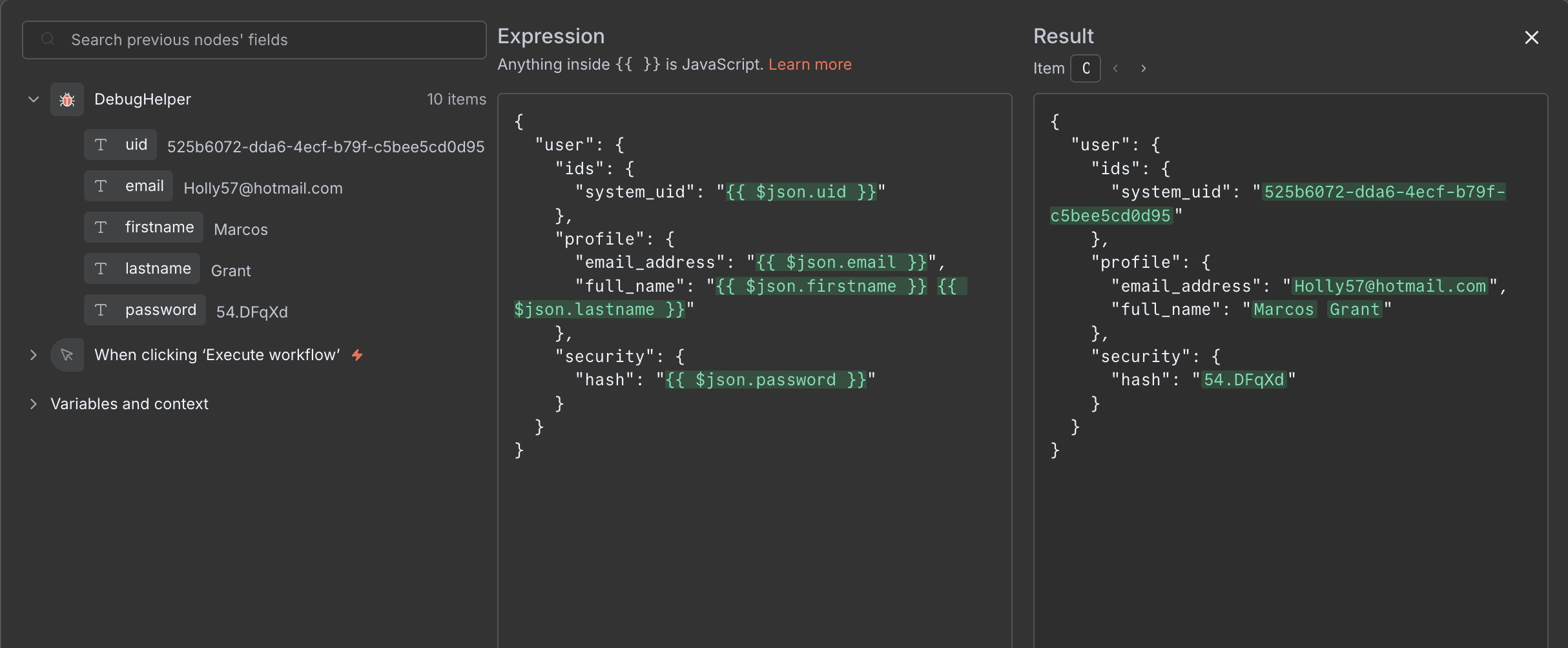
To achieve this clean output, you need to manage which fields are passed through.
n8n Edit Fields Set Node: Transform Data Like a Pro
The video demonstrates a powerful feature for controlling the output data, which is crucial for data cleaning.
Watch the section on renaming data and including other input items (04:20 - 09:45). The key takeaway here is not just renaming, but understanding the options under Include Other Input Fields. The options All, All Except, and Selected give you precise control over which fields from the original input are carried over to the output, alongside the new fields you've set.
This is a vital concept. While the video shows the "Include Other Input Fields" option, in modern n8n versions you may see a simpler toggle called Keep Only Set. If you enable this, only the fields you explicitly define in the Set node will be in the output. All other input fields are discarded. This is the most direct way to create a clean data structure.
4. On-the-Fly Transformations with JavaScript
Since expressions are JavaScript, you can use built-in methods for quick data formatting.
n8n Edit Fields Set Node: Transform Data Like a Pro
Let's look at one final example that shows how to use JavaScript string methods directly in the Set node.
Watch the segment on string methods (20:44 - 22:50). Focus on the toUpperCase() and split() examples. This reinforces that you can perform powerful inline transformations without needing a separate Code node for simple tasks.
This technique is incredibly efficient for simple data hygiene tasks like standardizing casing or breaking a string into an array.
Test your understanding!
Imagine a previous node returns the following JSON object for a single item:
{
  "product_id": "sku-f5b3",
  "customer": {
    "first": "jane",
    "last": "doe"
  },
  "purchase_price": "149.99",
  "source": "api-v1"
}
Your goal is to send this data to a new system that requires the following clean format:
{
  "customerName": "Jane Doe",
  "price": 149.99,
  "productID": "SKU-F5B3"
}
Describe the steps you would take in a single Set node to achieve this transformation.
Show answer
Here is one way to configure the Set node:
- Enable the "Keep Only Set" option. This ensures only the fields we define below are in the final output.
- Set the
customerNamefield:- Name:
customerName - Value (Expression):
{{ $json.customer.first.charAt(0).toUpperCase() + $json.customer.first.slice(1) + ' ' + $json.customer.last.charAt(0).toUpperCase() + $json.customer.last.slice(1) }} - This expression capitalizes the first letter of both the first and last names and concatenates them with a space.
- Name:
- Set the
pricefield:- Name:
price - Value (Expression):
{{ parseFloat($json.purchase_price) }} - This uses the
parseFloat()JavaScript function to convert the price string to a number. Alternatively, you could set the field's data type to 'Number' and just pass the value{{ $json.purchase_price }}, and n8n would attempt the conversion.
- Name:
- Set the
productIDfield:- Name:
productID - Value (Expression):
{{ $json.product_id.toUpperCase() }} - This converts the entire product ID string to uppercase.
- Name:
Conclusion
You've now added a powerful and versatile tool to your n8n arsenal. The Set node is the workhorse of data transformation, enabling you to prepare data for any destination.
Key Takeaways:
- Core Function: The Set node is used to add, modify, rename, and remove fields in your workflow's data items.
- Expressions are Key: The Set node works hand-in-hand with expressions to create dynamic values and combine data.
- Data Shaping: Options like "Keep Only Set" are crucial for cleaning up messy data and creating a precise output structure.
- Inline Logic: You can use standard JavaScript functions and methods within expressions for efficient, on-the-fly transformations.
We've learned how to access data with expressions and how to transform it with the Set node. But what if we need to perform different actions based on the value of that data? For example, "if the order total is over $100, send an email to the manager; otherwise, just log it."
In our next lesson, we will explore conditional logic by learning how to use the If node to create different branches in a workflow, allowing you to build much more intelligent and flexible automations.