
Welcome back. In the previous lesson, you mapped the delivery path from a small change through review, CI, deployment, and monitoring. Git is the evidence system at the beginning of that path: it identifies what changed, who made the change, and which exact version later produced an artifact or deployment.
In this lesson, you will build a small local repository resembling the beginning of an operations automation project. You will configure your Git identity, initialize the repository, define sensible ignore rules, and create a short history in which each commit has a clear purpose. This is deliberately command-line focused; you should be able to complete the lab in about 25 minutes.
Configure Git once, then verify it
Every commit records an author name and email. This is operationally useful: when a pipeline, Terraform configuration, or deployment script changes, the history shows who made the change and gives reviewers meaningful context.
First confirm that Git is installed and set a professional identity. Substitute your own name and an email address appropriate for repositories you may eventually make public.
git --version

git config --global user.name "Your Name"
git config --global user.email "you@example.com"

git config --global init.defaultBranch main
Verify the specific values rather than scanning a long configuration listing:
git config --global --get user.name
git config --global --get user.email
git config --global --get init.defaultBranch
--global writes settings used by your account on this machine. A particular repository can override them later with the same command without --global; that is useful when a work repository requires a different email identity.
Git Tutorial for Beginners: Command-Line Fundamentals
Watch “Git Tutorial for Beginners: Command-Line Fundamentals” by Corey Schafer for a compact terminal-based view of identity setup, repository initialization, ignore rules, staging, and committing.
Watch Git identity to see the name and email configuration. Then watch repository initialization. Continue with ignore setup, then finish with staging and commits. Focus on the distinction between files on disk, the staging area, and committed history.
Create the repository, not just a directory
A project directory becomes a Git repository when it gains its hidden .git directory. That directory contains Git’s local database: commits, branch references, configuration, and staging information. Do not edit or delete its contents as part of normal work.
2.1 Git Basics - Getting a Git Repository
Read “Git Basics: Getting a Git Repository” from the official Pro Git book. It explains what git init establishes locally and how an initial commit begins version control.
In the subsection “Initializing a Repository in an Existing Directory,” read the initialization sequence. Notice that git init creates repository metadata but does not automatically put project files under version control.
Create a small lab repository. We will call it service-check, a plausible starting point for an operations utility that will gain real Bash functionality in the next module.
mkdir -p ~/devops-labs/service-check/scripts
cd ~/devops-labs/service-check

git init -b main
If your installed Git does not recognize -b main, use this instead:
git init
git branch -M main
Confirm where you are and inspect the initial state:
pwd
git status
ls -la
You should see a .git directory in ls -la. git status should report that you are on main and have nothing to commit. The repository exists, but it contains no committed project files yet.
Think in snapshots: working tree, staging area, history
Git becomes much less mysterious when you treat its three main areas as separate snapshots:
| Area | What it contains | Main command you use |
|---|---|---|
| Working tree | Files as they currently exist on disk | Edit files; inspect with git status |
| Staging area (also called the index) | The exact content selected for the next commit | git add <path> |
| Local repository | Permanent committed snapshots and their history | git commit, git log |
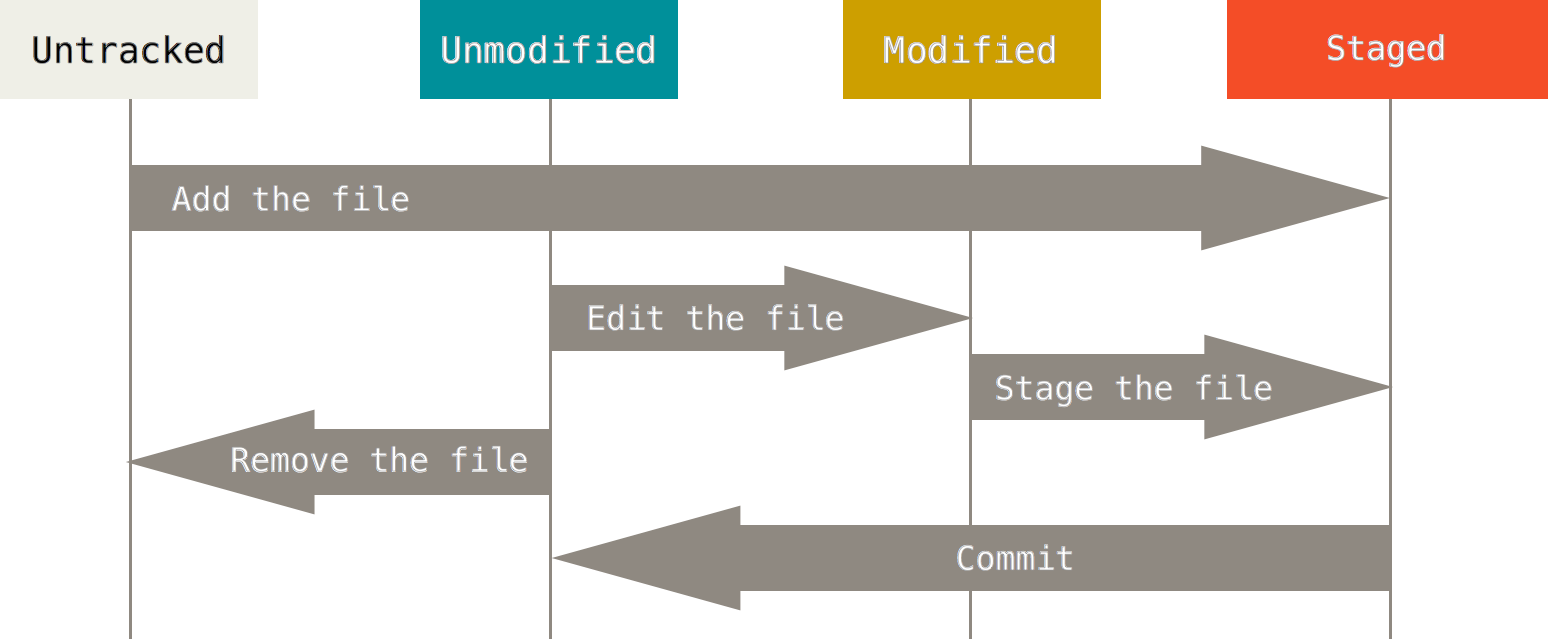
A few rules explain most everyday Git behavior:
- A new file is untracked until you stage it with
git add. - A tracked file becomes modified when its working-tree content differs from the latest committed version.
git addtakes a snapshot of the file as it exists at that moment and places that snapshot in the staging area.git commitrecords only what is staged. It does not automatically include every changed file in the directory.- If you edit a file again after staging it, the new edit is not staged. Stage the file again after reviewing the final content.
This staging step is useful rather than bureaucratic. Suppose an automation change modifies a script, its documentation, and an unrelated local formatting experiment. You can stage only the script and documentation that belong to one logical change. That makes review, rollback, and incident investigation much safer later.
Use these commands routinely before committing:
git status
git diff
git diff --staged
git diff shows changes in your working tree that have not yet been staged. git diff --staged shows the precise content that your next commit would record.
Write .gitignore rules before local clutter accumulates
A .gitignore file is a versioned policy for files that Git should leave untracked. It prevents generated output and machine-specific files from obscuring git status or being accidentally committed.
For an operations repository, typical examples include:
- runtime logs;
- temporary output;
- local environment-value files;
- downloaded artifacts or locally generated reports;
- editor-specific files when they are personal rather than team-shared.
Create the following project files:
cat > README.md <<'EOF'
# Service Check

A small operations automation lab repository.

The project will eventually contain a reusable service health-check script.
EOF

cat > .gitignore <<'EOF'
# Runtime output created locally
*.log
/logs/

# Temporary working files
/tmp/

# Local environment values: commit only safe templates
.env
.env.*
!.env.example
EOF
Read the patterns as rules, not magic:
| Pattern | Meaning in this repository |
|---|---|
*.log | Ignore any file ending in .log, including files in subdirectories |
/logs/ | Ignore the logs directory at the repository root |
/tmp/ | Ignore root-level temporary output |
.env and .env.* | Ignore local environment-value files |
!.env.example | Make an exception so a safe example template can be committed |
The .env.example exception is valuable because documentation can show which variable names are required without storing real values. A real .env file might contain database credentials, API tokens, or AWS-related values and should not be treated as source code.
Now test the rules before making any commits:
mkdir -p logs tmp
printf 'local-api-token=not-a-real-token\n' > .env
printf 'check ran locally\n' > logs/service-check.log

git status --short
You should see only these two untracked files:
?? .gitignore
?? README.md
The local .env file and log file should not appear. To inspect ignored paths deliberately, use:
git status --ignored --short
git check-ignore -v .env logs/service-check.log
The second command is especially useful when a path is unexpectedly ignored: it tells you which rule matched it.
.gitignore is preventative convenience, not a security control. It does not remove a file that is already tracked, and it does not erase a secret that was previously committed. If a real credential ever reaches Git history, rotate or revoke it immediately according to the relevant service’s process.
Build a small, readable commit history
Now create three purposeful commits. The files are simple; the discipline is the point.
Commit 1: establish the repository policy and project description
Stage only the README and ignore policy. Review the staged snapshot, then commit it.
git add README.md .gitignore

git status
git diff --staged

git commit -m "chore: initialize service check repository"
The prefix chore: is a widely used convention for maintenance or repository setup. Git does not require it, but a consistent convention makes a history easier to scan.
Verify that the working tree is clean:
git status
Commit 2: add one implementation change
Create a harmless placeholder script. We will improve its Bash design later rather than prematurely adding concepts not yet covered.
cat > scripts/check-service.sh <<'EOF'
#!/usr/bin/env bash

echo "Service check placeholder"
EOF

chmod +x scripts/check-service.sh

git status --short
git add scripts/check-service.sh
git diff --staged

git commit -m "feat: add service status check placeholder"
This is a focused commit: it introduces one new capability, however small. feat: signals an externally meaningful addition.
Commit 3: document the current behavior
Update the README to match the repository’s actual state:
cat >> README.md <<'EOF'

## Current scope

The service-check script is currently a placeholder. It will be expanded into a defensive Bash health-check utility in a later module.
EOF

git add README.md
git diff --staged

git commit -m "docs: describe current script scope"
Inspect the history:
git log --oneline --decorate -n 5
git status
Your output will use different commit IDs, but its structure should resemble this:
<commit-id> (HEAD -> main) docs: describe current script scope
<commit-id> feat: add service status check placeholder
<commit-id> chore: initialize service check repository
You now have a history that tells a coherent story:
- The repository began with an explanation and guardrails.
- A script was introduced.
- The documentation was updated to describe its present state.
That story is far more useful than one vague commit such as “updates,” “work done,” or “changed files.”
Commit messages that help during review and incidents
A clear history is an operational asset. When a pipeline breaks or a release must be investigated, the reader should quickly determine which change likely matters.
A good commit generally has:
- One logical purpose. Avoid mixing a feature, a refactor, and unrelated formatting changes.
- A concise, specific subject. Describe what changed, not merely that something changed.
- A reviewable size. Small does not mean trivial; it means a reviewer can understand the intent and effect.
- A truthful scope. Do not label a broad behavioral change as “minor cleanup.”
- A clean staged snapshot. Check
git diff --stagedbefore each commit.
Compare these messages:
| Weak message | Why it is weak | Clearer message |
|---|---|---|
updates | No purpose, no affected area | docs: describe current script scope |
fix stuff | Does not identify the failure or solution | fix: report inactive service as failure |
new script and config | Combines distinct changes | feat: add service status check |
initial commit | Acceptable only at the very beginning, but not informative | chore: initialize service check repository |
Prefixes such as feat:, fix:, docs:, and chore: are conventions, not Git syntax. Teams may use Conventional Commits formally, use a ticket number, or choose plain imperative messages. The enduring principle is clarity.
If Git is still tracking something that should be ignored
A frequent real-world surprise is adding a .gitignore rule and finding that Git continues to show a file as modified. This is expected if the file was committed before the rule existed: .gitignore primarily affects untracked files.
To stop tracking a file while retaining it on your local disk:
git rm --cached path/to/file
git commit -m "chore: stop tracking local file"
For example, if .env had accidentally been committed, you would use:
git rm --cached .env
git commit -m "chore: stop tracking local environment file"
That removes .env from the next repository snapshot but leaves your local .env file in place. Because it matches .gitignore, later changes remain untracked.
Learning Git - How to use the gitignore file
Watch “Learning Git - How to use the gitignore file” by DevOps Journey for a short demonstration of fixing the already-tracked-file case.
Watch untracking a file. Focus on why git rm --cached removes a path from Git’s index and repository snapshot without deleting the local working copy.
If the file contained a real secret, this command alone is not sufficient. The earlier commit can still contain the secret, so revoke or rotate it first. History rewriting may be required in a shared repository, but that workflow is intentionally outside this lesson.
Key takeaways
A Git repository is a project directory containing a .git database. Configure a meaningful name and email, initialize repositories with main as the default branch, and use git status constantly to understand the working tree.
Git separates current files, the staging area, and committed history. Use git add deliberately, inspect the staged diff, and commit only a single logical change at a time.
A committed .gitignore keeps generated local output and environment-value files out of normal version control. It does not protect secrets that have already been committed, so prevent exposure early and rotate any leaked credential immediately.
You now have the local foundation for collaborative delivery. Next, you will use branches to isolate a change from main, then merge that change back in safely.
Can't find a good explanation? Sign up and we'll make it for you
Sign up