
BattleFire Project Structure: Scenes, GameObjects, Components, Scripts, Prefabs, Materials, and Folders
Hello, and welcome to the BattleFire project. This first module establishes the Unity vocabulary you will use while building the game’s arena, player, enemies, weapons, and mobile interface. Before writing movement code, it is important to know what Unity is actually storing, displaying, and running.
By the end of this lesson, you should be able to look at any item in the BattleFire project and identify whether it is a scene, a GameObject, a component, a script, a prefab, a material, or simply an organizational folder.
Two connected spaces: the Project and the Scene
Unity development constantly moves between two related spaces:
- The Project window contains files and reusable assets stored on disk.
- The Scene contains the currently arranged game world: the objects that exist in that level or screen.
For BattleFire, Assets/Scenes/Main.unity is the scene file for the main match. It will eventually contain the floor, obstacles, lights, camera, player, and enemies arranged into a playable top-down arena.
A scene is therefore a saved composition of GameObjects. It is not the same thing as a GameObject. Think of Main.unity as the saved arena setup, while the floor, player, camera, and obstacles are the individual things placed within it.
The Unity editor gives these ideas separate views:
| Unity window | Main question it answers | BattleFire example |
|---|---|---|
| Project | “Which assets exist in the project?” | Find PlayerController.cs or Player.prefab. |
| Hierarchy | “Which GameObjects exist in this open scene?” | Find the Player instance, Main Camera, floor, and lights. |
| Inspector | “How is this selected item configured?” | View the Player’s Rigidbody, collider, and scripts. |
| Scene view | “Where are the objects arranged?” | Position walls and inspect the arena from above. |
| Game view | “What will the player see through the camera?” | Test the top-down BattleFire match. |
The Unity Tutorial For Complete Beginners
Watch “The Unity Tutorial For Complete Beginners” by Game Maker’s Toolkit for a guided orientation to the Project window, Hierarchy, Inspector, Scene view, and Game view.
Watch the editor tour. Notice the distinction between assets in the Project window and objects in the active scene’s Hierarchy; this distinction prevents many early Unity mistakes.
A useful rule is:
Files in the Project window are assets. Objects listed in the Hierarchy are GameObjects in the open scene.
A scene file is itself an asset in the Project window. When you open it, Unity loads the scene’s GameObjects into the Hierarchy.
GameObjects and components: Unity’s construction system
A GameObject is Unity’s basic scene entity. It may represent something visible, such as a player or wall, but it can also be invisible: a camera, a light, a sound source, a spawn point, or a game-state manager.
By itself, a GameObject is mainly a container. Its capabilities come from components attached to it.
Every GameObject has a Transform component. Transform stores the object’s:
- position,
- rotation,
- scale.
Other components give it specific jobs. For example, a player GameObject in BattleFire will need components for movement physics, collisions, visual rendering, and custom gameplay code.

The exact component list depends on the object’s role:
| BattleFire object | Likely components | Why it needs them |
|---|---|---|
| Player | Transform, Rigidbody, Collider, renderer/model, PlayerController, PlayerHealth, PlayerShooter | It must occupy space, move, collide, appear on screen, take damage, and fire. |
| Enemy | Transform, Collider, navigation component, renderer/model, EnemyBot | It must navigate around the arena, detect combat events, and act as an opponent. |
| Bullet | Transform, Rigidbody, Collider, renderer/model, Bullet | It must travel, collide, cause damage, and disappear. |
| Floor | Transform, renderer/model, collider | It must be visible and provide solid level geometry. |
| Main Camera | Transform, Camera, later a follow script | It defines the top-down view shown in the Game view. |
| Directional Light | Transform, Light | It illuminates the arena. |
This is the core Unity pattern: instead of building one giant “Player object type,” you assemble a Player GameObject from focused components.
A component is not usually a separate object in the scene. For instance, a Rigidbody belongs to the Player GameObject; it is configured in the Player’s Inspector entry. The Hierarchy shows GameObjects and their parent-child relationships, while the Inspector reveals the components attached to whichever GameObject you select.
Scripts: custom components written in C#
Unity supplies many built-in components, such as Rigidbody, Collider, Camera, and Light. BattleFire also needs rules specific to its gameplay: how the player moves, how bullets damage enemies, and how an enemy chooses when to attack. Those rules live in scripts.
A Unity script is a C# source file, normally ending in .cs, stored under the project’s Assets folder. In BattleFire, the planned scripts include:
PlayerController.csfor player movement,PlayerHealth.csfor health and damage,PlayerShooter.csfor aiming and firing,EnemyBot.csfor enemy behavior,Bullet.csfor projectile behavior,MobileJoystick.csfor touch input.
The important connection is this: a script file becomes part of gameplay when a compatible script is attached to a GameObject as a script component. The file PlayerController.cs is an asset in the Project window; the PlayerController component attached to a Player in the Hierarchy is a configured runtime behavior.
Unity - Manual: Introduction to programming in Unity
Read Unity’s official explanation of how a C# type becomes a component that can control a GameObject.
In the section “How scripting in Unity works,” read the first paragraph, beginning “If your custom types inherit from” and ending with the MonoBehaviour rule. Focus on the distinction between an ordinary C# type and a MonoBehaviour, which Unity can attach to a GameObject in a scene.
For this project, most gameplay scripts will inherit from MonoBehaviour. That gives Unity a way to run their lifecycle methods and display configurable fields in the Inspector.
For example, later PlayerController.cs will be attached to the Player GameObject. It will read input and work with the Player’s Rigidbody. The script should not be imagined as a detached program operating somewhere outside the game world: it is a component running in the context of its attached GameObject.
Prefabs: reusable object templates
A prefab is a reusable asset that stores a GameObject setup, including its child GameObjects, components, and configured values. Prefabs solve a practical problem: you should not have to rebuild the same player, enemy, or bullet from scratch every time you need one.
BattleFire will contain three central prefabs:
| Prefab | Role |
|---|---|
Player.prefab | The standard player setup, including movement, health, collision, and visuals. |
Enemy.prefab | A reusable enemy setup that can be placed many times in the arena. |
Bullet.prefab | The projectile template spawned when a weapon fires. |
A prefab is an asset in Assets/Prefabs. When you put it into Main.unity, Unity creates a prefab instance: the actual GameObject, or GameObject hierarchy, that exists in that scene.
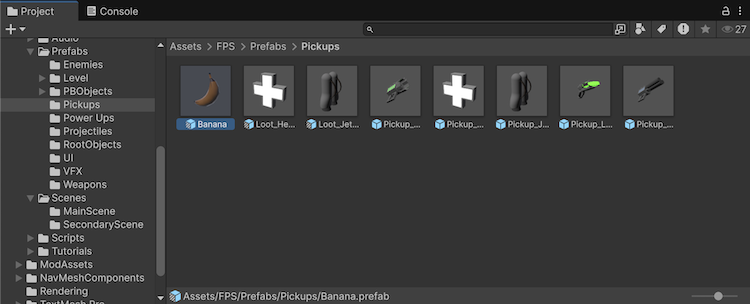
This distinction matters:
Player.prefabis the master template stored in the Project window.- A Player listed in the
Mainscene Hierarchy is an instance based on that template. - Editing the prefab can update its linked instances; a particular instance can also have local overrides.
You will create and test this workflow later in the module. For now, remember that a prefab is not merely a model file. It stores an object’s assembled Unity configuration: components, settings, children, and references.
Materials, models, and the BattleFire folder layout
A model provides geometric shape: the mesh data that makes an object look like a character, crate, wall, or weapon. Models normally belong in Assets/Models.
A material defines how that geometry is drawn: its surface color, texture, shininess, transparency, and other visual properties. Materials normally belong in Assets/Materials. A renderer component on a GameObject uses a mesh and one or more materials to make the object visible.
So, if an enemy appears as a red armored character:
- the model provides its geometry,
- the material determines its surface appearance,
- the renderer component on the Enemy GameObject draws it,
- the Enemy prefab packages that configuration for reuse.
Your target project structure expresses these responsibilities clearly:
| Location | What belongs there | Role in BattleFire |
|---|---|---|
Assets/Scenes/Main.unity | Scene file | The saved playable arena and its placed GameObjects. |
Assets/Scripts/Player/ | Player-related C# files | Player movement, health, and shooting logic. |
Assets/Scripts/Enemy/ | Enemy C# files | Enemy navigation, targeting, attacking, and death logic. |
Assets/Scripts/Weapons/ | Weapon C# files | Projectile behavior, collision, and cleanup. |
Assets/Scripts/UI/ | Interface C# files | Mobile joystick and later interface behavior. |
Assets/Prefabs/ | Reusable GameObject templates | Player, enemy, and bullet templates. |
Assets/Materials/ | Material assets | Arena, character, and projectile surface appearance. |
Assets/Models/ | Imported 3D model assets | Meshes and model source files. |
Assets/UI/ | UI visual assets | Interface sprites, icons, fonts, and related art. |
ProjectSettings/ | Project-wide Unity configuration | Input, layers, physics, build settings, and other global settings. |
Most folder names inside Assets are organizational conventions. Unity does not give Scripts/Player special gameplay powers simply because of its name; it helps you and other developers find related files quickly. ProjectSettings, however, is a root-level Unity configuration folder and should be treated as project infrastructure rather than a place for gameplay assets.
Read the BattleFire project as a system
When you open Main.unity, use this sequence to interpret what you see:
- In the Project window, find the
Mainscene asset underAssets/Scenes. - Open it and inspect the Hierarchy to see the GameObjects that make up the arena.
- Select one GameObject, such as Player, and inspect its components in the Inspector.
- Notice whether the selected GameObject is a prefab instance linked to an asset in
Assets/Prefabs. - Trace visual appearance from the object’s renderer to its assigned model and material.
- Trace behavior from a script component on the GameObject back to its
.csasset inAssets/Scripts.
This also exposes several common category mistakes:
- A scene is the saved arrangement; the Hierarchy is the current list of GameObjects in that arrangement.
- A script file is an asset; a script component is that behavior attached to a GameObject.
- A prefab is a reusable template asset; a prefab instance is the scene object created from it.
- A material controls surface appearance; a model supplies shape.
- A folder organizes assets; it is not normally a gameplay object or a runtime system.
Key takeaways
BattleFire will be built by assembling GameObjects inside Main.unity and giving them capabilities through components. Scripts provide the project-specific behavior; prefabs preserve reusable object setups; models and materials provide visible form and appearance; and the folder structure keeps every asset discoverable.
The next lesson moves from vocabulary to construction: you will create and save the Main scene with a floor, obstacles, lighting, and a top-down camera—the physical stage on which BattleFire’s combat will take place.
Can't find a good explanation? Sign up and we'll make it for you
Sign up