
Hello again. Your Main scene now holds the first BattleFire arena: floor, cover, lighting, and a top-down camera. Before adding player code and prefabs, this lesson establishes the project structure that will keep those assets findable and safe to move as the game grows.
By the end, your Project window will use the intended BattleFire folder layout: Scenes, Scripts, Prefabs, Materials, Models, and UI, with gameplay-script subfolders for Player, Enemy, Weapons, and UI. Allow about 35–40 minutes.
The Project window is not the Hierarchy
Unity uses two organizational spaces that look superficially similar but serve different purposes:
- The Hierarchy shows the GameObjects currently placed in the open scene. For example,
ArenaFloor,Obstacles, andMain Cameraare scene objects. - The Project window shows the reusable files in your project’s
Assetsdirectory: scenes, scripts, models, materials, prefabs, textures, and UI artwork.
A Player.prefab will eventually be an asset in the Project window; an instance of that prefab placed into Main.unity will be a GameObject in the Hierarchy. Keeping that distinction clear avoids a common early mistake: attempting to organize scene objects by creating asset folders, or expecting asset folders to group GameObjects in the Hierarchy.
Watch Unity’s brief overview before changing the folder structure.
The Project Window - Unity Official Tutorials
Watch “The Project Window” by Unity. It explains what the Project window represents and, crucially, why asset moves should happen inside Unity.
Watch Assets view to establish the connection between the Project window and the on-disk Assets directory. Then watch asset creation for the Create menu workflow. Skip the importing segment and finish with safe asset moves, focusing on Unity’s companion metadata files and the risk of moving existing project assets outside the editor.
The important practical rule is this:
Create, rename, move, and delete Unity assets from the Project window whenever possible.
Unity tracks each asset with a companion .meta file containing its import settings and internal identifier. When you drag an asset in the Project window, Unity moves that metadata with it and preserves references from scenes, prefabs, and materials. A file move in the operating system’s file browser can separate an asset from its metadata or cause Unity to treat it as a different asset.
New external files, such as a downloaded model, can be imported or copied into Assets. Once they are part of the Unity project, use the Project window for later reorganization.
Use a structure that matches BattleFire
The BattleFire layout is primarily asset-type based at the top level. This is a good fit for a compact game: every scene is in one place, every prefab is in one place, and imported artwork has clear destinations.
Inside Scripts, the structure becomes feature based. Player behaviour belongs together, enemy behaviour belongs together, and so on. That gives you a practical balance: the top level answers “what kind of asset is this?” while script subfolders answer “what part of the game owns this code?”
Your target layout is:
BattleFire/
├── Assets/
│   ├── Scenes/
│   │   └── Main.unity
│   ├── Scripts/
│   │   ├── Player/
│   │   ├── Enemy/
│   │   ├── Weapons/
│   │   └── UI/
│   ├── Prefabs/
│   ├── Materials/
│   ├── Models/
│   └── UI/
└── ProjectSettings/
The folders have distinct responsibilities:
| Folder | Put here | Do not confuse it with |
|---|---|---|
Scenes | Saved Unity scene assets such as Main.unity | The Hierarchy, which is the current scene’s contents |
Scripts | C# source files | Components already attached to GameObjects |
Prefabs | Reusable configured GameObjects, such as Player.prefab | A scene instance of that prefab |
Materials | .mat assets that define how renderers look | Meshes and imported models |
Models | Imported 3D model files and their associated visual source assets | Prefabs, which add Unity components and configuration |
UI | Interface artwork, sprites, fonts, and other visual UI assets | Scripts/UI, which contains C# UI behaviour scripts |
The two folders named UI in different locations are intentional:
Assets/UIis for visual interface assets.Assets/Scripts/UIis for interface code, such as the laterMobileJoystick.cs.
This separation will remain useful when a Canvas contains both visual elements and scripts that control them.
Create the folders inside Unity
Use the Project window rather than your operating system’s file browser. If the Project window is cramped, switch it to a two-column view from its menu: the left panel shows the folder tree, while the right panel displays the current folder’s contents.
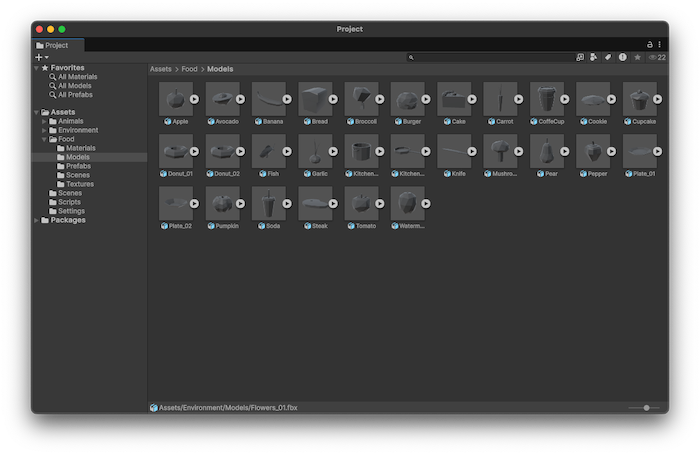
Read Unity Learn’s focused folder workflow, then apply it directly to BattleFire.
Set up the Unity Editor - Unity Learn
Read “Set up the Unity Editor” from Unity Learn for a concise workflow for creating folders, moving assets, and distinguishing Project-window assets from Hierarchy GameObjects.
In the section “2. Organize your project files,” begin at “To create a new folder:” and read the folder workflow. Focus on the right-click Create command, descriptive names, and the fact that nesting folders is supported.
1. Create or verify the top-level folders
In the Project window, select Assets. Right-click in the contents area and choose Create > Folder. Create these folders exactly as written:
Scenes
Scripts
Prefabs
Materials
Models
UI
Use the exact capitalization shown. Unity itself is usually flexible about this, but consistent names prevent confusion and avoid fragile paths in future documentation, build settings, or tooling.
If Scenes already exists because you saved Main.unity in the last lesson, keep it rather than creating a duplicate. Confirm that Main.unity is inside it.
2. Create the script subfolders
Select Assets/Scripts, then create four folders:
Player
Enemy
Weapons
UI
At this point, these folders may be empty. That is correct. You are establishing stable destinations before the related assets exist.
Later, they will contain:
| Future file | Destination |
|---|---|
PlayerController.cs, PlayerHealth.cs, PlayerShooter.cs | Assets/Scripts/Player/ |
EnemyBot.cs | Assets/Scripts/Enemy/ |
Bullet.cs | Assets/Scripts/Weapons/ |
MobileJoystick.cs | Assets/Scripts/UI/ |
Creating the destination first prevents the familiar “I will organize it later” accumulation of scripts at the root of Assets.
3. Put Main.unity in its proper place
If your saved scene is already at Assets/Scenes/Main.unity, no change is required.
If Main.unity is elsewhere under Assets, drag it in the Project window into Scenes. Do not drag it in Finder, Explorer, or another file browser. Unity will retain the asset’s identity and update its metadata correctly.
Then double-click Main to ensure it opens normally. Its folder location has changed, but its arena GameObjects should be unchanged because they are stored inside the scene asset itself.
Move assets according to what they are
Folder organization works best when every asset has a clear home. The question to ask is not “Which object uses this?” but first “What kind of Unity asset is this?”
For BattleFire, use these decisions:
Scenes
Store playable and test scenes in Assets/Scenes.
Main.unitybelongs here now.- A future temporary test scene would also go here.
- Do not store screenshots, prefabs, or scripts here.
Scripts
Store C# files in Assets/Scripts, then classify by feature:
- Player movement, health, and shooting code belongs in
Scripts/Player. - Enemy AI and combat code belongs in
Scripts/Enemy. - Projectile code belongs in
Scripts/Weapons. - User-interface control code belongs in
Scripts/UI.
A script remains an asset even after it is attached as a component. Moving it through Unity does not remove it from GameObjects that use it.
Prefabs
Store reusable GameObject templates in Assets/Prefabs.
The later Player.prefab, Enemy.prefab, and Bullet.prefab will all go here. Although a bullet is a weapon, the prefab itself is categorized by asset type as a prefab; its controlling code belongs in Scripts/Weapons.
This distinction is worth retaining:
Bullet.prefabbelongs inPrefabs.Bullet.csbelongs inScripts/Weapons.
Materials and Models
Place .mat assets in Assets/Materials. These control surface appearance: color, texture assignments, metallic response, and similar rendering settings.
Place imported mesh files, such as .fbx, in Assets/Models. When importing a model with embedded materials or textures, Unity may create related assets beside the imported file at first. For this project, move standalone material assets into Materials through the Project window once you identify them. Keep the model source file itself in Models.
For the current prototype arena, Unity primitive objects may use default materials. That is fine; you do not need to manufacture placeholder assets simply to fill every folder.
UI assets
Place visual interface resources in Assets/UI: button sprites, joystick artwork, icons, fonts, and interface backgrounds. The Canvas and its child GameObjects will live in the Main scene’s Hierarchy; their artwork will remain in this asset folder.
A small naming standard prevents later friction
Folder structure makes browsing possible; names make searching effective. Use descriptive names that state the asset’s role:
| Asset kind | Good names | Avoid |
|---|---|---|
| Scene | Main, ArenaTest | Scene1, New Scene |
| Prefab | Player, Enemy, Bullet | Prefab, Cube2 |
| Script | PlayerController, EnemyBot | Script, Test |
| Material | ArenaFloor, WallDark | Material 1, New Material |
| UI asset | JoystickBackground, FireButton | Image, ButtonFinal2 |
Unity’s search field can find assets by name, so names become a development tool rather than mere decoration. Avoid spaces or vague version labels unless they convey an actual distinction. If you must keep iterations, a name such as EnemyBotPrototype says more than EnemyBotFinalFinal.
For BattleFire, keep gameplay-facing assets in PascalCase, matching existing Unity and C# conventions:
PlayerController.cs
Player.prefab
ArenaFloor.mat
Main.unity
Audit the project before continuing
Before ending the lesson, expand the Assets folder tree in the Project window and compare it to the target structure. Your folders should be present even if most are empty.
Use this short audit:
Main.unityis underAssets/Scenes.ScriptscontainsPlayer,Enemy,Weapons, andUI.Prefabs,Materials,Models, and the root-levelUIfolder exist.- No newly created working asset is sitting directly in the root of
Assets. - You made all moves and renames in Unity’s Project window.
- Double-clicking
Mainstill opens the arena correctly.
Finally, save the scene with File > Save. Folder creation itself is reflected immediately in the project, but saving ensures any open-scene changes are retained as well.
Key takeaways
BattleFire now has a durable asset structure:
Assets/ScenesholdsMain.unity.Assets/Scriptsis organized by gameplay responsibility:Player,Enemy,Weapons, andUI.Prefabs,Materials,Models, and root-levelUIare reserved for their respective asset types.- The Hierarchy organizes GameObjects in the current scene; the Project window organizes reusable files.
- Move and rename Unity assets through the Project window so Unity preserves their metadata and references.
Next, you will begin PlayerController.cs by writing a MonoBehaviour with configurable Inspector fields and safe component-reference setup.
Can't find a good explanation? Sign up and we'll make it for you
Sign up