
Hello again. In the previous lesson, you created a small Azure resource group and Storage account from Terraform, with the state file still held locally. That was appropriate while bootstrapping, but a local state file becomes a fragile source of truth as soon as you use more than one workstation, collaborate with others, or simply want a recoverable and controlled operating model.
In this lesson, you will use the Storage account you already created as an Azure Blob Storage backend. You will authenticate to it through your Azure CLI session and Microsoft Entra ID rather than a storage access key, migrate the existing state safely, and operate a separate short-lived workload through that remote state. You will also deliberately introduce harmless drift, inspect it, reconcile it, and destroy the temporary workload without touching the backend.
Why remote state is an operational boundary
Terraform state is Terraform’s record of which real Azure objects correspond to which resource addresses in your configuration. It also stores provider-returned attributes needed to compare desired configuration with actual infrastructure.
With a local backend, that record lives in terraform.tfstate on one machine. That is workable for an initial experiment, but has several weaknesses:
- Another machine does not automatically have the current state.
- Losing the machine can mean losing the practical record Terraform needs to manage existing resources.
- Concurrent changes are difficult to coordinate.
- State may contain sensitive values, even when Terraform redacts them in terminal output.
An AzureRM backend stores the canonical state document as a blob in a private Azure Storage container. Azure Blob Storage also supplies the lease mechanism Terraform uses for state locking.
Backend Type: azurerm | Terraform
Read HashiCorp’s AzureRM backend reference before configuring the backend. It explains what Azure stores, why locking matters, and why Microsoft Entra ID is the recommended authentication approach.
In the opening of the page, read the backend model. Then read the Authentication section, beginning with data plane authentication. Focus especially on the distinction between Azure’s management plane and the Storage data plane, and note that Azure CLI user authentication is supported for a local development cycle.
Two terms in the backend configuration deserve precision:
| Term | Meaning |
|---|---|
| Storage account | The Azure Storage resource that owns the Blob service. |
| Container | A private logical collection of blobs inside the Storage account. |
| Key | The blob path and name used for one Terraform state document, such as bootstrap/terraform.tfstate. It is not an access key or credential. |
| Backend | Terraform’s configured location and authentication method for its state. |
The provider and the backend are related but distinct clients:
- The AzureRM provider creates and reads Azure resources.
- The AzureRM backend reads and writes the state blob.
Both will use your Azure CLI session in this lab, but the backend needs permission to the Storage data plane. Having permission to manage a Storage account does not automatically guarantee permission to read its blobs.
State is sensitive operational data. Azure encrypts blobs at rest by default, but encryption at rest does not replace access control: anyone who can read the state blob may be able to retrieve values Terraform recorded there. Keep the state container private, grant only the required identities access, and never commit state or saved plans to Git.
Store Terraform state in Azure Storage
Read Microsoft Learn’s overview of Azure Storage-backed Terraform state. The article demonstrates the required Storage components and explains the Azure Blob lease used for locking.
In 2. Configure remote state storage account, read from the backend prerequisites and its key points. The article’s later example uses a Storage access key; for this lesson, deliberately use Microsoft Entra ID and Azure CLI instead. Then read 4. Understand state locking: the locking explanation. Finally, read 5. Understand encryption-at-rest, beginning with the encryption note.
Bootstrap the private state container
You already have a modest Standard LRS Storage account from the prior lesson. We will retain it as backend infrastructure for the course. The state container itself must exist before Terraform can use it as a backend, so creating it is a deliberate bootstrap step outside the workload configuration.
First, enter the existing grasp-azure-lab directory and confirm that Terraform can still read the current local state:
terraform state list
terraform output
You should see the resource group and Storage account from the previous lesson.
For the commands below, Bash syntax is shown. In PowerShell, assign variables with syntax such as:
$tfstateRg = terraform output -raw resource_group_name
rather than TFSTATE_RG=$(...).
In Bash, set three temporary shell variables:
TFSTATE_RG=$(terraform output -raw resource_group_name)
TFSTATE_ACCOUNT=$(terraform output -raw storage_account_name)

STORAGE_SCOPE=$(az storage account show \
  --resource-group "$TFSTATE_RG" \
  --name "$TFSTATE_ACCOUNT" \
  --query id \
  --output tsv)

SIGNED_IN_USER_OBJECT_ID=$(az ad signed-in-user show \
  --query id \
  --output tsv)
Now assign yourself the Storage Blob Data Contributor role at the Storage-account scope:
az role assignment create \
  --assignee-object-id "$SIGNED_IN_USER_OBJECT_ID" \
  --assignee-principal-type User \
  --role "Storage Blob Data Contributor" \
  --scope "$STORAGE_SCOPE"
For a dedicated personal lab Storage account, account-level scope is acceptable because the account contains only backend data. In a shared environment, use a separate state Storage account and narrow access as far as practical.
The identity creating the role assignment needs permission to manage role assignments, typically Owner or User Access Administrator at an appropriate scope. On a personal subscription where you are the Owner, this normally works. If Azure reports an authorization failure here, do not work around it by retrieving a Storage account key. Instead, use an identity with the required role-assignment permission or ask the subscription administrator to grant the blob role.
Role assignments can take a few minutes to propagate. Once the role is effective, create a private container using Entra-authenticated Azure CLI access:
az storage container create \
  --account-name "$TFSTATE_ACCOUNT" \
  --name tfstate \
  --auth-mode login \
  --public-access off
The explicit --auth-mode login matters. It tells Azure CLI to use your signed-in Entra identity rather than attempting to obtain and use a Storage account key.
Cost of this practical action: USD 0 for role assignments and creating the empty container. The already-created Standard LRS Storage account remains usage-priced. A single, tiny state blob and the small number of Storage transactions in this lab should be effectively negligible, but Azure prices vary by subscription and region. Do not place application files, backups, diagnostic archives, or container images in this state account.
Configure and migrate the bootstrap state
Create a new file named backend.tf in the existing grasp-azure-lab directory. Replace the two placeholder values with the actual names created in the earlier lesson.
terraform {
  backend "azurerm" {
    resource_group_name  = "rg-grasp-lab-yourinitials"
    storage_account_name = "replace-with-your-storage-account-name"
    container_name       = "tfstate"
    key                  = "bootstrap/terraform.tfstate"

    use_azuread_auth = true
    use_cli          = true
  }
}
The backend block deliberately contains literal strings. Terraform configures the backend before it evaluates normal input variables, resources, data sources, or outputs. Therefore, this is invalid:
# Do not use this in a backend block.
storage_account_name = azurerm_storage_account.lab.name
Likewise, backend configuration cannot read var.storage_account_name. Treat the backend as the external operational foundation on which the rest of the root module runs.
The selected key is a blob path. bootstrap/terraform.tfstate identifies the state for this foundational root module. Later, a separate workload root module will use a different key so that its temporary resources can be destroyed without endangering the backend.
Before migration, ensure your ignore rules cover Terraform’s local operational files:
.terraform/
*.tfstate
*.tfstate.*
*.tfplan
*.auto.tfvars
The .terraform directory can retain backend metadata. State files and saved plans can retain sensitive or operationally significant values. None belongs in source control.
Now initialize with state migration:
terraform init -migrate-state
Terraform detects that the configuration used the default local backend and now specifies Azure Blob Storage. Review the destination details carefully, then confirm the migration prompt.
Use -migrate-state here because you want Terraform to copy the existing local state to the new remote backend. Do not use -reconfigure as a shortcut for this first migration. -reconfigure discards Terraform’s remembered backend configuration; it is useful only when you intentionally want to reinitialize an already-understood backend setup, not when your goal is to preserve and move existing state.
After successful initialization, check that Terraform still sees the same managed resources:
terraform state list
Then inspect the blob’s metadata without downloading or editing state contents:
az storage blob show \
  --account-name "$TFSTATE_ACCOUNT" \
  --container-name tfstate \
  --name bootstrap/terraform.tfstate \
  --auth-mode login \
  --output jsonc
You should find the state blob in the tfstate container. Terraform now treats that remote blob as the canonical state for the bootstrap root module.
Cost of this practical action: effectively negligible Azure Storage usage for one small blob and a few read/write operations. terraform init and terraform state list do not create additional billable compute resources. Saved plans remain local files, so they have no Azure usage cost.
Use a separate remote state for a temporary workload
The backend account should outlive individual workloads. The simplest way to enforce that operationally is to use separate root modules and separate backend keys:
| Root module | State key | Purpose | Destruction policy |
|---|---|---|---|
grasp-azure-lab | bootstrap/terraform.tfstate | Resource group and Storage account supporting state | Keep for the course |
workload | workload/terraform.tfstate | Short-lived test resources | Destroy when finished |
Create a sibling directory called workload. Do not place it inside a future application repository unless you intentionally want that repository to own this infrastructure.
mkdir workload
cd workload
Create backend.tf. Use the same actual backend resource group and Storage account names as before, but use a different key:
terraform {
  backend "azurerm" {
    resource_group_name  = "rg-grasp-lab-yourinitials"
    storage_account_name = "replace-with-your-storage-account-name"
    container_name       = "tfstate"
    key                  = "workload/terraform.tfstate"

    use_azuread_auth = true
    use_cli          = true
  }
}
Create main.tf:
terraform {
  required_version = ">= 1.6.0"

  required_providers {
    azurerm = {
      source  = "hashicorp/azurerm"
      version = "~> 4.0"
    }
  }
}

provider "azurerm" {
  features {}
}

variable "workload_resource_group_name" {
  type        = string
  description = "Name of the temporary resource group used to practice remote-state operations."
  nullable    = false
}

variable "location" {
  type        = string
  description = "Azure region for the temporary workload."
  default     = "westeurope"
  nullable    = false
}

variable "tags" {
  type = map(string)

  default = {
    environment = "lab"
    course      = "grasp-azure"
    cleanup     = "destroy-after-practice"
  }
}

resource "azurerm_resource_group" "workload" {
  name     = var.workload_resource_group_name
  location = var.location

  tags = merge(
    var.tags,
    {
      managed_by = "terraform"
    }
  )
}

output "workload_resource_group_name" {
  value       = azurerm_resource_group.workload.name
  description = "Name of the temporary workload resource group."
}
Create the ignored local values file workload.auto.tfvars:
workload_resource_group_name = "rg-grasp-workload-yourinitials"

tags = {
  environment = "lab"
  course      = "grasp-azure"
  cleanup     = "destroy-after-practice"
  owner       = "your-initials"
}
Initialize, validate, create a reviewed plan, and apply that exact plan:
terraform init
terraform fmt
terraform validate

terraform plan -lock-timeout=5m -out=create.tfplan
terraform apply -lock-timeout=5m create.tfplan
The first init in this directory creates a new remote state lineage under workload/terraform.tfstate. It does not migrate the bootstrap state because this is a distinct root module and key.
The -lock-timeout=5m setting asks Terraform to wait up to five minutes if another valid operation currently owns the state lock. This is safer than bypassing a lock. Review the plan before applying it, and regenerate it if configuration, remote state, or Azure infrastructure changes between planning and applying.
Cost of this practical action: USD 0 for the new resource group. A resource group is an organizational container, not a billed compute service. The operation updates only the small remote state blob, with negligible Storage usage. The pre-existing state Storage account remains the only Azure resource that can incur minimal usage-based charges.
Inspect drift, reconcile it, and understand locks
Terraform normally refreshes its understanding of remote infrastructure during a plan. Drift means the actual Azure resource no longer matches either the Terraform configuration or the state Terraform last recorded.
Create a safe, intentional example: add an unmanaged tag directly through Azure CLI.
az group update \
  --name "$(terraform output -raw workload_resource_group_name)" \
  --set tags.manual_change=remove-me
This command changes Azure, but it does not change Terraform configuration or Terraform state. It is a controlled demonstration of the kind of manual portal or CLI change that can occur in real environments.
First, isolate the observation of drift:
terraform plan -refresh-only -lock-timeout=5m
A refresh-only plan compares the recorded state with Azure’s current resource. It should show the externally added manual_change tag as a difference. Do not apply this refresh-only plan in this scenario: your desired configuration is still authoritative, and it does not include that tag.
Now produce a normal plan:
terraform plan -lock-timeout=5m -out=reconcile.tfplan
A normal plan both refreshes against Azure and compares the refreshed reality with your declared configuration. It should propose removing manual_change from the resource group’s tags. Apply only after confirming that this is the intended reconciliation:
terraform apply -lock-timeout=5m reconcile.tfplan
terraform plan
The final plan should report no changes.
State locking protects this workflow from concurrent writes. While Terraform performs an apply, destroy, or another state-writing operation, it obtains a lease on the Azure state blob.
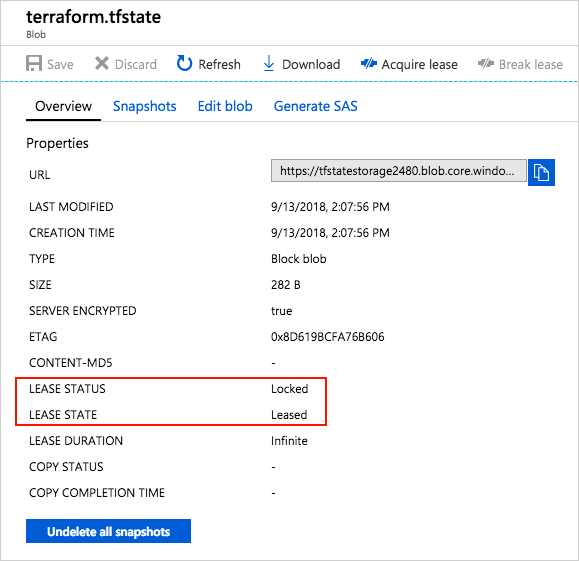
An apply against a small resource group may finish too quickly to observe the locked lease in the portal. That is normal. The important behavior is that a second Terraform operation using the same state key waits or fails rather than writing state concurrently.
If Terraform reports that state is locked:
-
Check whether a legitimate
apply,destroy, or CI job is still running. -
Wait up to the configured lock timeout if another valid operation is expected to finish.
-
If the original process has definitely terminated and the lock is stale, use the lock ID from Terraform’s error message:
terraform force-unlock LOCK_ID
Never run force-unlock merely because an operation is taking longer than expected. Never break the Azure Blob lease manually in the portal while another Terraform process might be running. Either action can permit concurrent state writes and make recovery harder.
Cost of this practical action: USD 0 for the manual tag update, plans, and tag reconciliation. They make Azure management and a few Storage transactions only. No application runtime, database, VM, or container service is provisioned.
Destroy only the workload, not its foundation
You can now exercise a safe destroy operation against the temporary workload root module:
terraform plan -destroy \
  -lock-timeout=5m \
  -out=destroy-workload.tfplan
Inspect this plan carefully. It should contain exactly one deletion:
azurerm_resource_group.workload
It should not propose deleting the Storage account, the tfstate container, or the bootstrap resource group. If it does, stop: you are in the wrong directory, using the wrong backend key, or working from the bootstrap root module.
Apply the reviewed destroy plan:
terraform apply -lock-timeout=5m destroy-workload.tfplan
terraform state list
Afterward, terraform state list should show no managed workload resources. The workload/terraform.tfstate blob may remain as a small, valid empty state document. That is expected and does not mean that the resource group still exists.
Cost of this practical action: USD 0 for deleting the temporary resource group. Destruction stops any future charges from resources inside that group. In this specific lab, there were no billable resources inside it. The backend Storage account remains intentionally in place and continues to have only negligible state-storage usage.
Do not destroy the bootstrap Storage account yet: later lessons will benefit from a stable remote backend. At the end of the course, clean it up in this order:
- Destroy every workload root module that uses the backend.
- In the bootstrap directory, remove the backend block temporarily and run
terraform init -migrate-stateto move the bootstrap state back to local state. - Run a reviewed destroy plan from that bootstrap directory.
- Remove the resulting local
terraform.tfstatefiles securely; state should not be retained casually.
The migration back to local state is necessary because deleting the Storage account first would delete the remote state Terraform needs to destroy the Storage account cleanly.
Key takeaways
You now have a practical remote-state workflow for Azure:
- Azure Blob Storage stores Terraform state as a blob identified by a key; the key is a state path, not a credential.
- The AzureRM backend uses a separate Storage data-plane connection, so the operator needs Storage Blob Data Contributor access in addition to ordinary Azure resource-management access.
- For local work,
use_azuread_auth = trueanduse_cli = trueavoid embedding Storage access keys in configuration or local backend settings. - Use
terraform init -migrate-statewhen moving existing local state to a new backend. - Separate backend infrastructure and temporary workloads through distinct root modules and distinct backend keys.
- Treat
terraform plan -refresh-onlyas an inspection tool for drift, then use a normal reviewed plan to reconcile Azure to the declared configuration. - Respect state locks. Wait for legitimate operations, and force-unlock only after confirming the original holder is gone.
- The practical work in this lesson remains within the budget: it uses only a resource group plus a tiny state blob, so costs should be effectively negligible.
Next, you will create a private Azure Container Registry and push versioned backend and frontend Docker images to it. The remote backend established here will provide the safer state foundation for that deployment work.
Can't find a good explanation? Sign up and we'll make it for you
Sign up