
Hello again. In the previous module, you established the guardrails for a personal Azure lab: a dedicated resource-group lifecycle, a monthly budget ceiling, cost alerts, consistent tags, and a cleanup plan. You are now starting the Terraform Workflows for Azure module.
This lesson establishes a safe local authentication pattern. You will sign in to Azure interactively with the Azure CLI, explicitly select the subscription that Terraform may target, and let the AzureRM provider use that existing CLI session. No passwords, client secrets, or access tokens will be placed in .tf files, .tfvars files, or Git.
By the end, you will have a minimal Terraform project whose plan confirms the Azure identity, tenant, and subscription Terraform is using—without creating any Azure resources.
The local authentication model
Three ideas are easy to blur together:
| Concept | Meaning in this lesson |
|---|---|
| Authentication | Proving who you are to Microsoft Entra ID, normally through interactive browser sign-in and MFA. |
| Authorization | The RBAC permissions your identity has, such as permission to read a resource group or create a Container App. |
| Subscription selection | Choosing the Azure billing and resource boundary against which CLI and Terraform commands operate. |
A successful login proves authentication; it does not guarantee that you have sufficient permissions for every later Terraform operation. If a future terraform plan or apply fails with an authorization error, first check the active subscription and then the RBAC role at the relevant scope.
For local development, the intended sequence is:
- Azure CLI performs an interactive sign-in and keeps the authenticated context on your workstation.
- You select the personal lab subscription deliberately.
- Terraform's AzureRM provider obtains tokens through that logged-in Azure CLI context when it needs to call Azure.
This avoids a common but poor local-development pattern: creating a service principal, copying its client secret into environment variables or a terraform.tfvars file, then forgetting that it exists. Environment variables are safer than committed configuration files for secrets, but a client secret is still a long-lived credential that must be rotated and protected. You do not need one for this local lab workflow.
Later, when GitHub Actions deploys infrastructure or images unattended, interactive user login will not be appropriate. That workflow will use OIDC federation rather than a stored Azure password or client secret.
Sign in interactively with Azure CLI
The Azure CLI is both an administration tool and the local identity bridge Terraform will use. First confirm that the CLI and Terraform are visible in your terminal:
az version
terraform version
Use a current Azure CLI release. Current CLI behavior differs slightly by operating system: on Windows, Azure CLI commonly uses Web Account Manager; on Linux and macOS, it normally opens a browser-based sign-in page.
Sign in with Azure CLI at a command line - Microsoft Learn
Read Microsoft Learn's guidance on interactive CLI login. It clarifies the subscription selector and the browser and device-code sign-in flows.
Read “Subscription selector” to understand how Azure CLI chooses a default subscription after login. Then, in “Sign in with a browser,” read the interactive flows. Focus on normal browser login and the --use-device-code fallback. Skip the subsection “Sign in with credentials on the command line”: it is not the approach used in this course.
Normal browser sign-in
In the terminal where you intend to run Terraform, execute:
az login
Your browser should open to Microsoft’s sign-in page. Complete the normal interactive login, including MFA if prompted. When you have access to more than one tenant or subscription, Azure CLI may present a numbered selector. Choose the subscription reserved for this course and personal lab.
Microsoft requires MFA for Azure CLI user authentication; this makes browser-based or device-code sign-in the normal path, not an inconvenience to work around.
Device-code sign-in
Use device code when the terminal cannot open a browser, the browser is running on another machine, or you are working through a remote shell:
az login --use-device-code
The command prints a URL and a short, temporary code. Open the URL in any browser where you can sign in, enter the displayed code, and complete authentication. The code is not a reusable password and expires quickly.
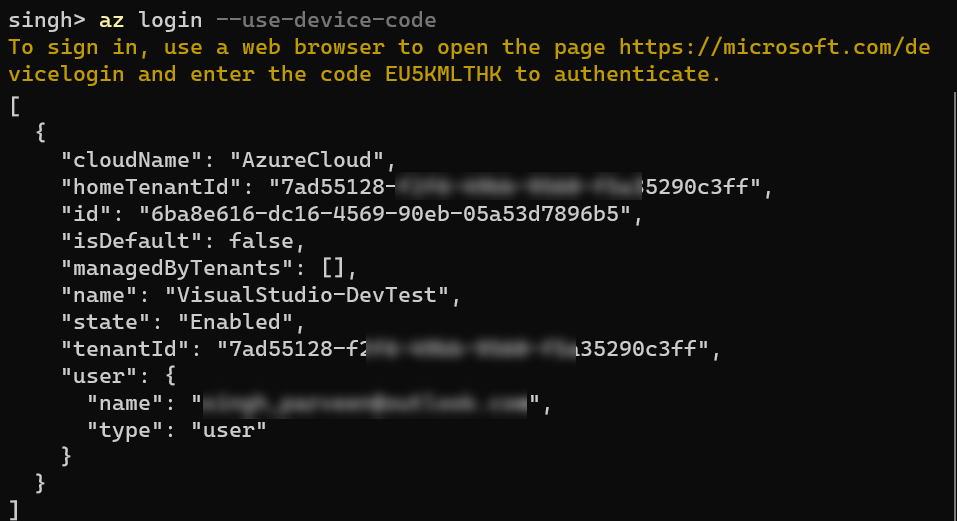
The output from either login method includes account context such as:
name: the human-readable subscription name;id: the subscription ID;tenantId: the Microsoft Entra tenant containing the identity;user: the signed-in account;isDefault: whether this subscription is currently active.
Treat tenant IDs, subscription IDs, and account names as operational metadata rather than passwords, but avoid pasting them into public issues, screenshots, or repositories without a reason.
Cost of this practical action: USD 0 in Azure usage. az login and device-code authentication create no Azure resources and incur no service charges.
Make the target subscription explicit
The active subscription is a safety boundary. A command can authenticate successfully yet point at the wrong subscription, which is particularly dangerous once Terraform is allowed to create resources.
List accessible subscriptions:
az account list --output table
Then set the course subscription by ID, not only by display name:
az account set --subscription "<your-course-subscription-id>"
Using the ID makes the command unambiguous even if names change or several subscriptions have similar labels. Confirm the resulting context:
az account show \
  --query "{subscriptionId:id, subscriptionName:name, tenantId:tenantId, user:user.name}" \
  --output jsonc
In PowerShell, the same command works; use the backtick character for line continuation if you choose to split it across lines. You may also simply run it as one line.
The most important fields to inspect are:
- Subscription ID: it must be the personal subscription covered by your USD 50 monthly guardrail.
- Subscription name: it should match the subscription chosen in the first module.
- Tenant ID: useful when an account has access to several Entra tenants.
- User name: confirms that you did not accidentally use a different work or personal account.
Build infrastructure | Terraform
Read the opening Azure authentication portion of HashiCorp's Terraform tutorial. It reinforces the relationship between az login, subscription context, and Terraform.
In “Authenticate using the Azure CLI,” read the login and subscription steps. Stop before “Create a Service Principal.” That later section describes a credential-based alternative that is unnecessary for this local interactive workflow.
Export only the targeting context
Terraform can use the subscription selected by Azure CLI. For an additional, visible safeguard, set the AzureRM provider’s subscription and tenant context as environment variables in the current terminal session.
PowerShell:
$env:ARM_SUBSCRIPTION_ID = az account show --query id --output tsv
$env:ARM_TENANT_ID = az account show --query tenantId --output tsv
Bash or Zsh:
export ARM_SUBSCRIPTION_ID="$(az account show --query id --output tsv)"
export ARM_TENANT_ID="$(az account show --query tenantId --output tsv)"
Verify the values without printing more account information than necessary:
echo "$ARM_SUBSCRIPTION_ID"
echo "$ARM_TENANT_ID"
In PowerShell, use:
$env:ARM_SUBSCRIPTION_ID
$env:ARM_TENANT_ID
These values identify Azure boundaries; they are not credentials. They disappear when you close the shell unless you deliberately persist them. For this course, keeping them session-scoped is preferable: each new Terraform session begins with an intentional Azure login and subscription check.
Cost of this practical action: USD 0 in Azure usage. Listing accounts, selecting a subscription, and setting local shell variables do not provision or alter billable Azure resources.
Create a credential-free Terraform provider configuration
Create a directory for the Terraform configurations used in this course. The exact location is your choice; keeping it with the application repository is usually practical.
mkdir grasp-azure-lab
cd grasp-azure-lab
Create main.tf with this minimal configuration:
terraform {
  required_version = ">= 1.6.0"

  required_providers {
    azurerm = {
      source  = "hashicorp/azurerm"
      version = "~> 4.0"
    }
  }
}

provider "azurerm" {
  features {}
}

data "azurerm_client_config" "current" {}

output "authenticated_context" {
  value = {
    subscription_id = data.azurerm_client_config.current.subscription_id
    tenant_id       = data.azurerm_client_config.current.tenant_id
    client_object_id = data.azurerm_client_config.current.object_id
  }
}
There are two distinct parts here:
provider "azurerm"declares that Terraform should use the AzureRM provider.features {}is the required provider block for standard AzureRM configurations.data "azurerm_client_config" "current"asks the provider to report the identity context it is currently using. It does not create a resource.
Notice what is deliberately absent:
- no
client_id; - no
client_secret; - no password;
- no access token;
- no subscription-specific credentials in the provider block.
The provider relies on the authenticated Azure CLI context, while ARM_SUBSCRIPTION_ID and ARM_TENANT_ID make the target explicit outside the Terraform source. This preserves a clean configuration that can be safely committed, apart from the usual Terraform generated files.
Protect the repository from accidental state and secrets
Create .gitignore in the same directory:
.terraform/
*.tfstate
*.tfstate.*
crash.log
crash.*.log
*.tfvars
*.tfvars.json
.env
Do not add .terraform.lock.hcl to .gitignore. Terraform creates this dependency lock file during initialization, and it is normally committed so that collaborators and CI use the same provider versions.
The broad *.tfvars rule is intentional for a learning repository. Even though a subscription ID is not secret, Terraform variable files frequently become places where passwords, database connection strings, or API keys are added later. In a later lesson, use a committed, non-sensitive example.tfvars file when an example is useful.
Also keep these boundaries clear:
| Location | May contain | Must not be committed |
|---|---|---|
main.tf | Provider and infrastructure declarations | Credentials, passwords, tokens |
| Terminal session | CLI authentication context; ARM_SUBSCRIPTION_ID; ARM_TENANT_ID | Shell history containing passwords or secrets |
| Azure CLI local profile | Token cache managed by Azure CLI | The whole local Azure CLI profile directory |
| Terraform state | Resource metadata and potentially sensitive provider-returned values | Local state files, especially once resources exist |
At this point, there is no remote state backend yet. That is intentional: configuring Azure Storage remote state and its safe operational workflow is the third outcome in this module.
Cost of this practical action: USD 0 in Azure usage. Creating local Terraform files and a .gitignore file does not contact or create Azure resources.
Validate the connection without deploying anything
Run Terraform initialization:
terraform init
Terraform downloads the AzureRM provider locally and writes .terraform.lock.hcl. It may access the public Terraform Registry, but it does not create an Azure resource.
Next, validate the configuration syntax:
terraform validate
Finally, run a plan:
terraform plan
Because the configuration contains only a data source and an output, the plan should not propose any infrastructure changes. It should display the authenticated context in the planned output, including the expected subscription and tenant.
A successful result establishes four things:
- Terraform can load the AzureRM provider.
- Terraform can obtain authentication through Azure CLI.
- The provider is targeting the subscription selected for this lab.
- No Azure infrastructure has been created.
Do not run terraform apply merely to prove authentication. There is no infrastructure to deploy yet, and the plan itself provides the required confirmation.
Cost of this practical action: USD 0 in Azure usage. terraform init, terraform validate, and terraform plan do not create billable Azure resources in this configuration. They may download local provider binaries and make Azure API calls, neither of which creates Azure service consumption.
Diagnose failures without falling back to static credentials
If the plan fails, avoid the temptation to create a service-principal secret immediately. Work from the smallest diagnostic check outward.
| Symptom | Likely cause | First response |
|---|---|---|
| Browser login does not open | Remote terminal, browser integration issue, or no graphical environment | Run az login --use-device-code. |
| Terraform reports it cannot authenticate | CLI login expired, happened in another profile, or shell context is inconsistent | Run az account show; if it fails, repeat az login. |
| Terraform reports the subscription is missing or incorrect | CLI has a different active subscription, or ARM_SUBSCRIPTION_ID is stale | Run az account set, then reset ARM_SUBSCRIPTION_ID from az account show. |
| Terraform reports authorization failure | You authenticated successfully but lack RBAC permission at the attempted scope | Confirm subscription and assigned role; do not solve this by embedding another identity’s secret. |
| Tenant-related error | The identity has access to several tenants | Log in to the intended tenant using az login --tenant "<tenant-id>", then select and verify the subscription again. |
For the final check, use this compact pre-flight routine at the start of a future Terraform session:
az account show --query "{subscriptionId:id, subscriptionName:name, tenantId:tenantId}" --output table
terraform plan
This is the Azure equivalent of confirming the active account and region before an infrastructure change: short, explicit, and worth doing every time.
When you finish working on a shared workstation, sign out:
az logout
On a personal, encrypted development machine, remaining signed in may be acceptable, but remember that anyone able to use your logged-in OS profile may be able to use the Azure CLI session.
Key takeaways
You now have a local Azure authentication workflow that does not put credentials in Terraform configuration:
- Use
az loginfor browser-based interactive authentication, oraz login --use-device-codewhen browser launch is impractical. - Explicitly set and verify the active subscription with
az account setandaz account show. - Use
ARM_SUBSCRIPTION_IDandARM_TENANT_IDas session-scoped targeting context, not as secrets. - Keep the AzureRM provider block free of client secrets, passwords, and tokens.
- Use
terraform planwithazurerm_client_configto confirm Terraform’s effective Azure context without provisioning anything.
Next, you will create parameterized Azure resources with Terraform, using variables, outputs, and dependency references while preserving the budget and cleanup boundaries established in the first module.
Can't find a good explanation? Sign up and we'll make it for you
Sign up