
Managing Separate Kickstart.nvim and LazyVim Configurations with NVIM_APPNAME
Good to see you again. In the previous lesson, you built and inspected a minimal init.lua: options, mappings, and autocommands are just Lua code, and :verbose commands tell you where a behavior was last defined.
This module adds two deliberately different configuration styles. Kickstart.nvim is an annotated, inspectable starting point; LazyVim is a fuller distribution with established defaults and a dedicated place for your overrides. Today’s goal is not to choose one forever. You will run both without touching your existing minimal configuration, trace a useful mapping in Kickstart, then define the same behavior through a LazyVim user override.
Isolate configurations with NVIM_APPNAME
A Neovim profile is more than one configuration folder. Plugins, downloaded parsers, logs, state, and caches are also profile-specific. NVIM_APPNAME tells Neovim which application name to use when resolving all those standard locations.
The Only Video You Need to Get Started with Neovim
Watch “The Only Video You Need to Get Started with Neovim” by TJ DeVries for a concise explanation of why Kickstart is a teaching-oriented configuration rather than a distribution.
Watch Kickstart's purpose. Focus on the distinction between a documented foundation you are expected to inspect and a distribution that bundles more conventions and abstraction.
Read the official Neovim documentation to understand exactly what isolation means. This is the underlying mechanism that lets you test configurations safely.
In Standard Paths, first inspect the Windows rows for the configuration and data directories. Then read the NVIM_APPNAME subsection, especially the isolation rule. The important point is that the application name affects every standard Neovim location, not only init.lua.
For this lesson, use these names:
| Profile | NVIM_APPNAME | Purpose |
|---|---|---|
| Your existing setup | unset | Your minimal configuration from the previous lesson |
| Kickstart | nvim-kickstart | Read and trace a compact reference configuration |
| LazyVim | nvim-lazyvim | Your distribution-based daily-driver candidate |
On Windows, these profile names normally result in configuration directories beneath %LOCALAPPDATA%, such as:
%LOCALAPPDATA%\nvim-kickstart
%LOCALAPPDATA%\nvim-lazyvim
Their data directories are separate too. Do not rely on a guessed path, however; use stdpath() to inspect the paths from the running Neovim instance.
Two operational rules matter:
- Set
NVIM_APPNAMEbefore starting Neovim. Changing an environment variable after Neovim is running cannot switch its active profile. - Keep the variable scoped to the terminal session or launcher command. Do not make
nvim-lazyvima permanent machine-wide environment variable, because then ordinarynvimwould no longer launch your default configuration.
Create the two experimental profiles
Kickstart’s README is useful here because it explicitly supports maintaining parallel configurations and explains its purpose.
nvim-lua/kickstart.nvim: A launch point for your personal ...
Read the Kickstart README’s short introduction and its FAQ guidance on parallel configurations. Its main value for this lesson is the mental model: clone a configuration into a profile-specific directory, then launch Neovim with the corresponding application name.
In Introduction, read the project definition. Then go to FAQ and read the answer beginning the parallel-config guidance. The example uses Unix paths and shell aliases; translate the same idea into the PowerShell commands below.
Open Windows Terminal PowerShell. First check that neither lesson directory already exists:
Test-Path "$env:LOCALAPPDATA\nvim-kickstart"
Test-Path "$env:LOCALAPPDATA\nvim-lazyvim"
If either returns True, do not delete it automatically. It may contain an earlier experiment worth inspecting. For a clean first attempt, both should be False.
Clone the two configurations into their isolated Windows configuration directories:
git clone https://github.com/nvim-lua/kickstart.nvim.git "$env:LOCALAPPDATA\nvim-kickstart"
git clone https://github.com/LazyVim/starter "$env:LOCALAPPDATA\nvim-lazyvim"
These are intentionally temporary learning copies. In Module 4, you will establish a private, secret-free repository for the configuration you decide to keep. For now, the separation matters more than repository ownership.
Start Kickstart under its own name
Set the variable in this PowerShell session, then launch Neovim:
$env:NVIM_APPNAME = "nvim-kickstart"
nvim
On first startup, allow Kickstart’s bootstrap process to complete. If an installation or native build reports an error, record the message rather than editing configuration files immediately. You can inspect it with :messages and diagnose the environment with :checkhealth.
Inside Kickstart, confirm the active identity and paths:
:lua print(vim.env.NVIM_APPNAME)
:echo stdpath('config')
:echo stdpath('data')
:echo $MYVIMRC
You should see nvim-kickstart as the application name, and $MYVIMRC should point at the Kickstart init.lua, not the minimal init.lua created last lesson.
Quit with :qa, then start LazyVim from the same PowerShell window:
$env:NVIM_APPNAME = "nvim-lazyvim"
nvim
Again, let first-run plugin setup finish before judging startup behavior. Verify the identity and paths with the same four commands.
When you finish this lesson and want ordinary nvim to launch your original minimal setup again, close Neovim and run:
Remove-Item Env:NVIM_APPNAME
At that point, this command uses your default profile again:
nvim
Trace a practical Kickstart feature: clearing search highlights
Use a small feature that you will need frequently during keyboard-driven navigation: pressing Esc in Normal mode clears the highlight left by the most recent search.
This is not the same as turning off the 'hlsearch' option permanently. The command :nohlsearch clears the current visible search highlighting; a subsequent search can highlight matches again.
In the Kickstart session, launch it again if necessary:
$env:NVIM_APPNAME = "nvim-kickstart"
nvim
Then inspect the mapping’s provenance:
:verbose nmap <Esc>
The expected result includes a Normal-mode mapping that runs nohlsearch, followed by a “Last set from” location in Kickstart’s init.lua.
Open the exact configuration Neovim loaded:
:edit $MYVIMRC
Search for the command:
/nohlsearch
You should find a documented mapping equivalent to:
vim.keymap.set("n", "<Esc>", "<cmd>nohlsearch<cr>")
Read it using the contract from the previous lesson:
"n"limits the behavior to Normal mode."<Esc>"is the key being mapped."<cmd>nohlsearch<cr>"executes the Ex command without opening a visible command line.- The mapping is deliberately small: it gives an immediate escape hatch after
/,?, or a picker-driven search.
Validate behavior rather than stopping at the source code:
- Create a scratch buffer with
:enew. - Type a repeated word, such as
needle haystack needle, then return to Normal mode. - Search with
/needle, then press Enter. - Press
Esc.
The match highlighting should disappear. If it does not, inspect the current mapping again:
:verbose nmap <Esc>
This is the useful tracing workflow:
| Evidence | What it tells you |
|---|---|
:edit $MYVIMRC | Which root configuration Neovim loaded |
Searching init.lua for nohlsearch | The concrete Lua definition |
:verbose nmap <Esc> | Which file last defined the active mapping |
Actual /needle then Esc behavior | Whether the mapping works in the editor state that matters |
Kickstart is valuable because those layers are close together: the feature, its explanatory comment, and the configuration entry are designed to be read as one file.
Reproduce the behavior through a LazyVim user override
LazyVim has its own internal defaults and plugin specifications. Avoid modifying those files directly: an update could overwrite the change, and you would not know whether a later problem came from LazyVim or from an altered internal file.
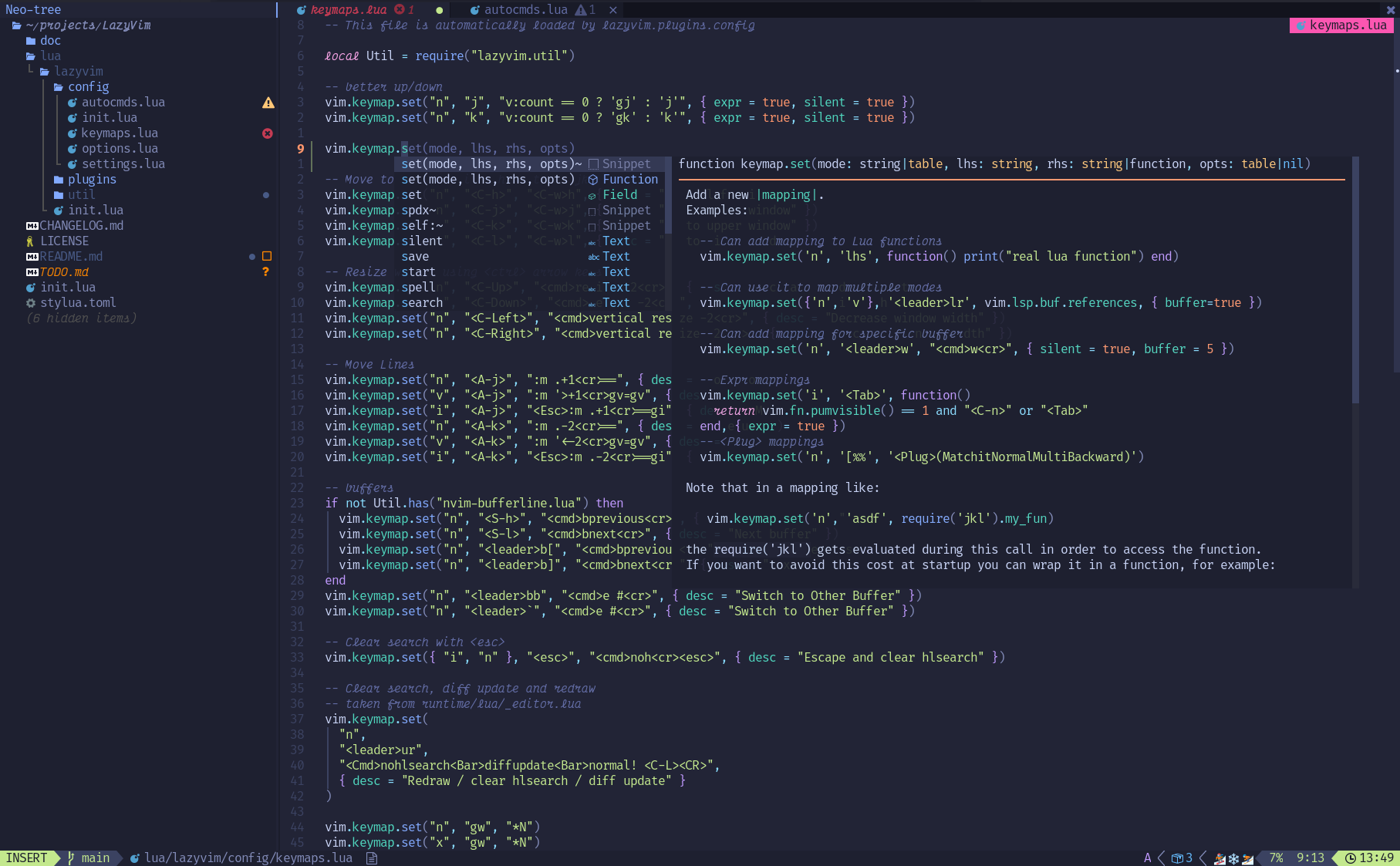
Instead, modify the user-owned configuration layer in:
lua/config/keymaps.lua
The screenshot below shows that kind of configuration file: plain Lua calls to vim.keymap.set, with a description attached to make the mapping discoverable.
Launch the LazyVim profile:
$env:NVIM_APPNAME = "nvim-lazyvim"
nvim
Open the user keymaps file using a path resolved by the active profile:
:execute 'edit ' .. fnameescape(stdpath('config') .. '/lua/config/keymaps.lua')
Read the comments already in the starter file. They identify it as the intended location for personal mappings. At the bottom of the file, add this override:
vim.keymap.set("n", "<Esc>", "<cmd>nohlsearch<cr>", {
  desc = "Clear search highlight",
})
Save it:
:write
For a quick in-session test, source the current file:
:source %
Then inspect the mapping:
:verbose nmap <Esc>
The “Last set from” path should now point to:
.../nvim-lazyvim/lua/config/keymaps.lua
Quit and relaunch LazyVim once as the authoritative startup test:
:qa
nvim
Because the PowerShell environment still contains nvim-lazyvim, this starts the same profile. Repeat the search-highlight test and inspect the mapping one more time:
:verbose nmap <Esc>
What makes this an override?
A keymap is identified primarily by its mode and left-hand side. By defining a Normal-mode <Esc> mapping in your own keymaps file, you intentionally establish the behavior you want for that exact key sequence.
This is different from editing LazyVim’s source:
- Editing LazyVim internals changes code owned by the distribution and is fragile across updates.
- Adding
lua/config/keymaps.luaadds code owned by you at a documented customization boundary. - Using
:verbose nmap <Esc>proves which definition currently wins, instead of relying on assumptions about load order.
The override is intentionally simple. Do not add dozens of mappings yet. In the next module, you will build muscle memory around built-in motions and operators; mappings should remove genuine friction, not recreate an IDE keyboard scheme wholesale.
Keep a short profile-switching and diagnostic routine
For now, use explicit environment assignment in Windows Terminal. It is transparent and makes it difficult to forget which configuration is active.
$env:NVIM_APPNAME = "nvim-kickstart"
nvim
$env:NVIM_APPNAME = "nvim-lazyvim"
nvim
Remove-Item Env:NVIM_APPNAME
nvim
When a profile behaves unexpectedly, run this compact diagnostic set inside that profile:
:lua print(vim.env.NVIM_APPNAME or "default")
:echo stdpath('config')
:echo stdpath('data')
:echo $MYVIMRC
:verbose nmap <Esc>
:messages
Interpret a few common results carefully:
- If
$MYVIMRCpoints to your originalnvim\init.lua,NVIM_APPNAMEwas unset when Neovim started. - If
$MYVIMRCpoints to the correct profile but mappings are missing, inspect:messagesfor startup errors and use:scriptnamesto see what loaded. - If a mapping works but
:verbose nmap <Esc>reports an unexpected source, another configuration layer or plugin defined it later. That is evidence to investigate, not a reason to add duplicate mappings blindly. - If a graphical Neovim launcher does not use the profile you expected, it may not inherit the environment variable from Windows Terminal. Keep testing through Windows Terminal until you create dedicated launchers later.
On macOS, the same concept applies, but shells commonly set the variable for one command:
NVIM_APPNAME=nvim-kickstart nvim
The directory roots differ on macOS, but the profile names and the stdpath() verification technique remain the same. Module 4 will turn this experiment into a portable repository rather than a machine-specific setup.
You now have three independently launchable Neovim contexts: your original minimal configuration, Kickstart, and LazyVim. The essential operational habit is to treat NVIM_APPNAME as a profile selector that must be set before startup.
You also traced one concrete feature all the way through:
- Kickstart defines
Escto clear active search highlighting in its documentedinit.lua. :verbose nmap <Esc>exposes the source that supplied the active mapping.- LazyVim accepts the same behavior through your user-owned
lua/config/keymaps.lua, without altering distribution internals.
Next, you will shift from configuration into deliberate mouse-free work: choosing modes, moving precisely with core motions, and using search and character jumps under time pressure.
Can't find a good explanation? Sign up and we'll make it for you
Sign up