
Namaste! Pichhli lesson mein aapne if, else if, aur else ke through ordinary JavaScript values par decision rules likhe the—jaise NDVI ya cloud percentage ke basis par labels dena. Ab ek equally practical skill seekhenge: jab script expected output na de, error aaye, ya Console confusing lage, to problem ko systematically kaise locate aur fix karein.
Manual GIS workflow mein bhi agar output blank ho, attribute missing ho, ya tool fail ho, to aap inputs, settings, aur intermediate layers check karte hain. GEE scripting mein wahi habit Console messages, code-editor highlights, line locations, aur small test prints ke through develop hoti hai. Aaj ka goal har possible GEE error solve karna nahin hai; focus basic JavaScript syntax aur runtime errors ko confidently diagnose karna hai.
Error ko problem nahin, evidence samajhiye
Error message ka matlab usually yeh nahin hota ki poora workflow useless hai. Yeh ek clue hota hai:
- code ka kaunsa part fail hua,
- failure kis type ka hai,
- aur aapko next kya inspect karna chahiye.
GEE Code Editor mein teen interface areas debugging ke liye central hain: Script editor, Console, aur later imagery work mein Map/Inspector.
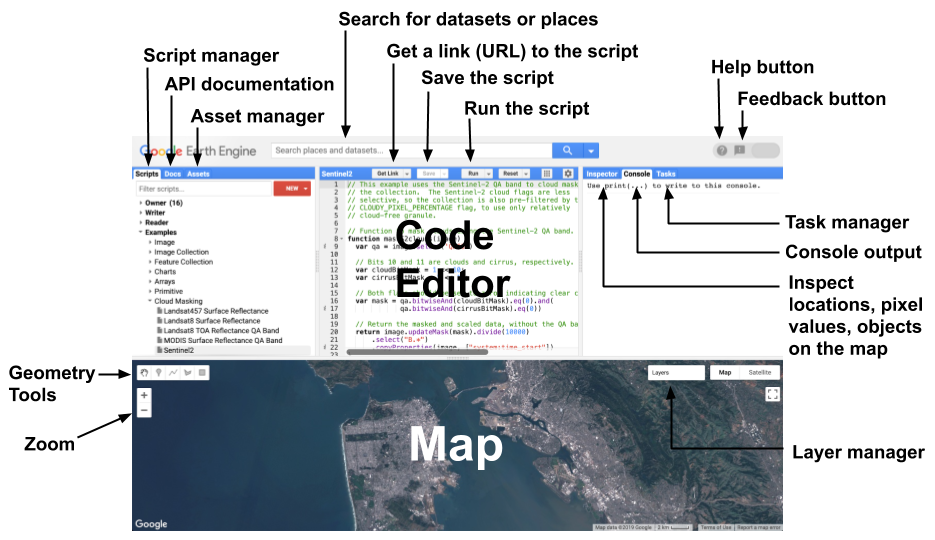
Aapka basic debugging loop yeh hona chahiye:
- Script ko Run kijiye.
- Console ka pehla meaningful error padhiye.
- Reported line aur uske just pehle wali lines inspect kijiye.
- Problem ko smallest possible code block tak reduce kijiye.
print()ke labelled checkpoints add kijiye.- Ek change karke phir Run kijiye.
Ek time par ek hi issue solve karna important hai. Agar aap error dekhte hi script ke das parts change kar denge, to yeh clear nahin hoga ki actual fix kya tha.
Code Editor aur Console ko debugging tools ki tarah use kijiye
GEE editor aap type karte waqt syntax highlighting, underlines, matching brackets/quotes, aur autocomplete hints deta hai. Isliye Run dabane se pehle bhi basic issues pakde ja sakte hain. Console mein print() outputs aur errors appear hote hain; printed Earth Engine objects ko expand karke unke bands, properties, aur structure inspect kiye ja sakte hain.
Earth Engine Code Editor - Google for Developers
Google for Developers ki yeh official guide Code Editor ke syntax hints aur Console inspection ko explain karti hai. Isse aap interface ke un features ko intentional debugging workflow mein use karna shuru karenge.
“JavaScript editor” section mein editor guidance padhiye. Underlines, paired quotes/brackets, aur function-completion hints par focus rakhiye. Phir “Console Tab” section mein console inspection padhiye. Note kijiye ki print() ka output sirf text nahin hota; complex objects ko expand karke inspect bhi kiya ja sakta hai.
Console messages ko meaningful banaiye. Compare these two styles:
print(ndvi);
print(cloudPercent);
Versus:
print('DEBUG | field NDVI:', ndvi);
print('DEBUG | scene cloud percentage:', cloudPercent);
Second version better hai because kuch din baad, ya larger script mein, aap immediately samajh sakte hain ki value kis stage aur kis variable se related hai.
Ek useful naming convention:
print('DEBUG | input | cloud percentage:', cloudPercent);
print('DEBUG | output | cloud decision:', decision);
Agar pehla message visible hai lekin second message nahin, failure in dono checkpoints ke beech ke code mein hoga. Yeh simple technique long processing workflows mein bahut kaam aati hai.
Syntax error: JavaScript aapka code padh hi nahin pa raha
Syntax error tab hota hai jab JavaScript ke grammar rules break ho jaate hain. Script execution start hone se pehle hi parser ruk sakta hai. Isliye aapko expected Console messages bhi nahin milenge.
Common causes:
- closing quote missing:
'NDVI - closing parenthesis missing:
print('Done' - closing curly brace missing:
} - invalid comma ya bracket placement
- keyword ka incorrect use
Official Earth Engine debugging guide syntax errors aur JavaScript-side mistakes ko directly distinguish karti hai.
Debugging guide - Earth Engine - Google for Developers
Google Earth Engine ki official “Debugging Guide” errors ko classify karne aur message ko evidence ki tarah read karne ka strong reference hai. Aaj basic syntax, undefined-variable, invalid-method, aur missing-band examples par focus kijiye.
“Syntax errors” section mein syntax distinction padhiye. Phir “Client-side errors” section mein undefined variable aur non-existent method ke examples ke baad two diagnostics padhiye. Finally, “Server-side errors” section ki opening mein server runtime introduction padhiye. Abhi advanced sections memorise karne ki zarurat nahin hai; error wording se diagnosis ka direction kaise milta hai, yeh observe kijiye.
Example: missing quote
Is code ko dekhiye:
const studyName = 'Kharif vegetation analysis;
print(studyName);
Problem first line mein hai: string opening quote se start hui, but closing quote nahin mila.
Correct code:
const studyName = 'Kharif vegetation analysis';
print(studyName);
Ek subtle point: Code Editor kabhi kabhi error location line 2, print() wali line, ya file ke end ke paas show kar sakta hai. Iska matlab print() necessarily wrong nahin hai. Parser ko aksar next line par realize hota hai ki previous line incomplete thi.
Isliye syntax-error location ko is tarah interpret kijiye:
- reported line se start kijiye;
- then immediately previous line inspect kijiye;
- matching quote,
(),[], aur{}pairs check kijiye.
Quick syntax checklist
Run karne se pehle, especially jab aap manually code edit kar rahe hon:
| Check | Typical mistake |
|---|---|
| Strings | Opening aur closing quote match nahin kar rahe |
| Function call | print( ka closing ) missing |
| Block | if ya function ka closing } missing |
| Arrays | [ ka matching ] missing |
| Object settings | Properties ke beech comma missing |
| Variable declaration | const ke saath value/name incomplete |
Editor automatically quote, parenthesis, aur bracket pairs suggest karta hai. Un pairs ko delete ya edit karte waqt especially alert rahiye.
Runtime error: code valid hai, lekin execute hote waqt fail hota hai
Runtime error mein syntax correct hoti hai. JavaScript script run karna start karta hai, lekin kisi specific line ya operation par failure hota hai.
Do common plain-JavaScript patterns:
1. Undefined variable
const selectedIndex = 'NDVI';

print('Selected index:', selectedIndex);
print('Threshold:', ndviThreshold);
Pehla print() work karega. Second line fail karegi because ndviThreshold define hi nahin hua.
Fix:
const selectedIndex = 'NDVI';
const ndviThreshold = 0.30;

print('Selected index:', selectedIndex);
print('Threshold:', ndviThreshold);
Aise error ko aap often variable-name typo ke roop mein solve karenge. For example, aapne define kiya:
const cloudThreshold = 20;
Lekin later likh diya:
print(cloudTreshold);
Threshold ke spelling mein missing h hi runtime error create kar sakta hai. Consistent naming isliye cosmetic habit nahin, reliability habit hai.
2. Wrong type par method call karna
const districtName = 'Nashik';

print(districtName.toFixed(2));
Syntax bilkul valid hai. Lekin .toFixed(2) number ke liye method hai; districtName string hai. So execution par error aayega.
Correct intent ke according fix choose kijiye:
const districtName = 'Nashik';
print(districtName.toUpperCase());
Ya agar decimal formatting required thi, input number hona chahiye:
const meanNdvi = 0.67891;
print(meanNdvi.toFixed(2));
Yahan key question hai: “Mujhe kya mila, aur method kis type ki value expect karta hai?”
Syntax, runtime, aur silent logic issue mein difference
| Issue type | Script kab fail hota hai? | Example | First debugging move |
|---|---|---|---|
| Syntax error | Execution se pehle | Missing quote or bracket | Reported line aur previous line mein punctuation check |
| Runtime error | Specific operation run hote waqt | Undefined variable or invalid method | Error wording padhiye; actual variable/type inspect kijiye |
| Logic issue | Script may run without error | Wrong NDVI threshold order | Intermediate values aur outputs print() karke expected result se compare kijiye |
Third category—logic issue—mein Console red error nahin dikhayega. For example, pichhli lesson ka incorrectly ordered condition:
const ndvi = 0.72;

if (ndvi >= 0.30) {
  print('Moderate vegetation');
} else if (ndvi >= 0.60) {
  print('High vegetation');
}
Yeh code execute hota hai, but scientific rule wrong implement hua hai. Isliye error-free script automatically correct analysis nahin hota. Debugging ka mature version means checking both errors and plausibility of output.
GEE-specific runtime clue: requested band actual image mein hai ya nahin?
Aage imagery work mein aapko aise errors frequently milenge: requested band does not exist. Abhi is example ko full Earth Engine object lesson ki tarah treat nahin karna hai; ise Console inspection ka practical preview samajhiye.
const dem = ee.Image('USGS/SRTMGL1_003');

print('DEBUG | DEM object:', dem);
print('DEBUG | available bands:', dem.bandNames());
Console mein available bands inspect kijiye. SRTM image ka relevant band elevation hai.
Ab intentional error:
const dem = ee.Image('USGS/SRTMGL1_003');

const wrongSelection = dem.select('elevationBand');
print('DEBUG | selected band:', wrongSelection);
elevationBand naam ka band available nahin hai, so Earth Engine runtime par band-selection error report karega.
Correct version:
const dem = ee.Image('USGS/SRTMGL1_003');

const elevation = dem.select('elevation');
print('DEBUG | selected elevation band:', elevation);
Is pattern ko yaad rakhiye:
- Assumption mat banaiye ki har dataset mein familiar names jaise
B4,NDVI,VV, yaelevationhonge. - Pehle image object aur
image.bandNames()print kijiye. - Console mein exact spelling verify kijiye.
- Uske baad
select()use kijiye.
GEE mein kuch errors server-side computation ke time surface hote hain—especially jab print(), Map layer, chart, ya export computation evaluate karta hai. Module 2 mein client-side JavaScript aur Earth Engine ke deferred server-side model ko detail mein cover kiya jayega. Abhi practical rule simple hai: error message mein band/property/method ka naam dekhiye, phir Console se actual object inspect kijiye.
Guided debugging lab: ek script, teen controlled checks
Apne script ki new copy save kijiye:
08_debugging_basics
Har stage ko separately run kijiye. Ek intentional error ko fix kiye bina next stage par mat jaiye.
Stage 1: syntax error locate kijiye
Pehle yeh intentionally broken code run kijiye:
const projectName = 'Monsoon crop monitoring;
print('Project:', projectName);
Console/editor warning dekhiye. Phir:
- Reported line par jaiye.
- Usse previous/current line mein string opening quote dekhiye.
- Missing closing quote add kijiye.
- Script phir run kijiye.
Expected corrected code:
const projectName = 'Monsoon crop monitoring';
print('Project:', projectName);
Stage 2: runtime error isolate kijiye
Ab yeh code run kijiye:
const selectedIndex = 'NDVI';

print('DEBUG | selected index:', selectedIndex);
print('DEBUG | threshold:', ndviThreshold);
print('DEBUG | script completed');
Observe kijiye:
- kaunsa message error se pehle successfully print hua;
- error kis undefined name ko mention karta hai;
script completedmessage visible hua ya nahin.
Phir correct version run kijiye:
const selectedIndex = 'NDVI';
const ndviThreshold = 0.30;

print('DEBUG | selected index:', selectedIndex);
print('DEBUG | threshold:', ndviThreshold);
print('DEBUG | script completed');
Isse checkpoint-based debugging ka logic clear hota hai: last successful message aapko failure ke approximate location tak le aata hai.
Stage 3: actual GEE band-name verification
Ab yeh clean inspection script run kijiye:
const dem = ee.Image('USGS/SRTMGL1_003');

print('DEBUG | input image:', dem);
print('DEBUG | available bands:', dem.bandNames());
Console mein printed list expand karke elevation band verify kijiye. Uske baad valid selection add kijiye:
const dem = ee.Image('USGS/SRTMGL1_003');

print('DEBUG | available bands:', dem.bandNames());

const elevation = dem.select('elevation');
print('DEBUG | selected band:', elevation);
Aapne ab ek reusable professional pattern practice kiya:
print('DEBUG | available bands:', image.bandNames());

// Band name confirm hone ke baad hi select karein.
const selected = image.select('verifiedBandName');
Future Sentinel-2, Landsat, Sentinel-1, climate, aur land-cover workflows mein yahi habit incorrect band names se hone wale avoidable errors ko sharply reduce karegi.
Aapka compact debugging protocol
Jab bhi Code Editor mein red error aaye, yeh protocol apply kijiye:
- Message ko literally padhiye. “Not defined,” “is not a function,” aur “did not match any bands” different problems hain.
- Error type classify kijiye. Syntax hai ya runtime?
- Reported line ke saath surrounding code padhiye. Syntax issue mein previous line especially important hai.
- Expected vs actual verify kijiye. Variable defined hai? Value number hai ya string? Band name real hai?
- Checkpoint prints use kijiye. Input, intermediate result, aur final output ko clear labels ke saath print kijiye.
- Smallest test run kijiye. Large workflow ko temporarily reduce karke one function, one value, ya one image test kijiye.
- Fix ke baad rerun kijiye. Console mein correct output verify kiye bina error fixed assume mat kijiye.
Key takeaways
Aaj aapne Code Editor debugging ka foundation build kiya:
- Syntax errors language grammar break hone par aate hain aur execution rok dete hain.
- Runtime errors valid code execute hote waqt aate hain, such as undefined variables, wrong-type methods, ya missing image bands.
- Reported line useful clue hai, but missing quote/bracket errors mein real cause previous line mein bhi ho sakta hai.
- Clear
print('DEBUG | label:', value)messages failure ko stages mein isolate karte hain. - GEE imagery ke saath
image.bandNames()print karke band names verify karna essential habit hai. - Error-free execution aur scientifically correct output same cheez nahin hain; intermediate outputs bhi inspect karne hote hain.
Next module mein aap JavaScript values aur Earth Engine ke server-side objects ke beech crucial difference samjhenge. Yeh debugging discipline wahan immediately useful hoga, because GEE errors ko correctly interpret karne ke liye yeh jaana zaroori hai ki code ka kaunsa part browser mein aur kaunsa part Earth Engine cloud par execute hota hai.
Can't find a good explanation? Sign up and we'll make it for you
Sign up